
The Mautic integration allows you to easily transfer any list from your Mautic to your DeBounce account and validate it. Here is a step-by-step guide to validating your Mautic emails.
Back to Integrations
Mautic Email Verification Integration
Grab your email list from the Mautic and verify. Use the power of DeBounce email validation engine. It's easy and can be done by following simple steps.
No Credit Card is Required. From $0.0003 per Check.


- 01
Enabling HTTP Basic Auth API
Before starting, you need to enable HTTP basic auth, so DeBounce can connect your Mautic account and transfer the lists. We already provided a blog post that includes step by step guide and lets you know how to do that. Check the article via this link.
- 02
Importing a list from Mautic
Once you have enabled the basic API auth, click on “Integrations” on the left menu. Then click on the “Connect” button in front of the Mautic icon.

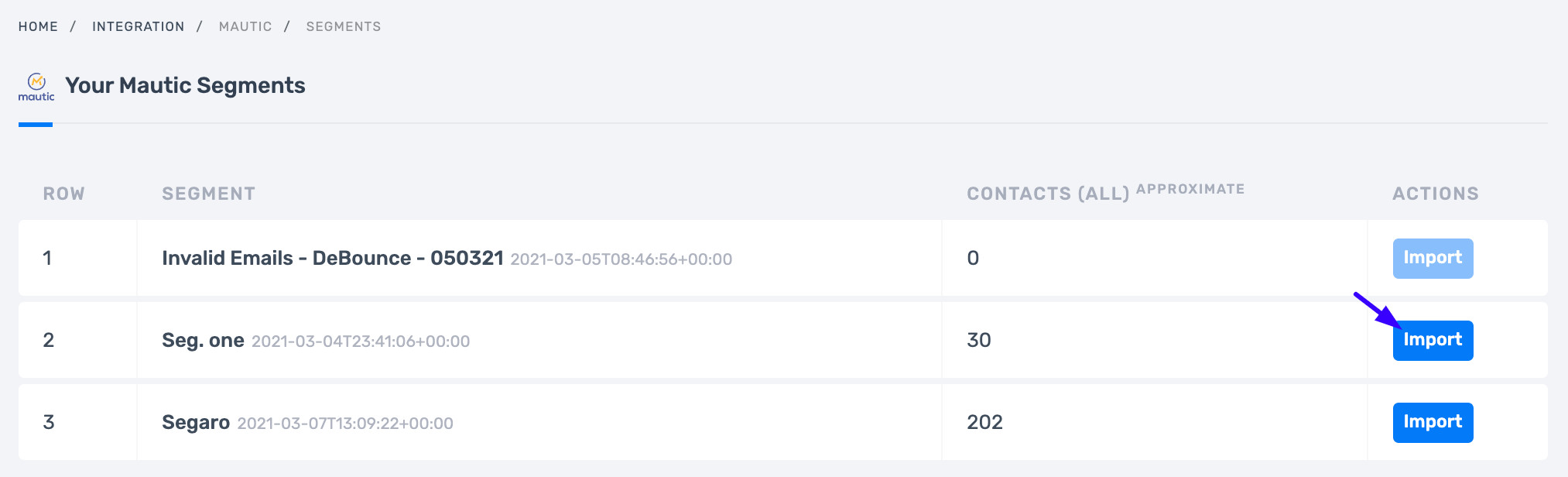
On the next page, provide the Mautic installation URL, admin username, and admin password, then press the “Connect”. If everything is done correctly, you will see a full list of your segments on Mautic. Then click on “Import” in front of the segment you are going to validate. Wait until the list is successfully transferred. You may now start validating your transferred segment.
- 03
Unsubscribing bad emails from your Mautic account
Once the validation process is finished, click on “Update Mautic”.

Based on analyzing results, choose what categories are you going to suppress (for example invalid, spam-trap, and disposable emails), then click on the “Update Mautic’s List” button. Wait some seconds for the process to finish.
IMPORTANT:
DeBounce adds a tag “debounce_unsubscribe” to the selected categories. You are required to manually filter these emails and remove them from your Mautic instance. You can navigate to this URL to filter these emails:
https://mautic.yourdomain.com/s/contacts?search=segment:REPLACE_WITH_YOUR_SEGMENT_ALIAS+AND+tag:debounce_unsubscribe
You need to replace the bold characters with your desired values.
- 04
Disconnecting Mautic
After unsubscribing bad emails from your Mautic, you can disconnect DeBounce and Mautic. Just navigate to the “Integration” page on DeBounce and press “Disconnect” in front of the Mautic logo.

