Automated email marketing is incredibly convenient and powerful. Like anything, it takes some work to get right and maintain momentum. Unfortunately, email lists can become...

Key Takeaways
You need to send a 50MB presentation to a client before a meeting that starts in an hour. You attach it to an email, hit send, and almost immediately get a bounce back: “Message size exceeds maximum allowed.”
Email attachment limits are frustrating, especially when you’re trying to share something quickly and be done with it. Most email providers cap attachments at 25MB, and some are even stricter. Trying to push large files through anyway fails, and it can even trip spam filters, slow delivery, or get your message blocked altogether. The solution is to use options that are actually meant for large file transfers.
This guide explains why email providers limit attachment sizes and how to send large files by email, using the approach that works best for you.
Email providers enforce attachment size limits for technical and practical reasons that affect both senders and recipients. Typical attachment limits across providers include:
These limits apply to the total message size, not individual attachments. If you attach three 10MB files, the combined 30MB exceeds most limits and causes delivery failure.
These limits exist because of:
When exceeding these limits, expect:
Instead of attaching large files directly, use one of three proven methods that keep files accessible without triggering size restrictions or delivery problems.
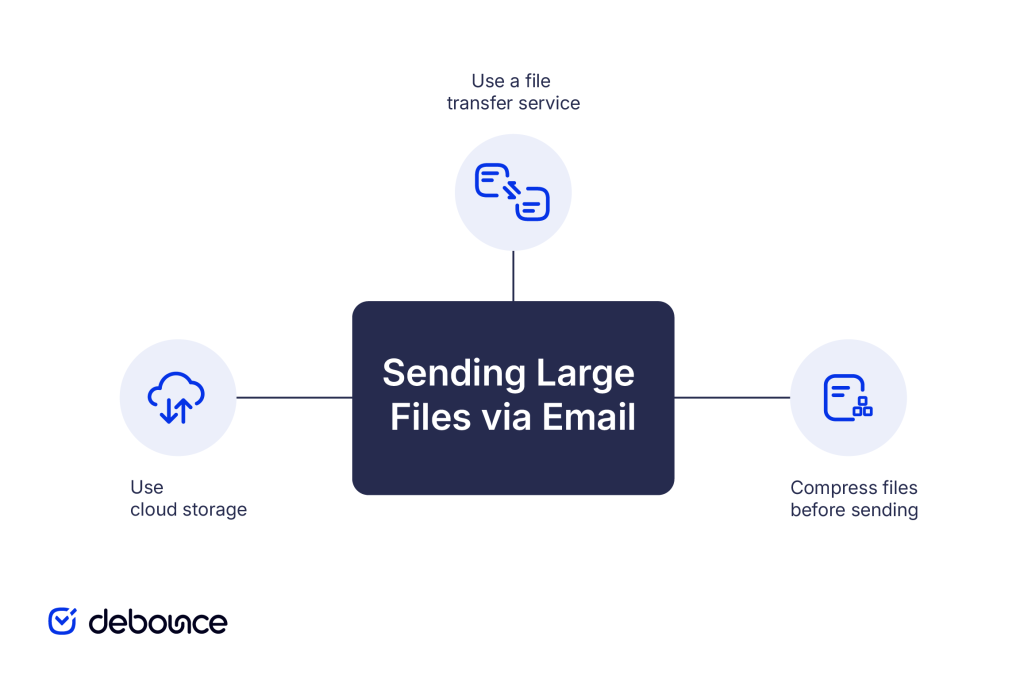
Cloud storage services provide the most reliable, flexible way to share large files via email. This method works for files of any size and gives you control over access permissions and sharing duration.
How cloud storage sharing works:
Why cloud storage is the best method:
Most cloud providers offer free storage that’s sufficient for regular file sharing:
Dedicated file transfer services specialize in one-time sends where you don’t need permanent cloud storage. These services email download links to your recipients automatically.
How file transfer services work:
Recipients receive an email from the service (not from you directly) with a link to download the file. After the expiration period, the file is automatically deleted from the service’s servers.
When file transfer services make sense:
Limitations to consider:
File compression (zipping) reduces file sizes by encoding data more efficiently. This method helps when your files are slightly over attachment limits, but it won’t work for very large files.
How compression works:
Recipients download the ZIP file and extract it using built-in tools on any modern operating system.
What compression can realistically do:
Use compression only when:
Skip compression if:
Different scenarios call for different file-sharing approaches. Here’s how to decide quickly:
Use cloud storage when:
Use file transfer services when:
Use compression when:
As a general rule, for anything over 25MB, default to cloud storage links. They’re universally supported, give you the most control, and work reliably for files of any size.
Beyond choosing the right file-sharing method, follow these practices to ensure your emails with file links get delivered reliably and don’t trigger spam filters.
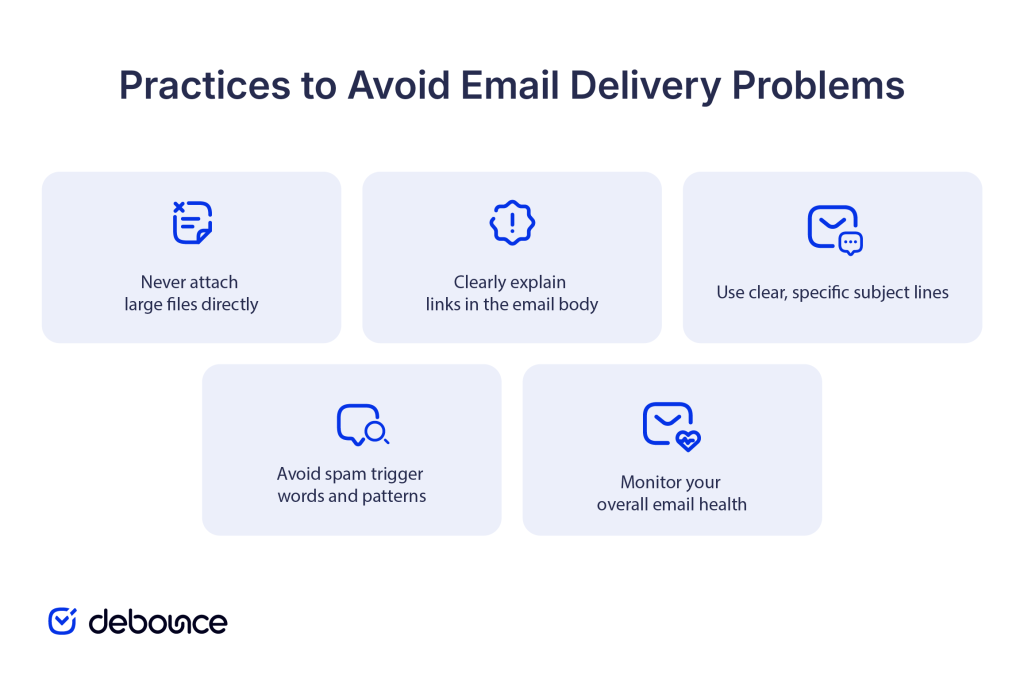
Even if you think your file is under the limit, sending large attachments repeatedly increases the chance of delivery problems. Email providers monitor sender behavior, and consistent use of maximum-size attachments can affect how they treat your messages. Over time, this pattern can signal inefficient sending practices and make your messages more likely to be delayed or filtered.
Don’t just paste a link without context. Recipients might ignore or delete unexplained links, thinking they’re spam or phishing attempts. Write a brief message explaining:
Example: “Hi Sarah, I’ve shared the Q4 budget proposal via Google Drive. You can access it here: [link]. Let me know if you have any questions or need edit access instead of view-only.”
Vague subject lines like “File” or “Document attached” trigger spam filters and don’t help recipients prioritize your message. Use descriptive subjects that explain what you’re sending. For example, instead of “File for you,” you can use “Q4 Budget Proposal – Ready for Review.”
Even legitimate file-sharing emails can get filtered if they contain language commonly used in spam:
File-sharing is just one part of maintaining good email deliverability. If you regularly send emails that bounce, get marked as spam, or go to invalid addresses, your sender reputation suffers across all messages, including those with file links.
To resolve email bouncing and maintain a clean email list, verify addresses before sending and use an email bounce rate calculator to track your delivery health over time. DeBounce helps you identify invalid, risky, and inactive addresses before they generate bounces that hurt your sender reputation.
Some file-sharing scenarios require tools specifically built for the task rather than trying to adapt email for purposes it wasn’t designed to handle.
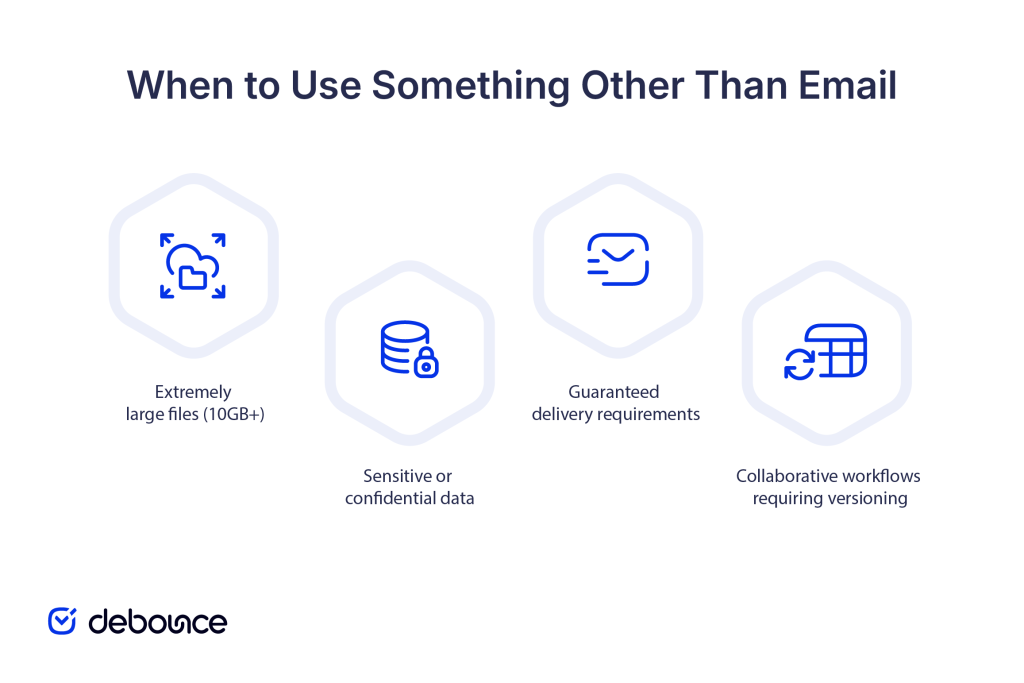
While cloud storage handles files this large, sharing them via email links might not be ideal. Consider:
Email, even with cloud links, isn’t the most secure channel for highly sensitive information like:
For these scenarios, use:
Email delivery isn’t guaranteed, even when following best practices. If you absolutely must confirm that files were received and accessed:
If multiple people need to edit files simultaneously with full version history and change tracking, email-based sharing becomes inefficient. Use:
Understanding when to use email versus a dedicated file-sharing infrastructure helps you choose the most reliable, secure method for each situation.
Email attachment limits exist for good technical reasons, and trying to bypass them by forcing large files through email causes bounces, delays, and delivery problems. The reliable solution is working with email’s design rather than against it: upload large files to cloud storage, share links instead of attachments, and reserve file transfer services or compression for specific use cases.
Cloud storage links handle files of any size, give you control over permissions and access duration, and ensure your emails remain small and deliverable. For most file-sharing needs, this is the fastest and most flexible approach.
Set up a cloud storage account if you don’t already have one. Upload your next large file to Google Drive, Dropbox, or OneDrive, generate a shareable link, and send that link via email instead of attaching the file directly. You’ll immediately avoid size limits and improve delivery reliability.
Beyond individual file-sharing decisions, maintaining overall email health ensures your messages reach recipients reliably every time. Use DeBounce to verify your email lists, monitor ongoing deliverability, and catch issues before they generate bounces that hurt your sender reputation. Register now to verify your first addresses and start building stronger email practices, or explore email list monitoring to automatically track list quality over time.
For large-scale data transfers, use dedicated file transfer protocols (FTP/SFTP) or enterprise tools like Aspera rather than email; email is designed for messages, not bulk data movement.
Google Drive, Dropbox, and OneDrive are the most reliable options for sharing large files via email links because they’re widely trusted, offer generous free storage, and integrate smoothly with email workflows.
Most likely, your attachment exceeds your email provider’s size limit (typically 10-25MB), or the file type is blocked for security reasons; use cloud storage links instead of direct attachments to bypass these restrictions.
Find quick answers to your questions about our pricing and plans.
Automated email marketing is incredibly convenient and powerful. Like anything, it takes some work to get right and maintain momentum. Unfortunately, email lists can become...

Do you have an email address field on your HTML5 form? If the answer is positive, probably you have implemented a JavaScript or jQuery email...

A couple of factors determine whether your recipients will click on your email or not. However, the most important of these is your email sender...
Enterprise platforms protect against advanced persistent threats and BEC, privacy providers focus on encryption, and hygiene services prevent delivery failures and list contamination....

Want to write cold emails that get read? Here are some of the best-known strategies for writing a perfect cold email that always gets a...
Emails still remain some of the most effective marketing tools you can use to promote your business or the service it offers. At the same...