What is the tool all top businesses use to boost their sales and pave their way to a roaring success? Email Marketing! Yes, and the...

Key Takeaways
You get an email from a business contact. Before you even read the message, your eyes catch the signature, and there’s their company logo. You recognize the brand immediately, and the email just feels more legitimate than something signed off with plain text.
That’s the quiet power of an email logo. It’s one of the simplest ways to strengthen brand recognition in every message you send. Email logos appear in multiple contexts, helping recipients immediately identify who’s contacting them and associate your messages with your brand.
This guide explains what email logos are, where they’re typically used, how to optimize them for different placements, and the best practices that help logos display correctly across email clients, supporting your brand without hurting deliverability.
An email logo is a branded image file (typically PNG or JPG format) embedded in or attached to email messages to reinforce brand identity and create visual consistency across communications.
Email logos serve the same branding function as logos on websites, social media, or printed materials, but they’re optimized specifically for email constraints, with smaller file sizes, limited width to fit various screen sizes, and formats that display reliably across different email clients.
The goal is creating a recognizable brand mark that loads quickly, displays reliably, and works across desktop email clients, webmail interfaces, and mobile devices without causing deliverability or performance issues.
Email logos appear in several standard locations, each serving different purposes and requiring different technical approaches.
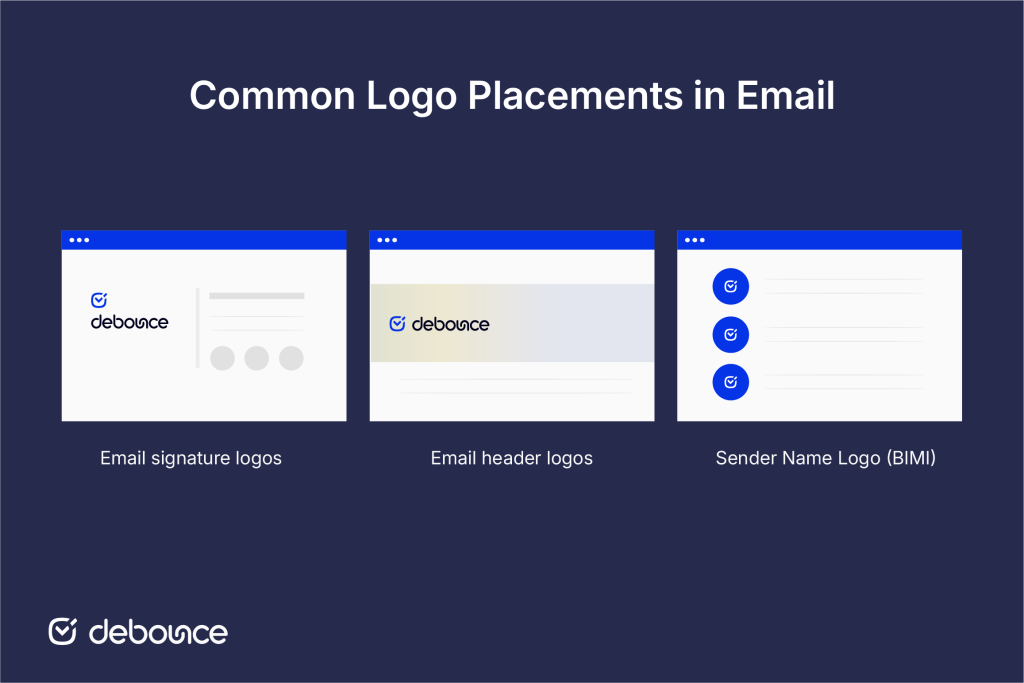
Email signature logos appear at the bottom of messages in the signature block, typically alongside your name, title, contact information, and social media links.
Signature logos reinforce your brand identity in one-on-one professional correspondence, including client emails, internal communications, vendor discussions, and any other business email where you’d include a signature. They make individual messages from employees feel like official company communications rather than personal notes.
Typical implementations:
Professional services, B2B companies, and corporate teams heavily use signature logos to maintain consistent branding across all employee communications. Sales teams, customer support, and executives particularly benefit from signature logos that reinforce company credibility in every interaction.
Signature logos appear only if recipients scroll to the bottom of emails. In long messages or threads, signatures might not be immediately visible. Recipients also see signatures only when they open emails, not in inbox preview panes where header logos or BIMI logos are more prominent.
Email header logos appear at the top of marketing emails, newsletters, transactional messages, and automated campaigns, usually as part of a designed header banner.
Header logos typically occupy the top 100-150 pixels of email templates, often:
Marketing emails, e-commerce order confirmations, welcome sequences, and newsletters almost always include header logos to immediately identify the sender before recipients read any content.
Header logos create visual continuity across all your automated and marketing messages. When recipients see your logo at the top of every newsletter, promotional email, or transactional notification, they quickly learn to recognize your messages in crowded inboxes.
This consistency builds trust: recipients know what to expect from your brand, reducing the likelihood they’ll mark messages as spam or delete them without reading.
Brand Indicators for Message Identification (BIMI) is a newer email authentication standard that displays verified brand logos next to your sender name in the inbox, before recipients even open messages.
BIMI logos appear in Gmail, Yahoo, and other supporting clients as small circular or square images next to the “From” name in inbox lists. This placement makes your brand visible at the most critical moment: when recipients are deciding which emails to open.
Implementing BIMI requires proper email authentication (DMARC, SPF, DKIM) and a verified logo certificate, making it more complex than simply embedding a signature or header logo.
Adding logos to signatures requires different steps depending on your email client, but the general process remains consistent.
Gmail:
Gmail allows inline image uploads or linking to hosted images. Uploading directly is simpler but increases email size slightly; linking to hosted images keeps emails smaller but requires maintaining the hosted file.
Outlook (Desktop):
Outlook (Web/Office 365):
Apple Mail:
Following these guidelines ensures your email logos display correctly, load quickly, and support deliverability.
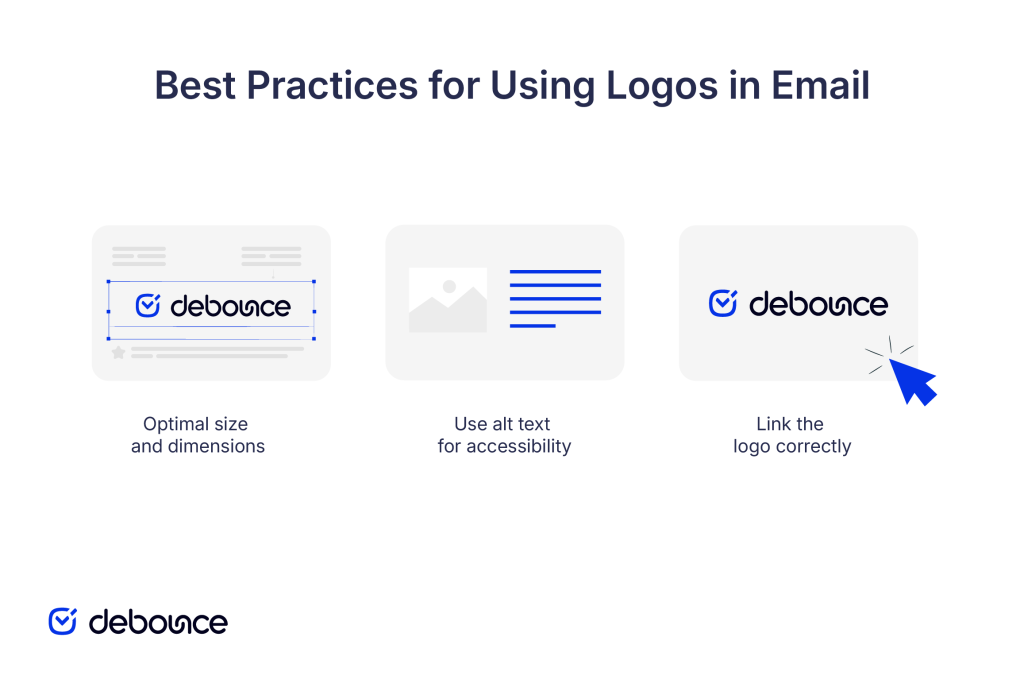
Email logos need to load quickly and display cleanly across devices, which makes size and proportion more important than visual detail.
How to reduce file size:
Alt text is the text description that appears when images fail to load or for users with screen readers.
Why alt text matters:
How to write good alt text:
Email logos should be clickable, directing recipients to a relevant destination when clicked.
Where to link:
Don’t link to: Email addresses (clicking should open your site, not compose a new email), social media (logos should go to owned properties), or broken/redirect URLs that confuse recipients.
When inserting logos in email signatures or templates, wrap the image tag in an anchor tag:
Most email signature editors handle this automatically when you select the image and click the link button in the toolbar.
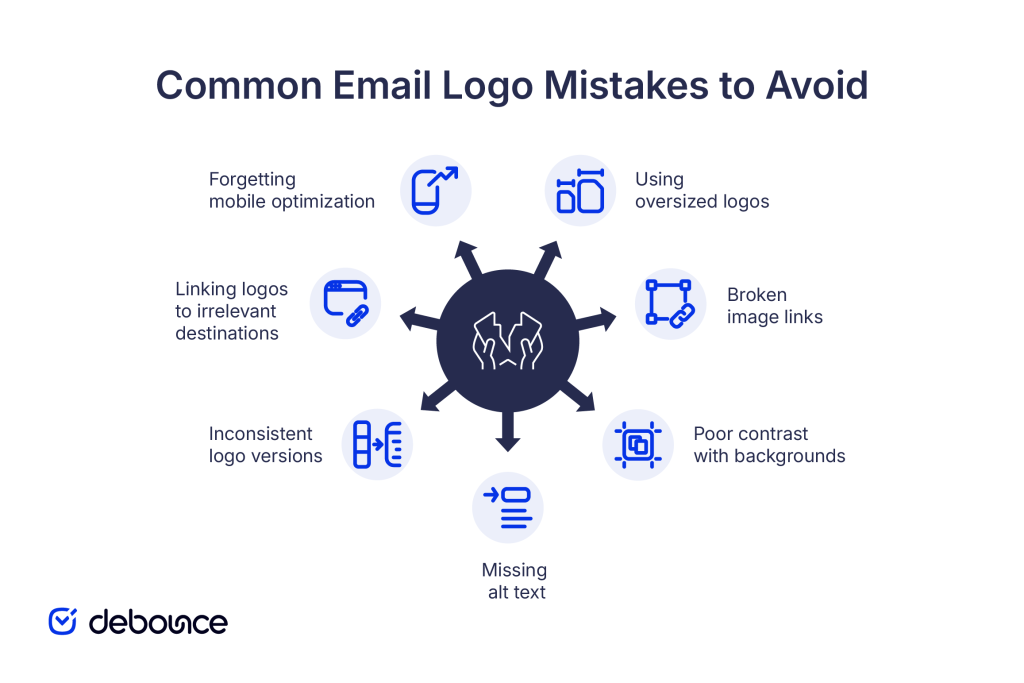
Even experienced marketers make these logo implementation errors that hurt brand presentation or deliverability.
Email logos reinforce brand identity across professional signatures, marketing campaign headers, and increasingly through BIMI verification in inbox sender displays. Properly sized, optimized, and implemented logos strengthen brand recognition in every message without hurting deliverability or recipient experience.
If you haven’t added a logo to your email signature yet, do it today. Export your logo at 200 pixels wide, compress it to under 30KB, upload it to your email signature following your client’s process, add alt text with your company name, link it to your homepage, and send yourself a test email to verify it displays correctly.
Beyond logo implementation, ensure your branded emails reach real recipients. Use DeBounce to verify email addresses before sending campaigns, removing invalid addresses that would cause bounces and waste your branded messaging efforts. Clean lists mean more recipients actually see your logo and associate it with positive, professional email experiences.
Can an email logo affect deliverability?
Logos themselves don’t hurt deliverability when properly optimized, but extremely large image files or image-only emails with no text can trigger spam filters. Keep logos under 50KB and always include substantive text content.
Why doesn't my logo show up in some email clients?
Many email clients block images by default until recipients click “Display images,” which is why adding alt text is critical so your company name appears even when the logo image doesn’t load.
Should I use a logo in cold outreach emails?
Yes, but keep it minimal. A small signature logo adds legitimacy without making the email look like marketing; avoid large header logos in cold outreach, as they can feel too promotional and lower response rates.
Find quick answers to your questions about our pricing and plans.

What is the tool all top businesses use to boost their sales and pave their way to a roaring success? Email Marketing! Yes, and the...
When you gather some contacts on a separate list because you DO NOT want to send to them for reasons ranging from bad delivery rates...

Nowadays, businesses splash out on elaborate marketing strategies to reach out to prospective consumers and grow their consumer base. But at the end of the...


How often do you interact with your email box? I bet pretty often. Whether you receive a critical business email, write a business partner, or...

SPAM words can really hurt your email marketing. Therefore, it’s obvious we need to avoid them in order to succeed in email marketing. In this...
AI helps email marketers send messages that feel more personal, even when reaching large audiences. It adjusts content, timing, and targeting based on...