The relevance of email deliverability to an organization's email marketing strategy may have been discussed frequently. Still, you may not fully comprehend how it applies...

Key Takeaways
Your team just migrated to a new email provider, and you updated all the settings in your ESP. Everything looks configured correctly. And yet emails to your domain keep bouncing, with senders seeing “mail server not found” errors.
The issue is simpler and more frustrating than it looks. Your MX records, the DNS entries that tell the internet where your email should be delivered, are still pointing to the old provider.
MX records operate behind the scenes, routing billions of emails daily without most people knowing they exist. But when MX records are missing, misconfigured, or pointing to the wrong servers, email delivery breaks completely. Unlike deliverability problems that reduce inbox placement, MX issues prevent emails from reaching your mail server at all.
An MX lookup reveals exactly where emails to your domain are being routed, what priority each mail server has, and whether your DNS configuration matches your actual email infrastructure.
This guide explains what MX records are, how MX lookups work, how to perform and interpret them using common tools, and how to fix the most frequent MX configuration problems.
An MX lookup is a DNS query that retrieves the Mail Exchange (MX) records for a specific domain. Those MX records are the DNS entries that tell the internet which mail servers are supposed to receive email for that domain.
For example, when someone sends you a physical letter, the postal system uses your street address to figure out which facility should handle delivery. Similarly, when someone sends you an email, mail servers use your domain’s MX records to determine which email servers should receive the message.
An MX lookup answers one question: “Where should email for this domain be delivered?”
Every domain that receives email must have at least one MX record published in its DNS. Without MX records, sending mail servers don’t know where to route messages, and delivery fails with errors like “mail server not found” or “no MX records available.”
MX records contain:
Most domains configure multiple MX records with different priorities to provide redundancy. If the primary mail server is down, sending servers automatically try the secondary or tertiary servers based on priority order.
MX records serve one primary purpose: routing inbound email to the correct mail servers for your domain. But that simple function has several important implications for how email works.
When someone sends an email to [email protected], their mail server performs an MX lookup for yourdomain.com to find out which mail server handles your email. The MX records tell the sending server exactly where to deliver the message.
This routing happens for every email sent to your domain, including customer inquiries, newsletter signups, system notifications, internal team communications, and everything else. If your MX records are wrong, none of those emails reach you.
Domains typically publish multiple MX records with different priorities:
Sending servers try the lowest priority number first. If that server is unavailable, unreachable, or returns an error, they automatically move to the next-highest priority server. This redundancy ensures email delivery continues even if your primary mail server goes down for maintenance or experiences an outage.
Some organizations also use equal-priority MX records to distribute incoming email load across multiple servers, though this is less common than simple failover configurations.
Your MX records need to point to mail servers you actually control or that your email provider operates. If you’re using Google Workspace, your MX records should point to Google’s mail servers. If you’re using Microsoft 365, they should point to Microsoft’s servers. If you run your own mail server, they should point to your server’s hostname.
Mismatches between MX records and actual infrastructure cause delivery failures. For example, if your MX records still point to an old email provider after you’ve migrated, new emails will try to deliver to servers that no longer accept mail for your domain.
If MX records are incorrect or missing:
When a mail server needs to deliver an email, it performs an MX lookup by querying DNS servers. This process happens automatically and takes milliseconds, but understanding the mechanics helps you troubleshoot delivery issues.
The DNS query process:
An MX lookup returns a list of records formatted like this:
example.com MX 10 mail1.provider.com
example.com MX 20 mail2.provider.com
example.com MX 30 mail3.provider.com
Each line shows the domain, record type (MX), priority value, and the hostname of the mail server. Sending servers use this information to determine delivery routing and failover sequences.
Checking MX records doesn’t require specialized software. Several methods exist, from online tools to command-line utilities, depending on your technical comfort level and needs.
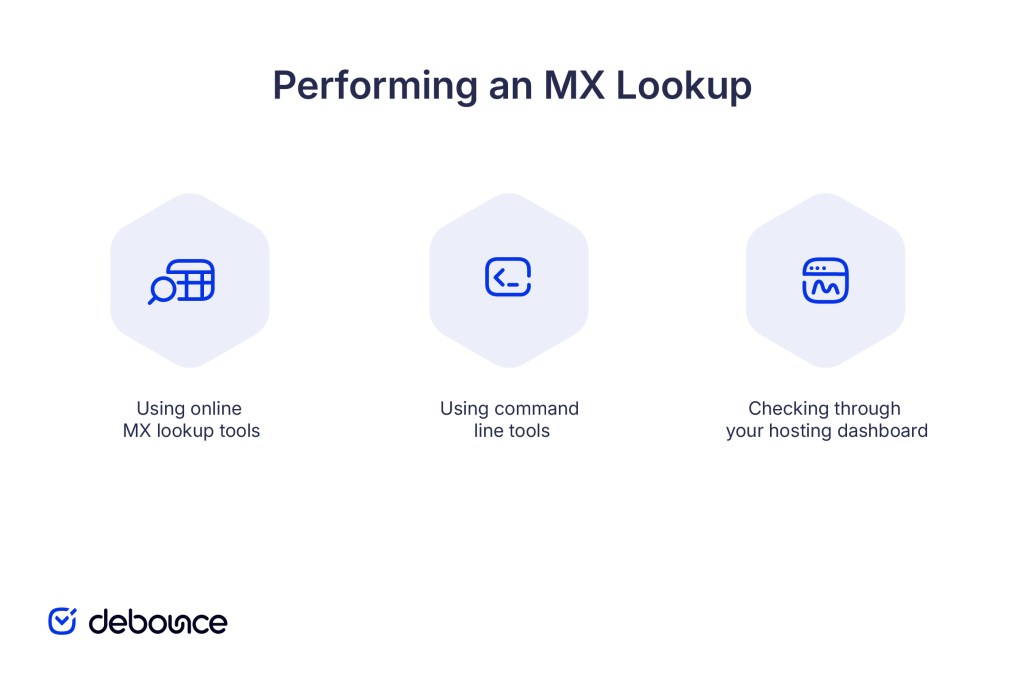
Online tools provide the easiest way to check MX records without installing anything. Popular options include:
MXToolbox (mxtoolbox.com):
Google Admin Toolbox:
What MX Toolbox (whatsmydns.net):
These tools show not just your MX records but often additional information like whether the mail servers are responding, what their IP addresses are, and whether any DNS propagation issues exist.
For technical users or automated checks, command-line utilities provide direct DNS queries without relying on web interfaces.
Using nslookup (Windows, Mac, Linux):
This returns MX records directly from DNS servers. The output shows priority values and hostnames.
Using dig (Mac, Linux):
The +short flag returns just the essential information: priority values and mail server hostnames, without extra DNS query details.
Using host (Mac, Linux):
Returns MX records in a human-readable format with priority and hostname information.
Most hosting providers and domain registrars offer DNS management interfaces where you can view and edit MX records directly:
This method shows your configured records as they’re stored, which may differ from what’s currently propagated globally if you recently made changes.
MX lookup results contain specific information you need to interpret correctly to understand your email routing configuration.
The priority number controls the order in which mail servers are tried, starting with the lowest number first (indicating higher priority).
example.com MX 10 primary.mailserver.com
example.com MX 20 backup.mailserver.com
In this example, primary.mailserver.com (priority 10) receives all email under normal conditions. If it’s unavailable, sending servers automatically try backup.mailserver.com (priority 20).
Common priority patterns include:
The hostname is the fully qualified domain name of the server that accepts email. It must resolve to an IP address where a mail server is actually running and listening on port 25.
This tells sending servers to deliver email to the server at mail.google.com. That hostname must resolve via DNS to a valid IP address, and a mail server must be running at that address.
Some lookup results include TTL values, shown in seconds:
The TTL (3600 seconds = 1 hour) indicates how long DNS servers should cache this record before checking for updates. Lower TTL values mean changes propagate faster, but increase DNS query load.
Good signs include:
Warning signs include:
When you perform an MX lookup, you might encounter several common problems that prevent proper email delivery.
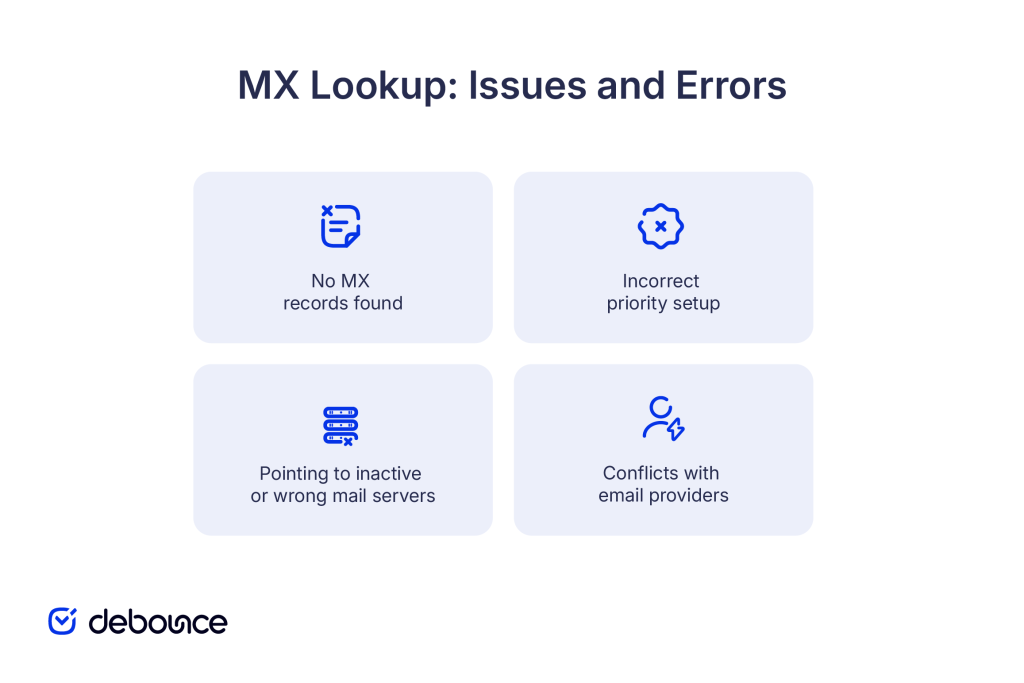
What it means: DNS returns no MX records for your domain, indicating email routing isn’t configured.
Why it happens:
How to fix it:
If no MX records exist, some sending servers will attempt to deliver email directly to an A record for the domain, but this is not reliable and many servers will simply bounce the message immediately.
What it means: Priority values are configured in ways that don’t match your intended routing, causing email to be delivered to backup servers first or creating unpredictable delivery patterns.
Why it happens:
Examples of problems:
example.com MX 50 primary.mailserver.com
example.com MX 10 old-backup.mailserver.com
Email goes to the old backup server (priority 10) instead of the intended primary server (priority 50) because lower numbers are tried first.
How to fix it:
What it means: MX records reference hostnames that don’t exist, don’t resolve to IP addresses, or point to servers that aren’t running mail services.
Why it happens:
Symptoms:
How to fix it:
What it means: MX records reference multiple different email providers simultaneously, causing delivery to be split unpredictably between systems or routed to providers that no longer host your email.
Why it happens:
Example of conflicting records:
example.com MX 10 aspmx.l.google.com (Google Workspace)
example.com MX 20 mail.oldprovider.com (Previous provider)
example.com MX 10 example-com.mail.protection.outlook.com (Microsoft 365)
This configuration splits email unpredictably between Google and Microsoft, with some going to an old provider. Users won’t receive all their email in one place.
How to fix it:
MX records are the fundamental routing system that directs all inbound email to your domain. When they’re configured correctly with proper priorities and pointing to active mail servers, email delivery works seamlessly. When they’re missing, misconfigured, or pointing to incorrect servers, email delivery fails completely, and you’ll never know what messages you’re missing.
Running an MX lookup takes 30 seconds using free online tools or command-line utilities and immediately reveals whether your email routing configuration matches your actual infrastructure. Check your MX records during migrations, after DNS changes, and whenever delivery problems appear.
Beyond correct MX configuration, email deliverability depends on clean lists that don’t generate bounces, spam complaints, or trap hits. Use DeBounce to verify email addresses before sending, removing invalid addresses and checking domain configurations that could cause delivery failures.
Verify your list now to ensure your messages reach real, active mailboxes after MX records route them correctly.
How long does it take for MX record changes to take effect?
MX record changes typically propagate within 1-4 hours but can take up to 48 hours to reach all DNS servers globally; the TTL value on your existing records determines the minimum propagation time.
Can a domain have MX records without an email service?
Yes, you can configure MX records even if you don’t actively use email, but they must point to servers that either accept or properly reject mail rather than timing out or causing errors.
What happens if multiple MX records have the same priority?
Sending mail servers randomly select among equal-priority MX records for each delivery attempt, effectively distributing load across those servers instead of using them as failover backups.
Find quick answers to your questions about our pricing and plans.

The relevance of email deliverability to an organization's email marketing strategy may have been discussed frequently. Still, you may not fully comprehend how it applies...

Do you run professional or business email campaigns? Are you wondering how to implement DMARC records for email validation and security? Did you know? You...


What email throttling entails is the regulation of the number of email messages sent to a specific ISP or remote server at a go. If...


BEC attacks succeed through impersonation and social engineering alone, bypassing most technical security controls that focus on detecting malicious code or suspicious links....

Once you have created something that people can sign-up for, a freebie for instance, you need to reach out to them in order to get...

When it comes to Online Marketing, Newsletters make a very important part of it. Today I Aabhas Vijay from smtpservers.co will cover all about newsletters...