Back to Integrations

Apollo Email Verification Integration

Import any list from Apollo, validate it, and remove invalid addresses before they enter a sequence. Contact data can change between prospecting and outreach, so validating close to send adds another check before a campaign.

No Credit Card is Required. From $0.00045 per Check.

What the Apollo Integration Does

The integration connects the two accounts with an API key and pulls your Apollo lists across for validation, so you do not have to export and re-upload CSV files.

  • Transfers any Apollo list into DeBounce with one click, with no CSV export step.
  • Checks every address for syntax, MX records, mailbox existence, disposable domains, catch-all behavior, and spam traps.
  • Separates results into categories you can act on, so you decide what to exclude rather than accepting a single pass or fail.
  • Leaves your Apollo data untouched. Nothing is changed or deleted in Apollo unless you do it.

There is one important limitation:

Suppression back into Apollo is manual. DeBounce does not write results to Apollo automatically, so step 3 covers downloading the categories you want and applying them in Apollo yourself.

Before You Start

Requirement Detail
A DeBounce account New accounts include 100 free credits, and no credit card is required. One credit covers one email validation.
An Apollo API key Created in Apollo under Settings, then Integrations, with Set as Master Key turned on.
A list in Apollo The integration imports Apollo lists, so build or save one before connecting.

How to Validate Your Apollo Lists

Four steps. Step 1 is one-time setup, steps 2 and 3 cover each list you validate, and step 4 is optional.

  • 01

    Creating an Apollo API key

    DeBounce needs an Apollo API key to connect your account and transfer lists.

    1. Open Apollo and click Settings, then Integrations under the Configurations section, using the gear icon in the top right corner.
    2. Scroll to API and click Connect.
    3. Click API Keys to view or create keys, then click Create New Key.
    4. Name the key, for example DeBounce, and add a description.
    5. Turn on Set as Master Key, then click Create API Key.
  • 02

    Importing a list from Apollo

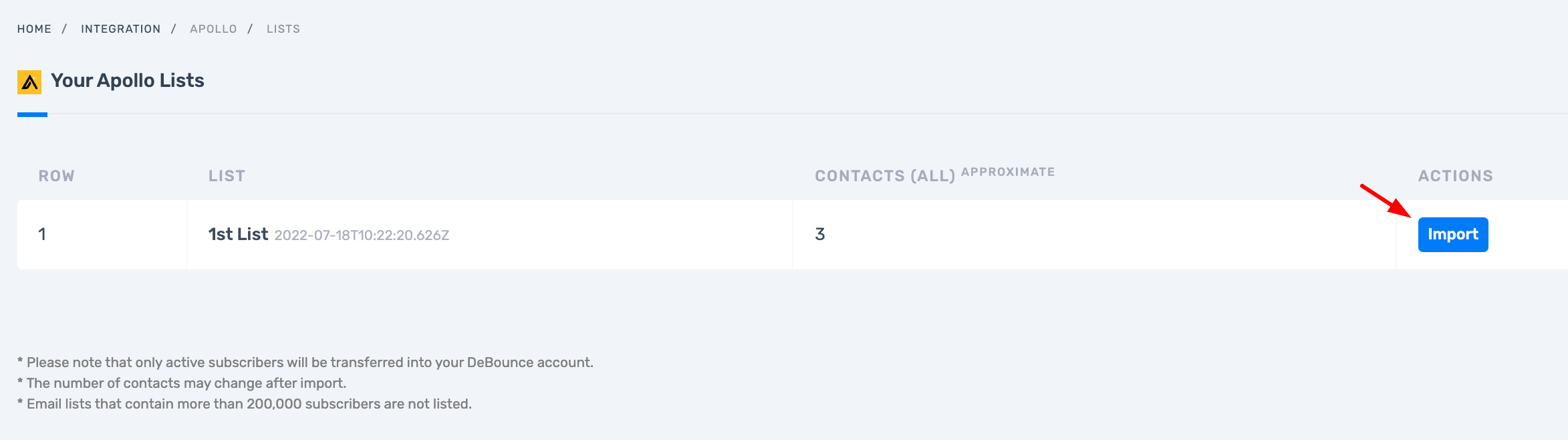
    In DeBounce, click Integrations on the left menu, then Connect in front of the Apollo icon. Paste the API key from step 1 and press Connect.

    Importing a list from Apollo (screenshot 1)

    Your Apollo lists appear, and clicking Import in front of one transfers it across. Once the transfer finishes, start validation.

    Every address runs through email list validation, which uses DNS and SMTP protocol functions only, so no message is ever sent to a prospect. Duplicates are identified before validation begins and are not charged. Processing time depends on factors such as list size, list quality, and server response speeds. DeBounce sends a notification when validation is complete.

    Importing a list from Apollo (screenshot 2)

  • 03

    Suppressing bad emails in your Apollo account

    Automatic suppression is not available for Apollo, so this step is manual. It takes a few minutes and only needs doing once per validated list.

    1. In DeBounce, review the result categories and decide what to exclude. Invalid, spam-trap, and disposable are the usual set.
    2. Download those categories as a file. You can export individual result segments rather than the whole list.
    3. In Apollo, update the matching contacts so they are excluded from outreach, such as by assigning them to the Bad Data stage or removing them from the list before sequencing.
    4. As a second option, filter or remove the matching contacts from the Apollo list itself before adding anyone to a sequence.

    Do the suppression before adding contacts to a sequence.

    This keeps invalid or risky addresses out of the campaign before Apollo schedules outreach to them.

  • 04

    Disconnecting Apollo

    After removing the bad emails from Apollo, you can disconnect the two accounts. Navigate to the Integrations page in DeBounce and press Disconnect in front of the Apollo logo. Leave the connection in place if you validate lists regularly.

    Download before you lose it:

    Uploaded lists are removed automatically 10 days after upload or validation, whichever is later. Export your results before then if you want to keep a copy of the cleaned file.

    Disconnecting Apollo

What Your Validation Results Mean

Each address comes back with a numeric code and a text reason. On a cold outreach list, the categories are more useful than a single pass or fail because they carry very different levels of risk.

Text code Code Description Send in a sequence?
Deliverable 5 Verified as a real address currently accepting mail Yes
Accept-All 4 Domain-wide setting, the server accepts everything sent to it Depends, see below
Unknown 7 The server could not be reached, after up to three attempts Depends, see below
Role 8 Group inbox such as info@, sales@ or admin@ Not for cold outreach
Invalid 6 Verified as non-existent or not accepting mail, will bounce No
Disposable 3 Temporary address from services such as Mailinator No
Spam Trap 2 A honeypot address used to catch poor sending practices No
Syntax 1 Not a valid email address in structure No


Spam traps deserve particular attention on prospecting data. They do not bounce, so they leave no trace in your campaign metrics, and hitting one can affect domain reputation on its own. Bought and scraped lists carry them most often.

Handling accept-all results before a cold campaign

Accept-all domains accept mail addressed to anything at the domain, so standard validation cannot confirm whether a specific mailbox exists. They are common among organizations targeted in B2B outreach. Catch-all validation provides an additional check, resolving these addresses into valid or invalid at a stated 95% accuracy for 10 credits per address rather than the standard 1.

What Apollo's Email Statuses Mean, and Where Validation Fits

Apollo labels every address in its database, so it is reasonable to ask why a separate validation pass is needed. The answer is in what those labels describe and when they were set.

Apollo status What Apollo says it means
Verified A fully confirmed, valid email address. Apollo states verified emails hold an 84% match rate and an accuracy rate above 90%, and cost 1 credit per contact.
Unverified Emails Apollo could not verify, including CSV, CRM and API uploads, and emails Apollo has low confidence in.
Update required A business email where Apollo has detected that the contact changed jobs.
Unavailable An email Apollo is unable to find or verify.
User managed An email you or your team uploaded or edited manually.
Catch-all An address on a domain that accepts every message sent to it.

Apollo uses its own seven-step verification process and states a 91% accuracy rate. It also refreshes contact data when new signals appear and through regular database checks. A separate validation pass adds another check close to send time, helping confirm that the address is still valid before outreach begins.

The practical rule:

Validate as close as practical to the campaign so the verification reflects the address at the time you plan to send.

Troubleshooting the Integration

Problem Cause and fix
The connection fails after pasting the key The Apollo key was created without Set as Master Key turned on. Create a new key with that option enabled.
Your Apollo lists do not appear The key connected but has insufficient scope. Recreate it as a master key rather than editing the existing one.
Nothing changed in Apollo after validating Expected behavior. Suppression is manual for Apollo, so results have to be downloaded and applied in Apollo yourself.
The list is too large to import Lists are capped at 200,000 emails. Split the list inside Apollo and import it in batches.
Results are gone before you downloaded them Lists are removed automatically 10 days after upload or validation, whichever is later. Re-import and re-run.
A sequence still bounces after validating Check which categories you excluded. Leaving accept-all and unknown in a cold sequence is the usual cause.

Frequently Asked Questions (FAQs)

01

Does Apollo already verify emails, and do I still need this?

Apollo verifies emails against its own database and labels them Verified, Unverified, Catch-all, and so on. Apollo states this process reaches a 91% accuracy rate. A separate validation pass tests the mailbox at the moment you are about to send, which matters most on records pulled weeks or months earlier.

02

What does Verified actually mean in Apollo?

Apollo defines Verified as a fully confirmed, valid email address, with an 84% match rate and an accuracy rate above 90%. Apollo also refreshes data when it receives new signals and runs regular database checks.

03

Can DeBounce remove bad contacts from Apollo automatically?

No. Automatic suppression is not available for Apollo. You download the categories you want to exclude and apply them in Apollo, such as by assigning the matching contacts to the Bad Data stage or removing them from the list before sequencing.

04

Does validation send test emails to my prospects?

No. DeBounce uses DNS and SMTP protocol functions and avoids sending any message to external mail exchangers for delivery, so prospects receive nothing.

05

How many contacts can I import from Apollo at once?

The maximum is 200,000 emails per list. Split larger Apollo lists and import them in batches.

06

What does it cost to validate an Apollo list?

One credit per email validation, and 10 credits per address for catch-all validation. Duplicates and unknown results are not charged, credits never expire, and new accounts start with 100 free credits.

07

How often should I re-validate Apollo lists?

Before each campaign. Around 30% of email addresses go bad within a single year, and prospecting data can become stale as people change jobs and business email addresses change.