Back to Integrations
Official Google Workspace Add-on

Google Sheets Email Validation and Verification

Validate and verify email addresses directly in Google Sheets with DeBounce. Clean invalid, disposable, catch-all, and duplicate emails inside your spreadsheet — no CSV export required.

No Credit Card is Required. From $0.00045 per Check.

What is Google Sheets email validation and verification?

Google Sheets email validation means checking whether addresses in your spreadsheet are safe to email — before you send campaigns, sync a CRM, or buy ads against a lead list. With DeBounce for Google Sheets, verification runs inside the sheet you already use, so marketers, RevOps, and agencies can clean lists without CSV exports or tool-switching.

Instead of guessing from format alone, DeBounce returns practical statuses such as Valid, Invalid, Disposable, Catch-all, Duplicate, and Unknown. That helps you reduce bounce risk, protect sender reputation, and keep reporting trustworthy.

Whether you manage a small outreach list or thousands of rows, Google Sheets email verification with DeBounce keeps list hygiene next to your source of truth.

Get the Google Sheets add-on

Email verification results written back to your sheet

After Google Sheets email validation finishes, DeBounce writes clear outcomes beside each address so your team can filter, segment, or remove risky rows in seconds:

  • Valid — mailbox checks look deliverable for sending.
  • Invalid — syntax, domain, or mailbox problems that should not be emailed.
  • Disposable — temporary / throwaway domains that distort signup quality.
  • Catch-all — accept-all domains that need a more careful policy (or Clean+ when uncertainty is high).
  • Duplicate — repeated addresses that inflate list size and waste credits.
  • Unknown — inconclusive results you can quarantine instead of forcing a send.

This in-sheet Google Sheets email verification workflow is built for day-to-day list cleaning, not one-off downloads.

How to run Google Sheets email validation with DeBounce

Install the official add-on once, then validate any email column directly in your spreadsheet. No export/import loop required.

  • 01

    Open Google Sheets

    Open your Google Sheets file that contains the email list you want to validate.

  • 02

    Install the DeBounce Add-on

    Go to the Google Workspace Marketplace and install the DeBounce for Google Sheets add-on.

  • 03

    Launch the Add-on

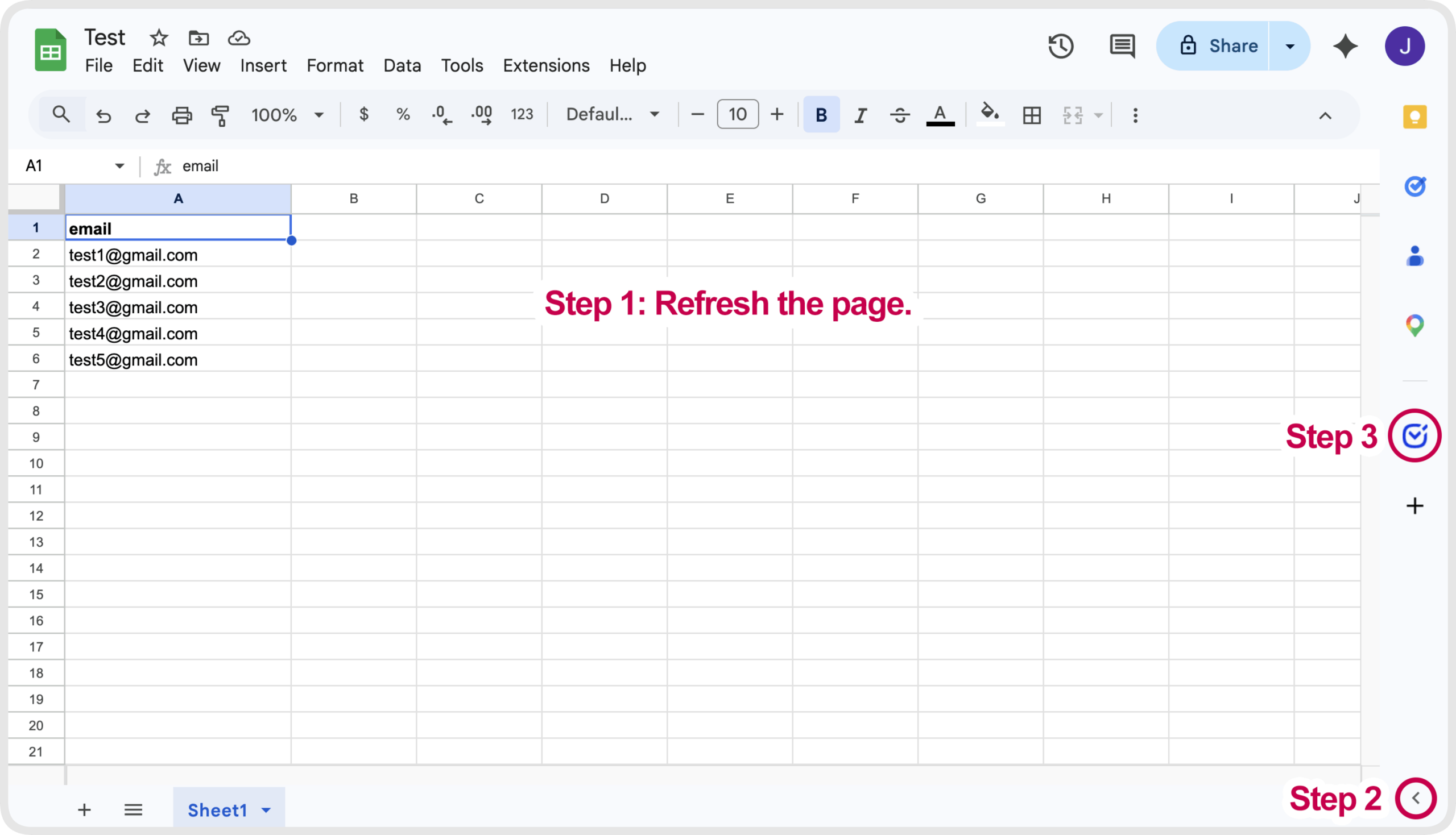
    After installation, refresh the page, open your spreadsheet, enable the sidebar panel, and launch DeBounce for Google Sheets.

  • 04

    Sign In to Your DeBounce Account

    Log in using your DeBounce account credentials or API key, depending on your integration flow.

  • 05

    Select the Email Column

    Choose the column that contains the email addresses you want to verify.

  • 06

    Start Validation

    Run the validation process directly from the add-on. DeBounce will check your email list using our email verification engine.

  • 07

    Review the Results

    Validation results will appear in your spreadsheet, allowing you to quickly identify valid, invalid, disposable, catch-all, duplicate, and unknown email addresses.

Google Sheets email validation FAQ

01

What is Google Sheets email validation and verification?

It is the process of checking email addresses stored in Google Sheets for deliverability risk — invalid mailboxes, disposable domains, duplicates, and other signals — then writing statuses back into the spreadsheet so you can clean before you send.

02

How does DeBounce Google Sheets email verification work?

Install the DeBounce for Google Sheets add-on from the Google Workspace Marketplace, sign in with your DeBounce account or API key, select the email column, and run validation. Results appear in your sheet so you can filter Valid, Invalid, Disposable, Catch-all, Duplicate, and Unknown rows.

03

Do I need to export my spreadsheet to use DeBounce?

No. The integration works inside Google Sheets, so you can validate your email list without exporting a CSV or switching tools.

04

Can I validate a whole email list in Google Sheets?

Yes. You can select your email column and run bulk validation on the list directly from the add-on — useful for campaign prep, CRM imports, and agency client lists.

05

What email statuses can I see in the results?

You can see statuses such as valid, invalid, disposable, duplicate, catch-all, and unknown. Use those labels to decide which rows to keep, quarantine, or remove before sending.

06

Is Google Sheets email validation free to try?

DeBounce offers free credits so you can test list cleaning and API capabilities. Pricing after that is usage-based — no credit card is required to get started.

07

Does DeBounce help with catch-all and unknown emails in Sheets?

Yes. Catch-all and unknown results are labeled so you can apply a safer send policy. When you need less uncertainty on accept-all domains, DeBounce Clean+ can help reduce risk — without overclaiming certainty.