
If you have a Yahoo or Gmail account, you know how cluttered your inbox can get with unsolicited messages. Here’s the good news: Google and...

Key Takeaways
LEFT/FIND for the first name and RIGHT/LEN/FIND for the last name before generating patterns.$E$2), force lowercase with LOWER(), and clean hyphens or spaces before you write any pattern formula.first.last@, f.last@, flast@). Validate each column separately. Keep deliverables; drop the rest.Sometimes you have a list of people at a company — first names, last names, maybe job titles — but no published email addresses and no staff page. The question becomes practical: how do you turn those names into usable emails without guessing blindly and spiking your bounce rate?
This guide walks through a practical Excel workflow for splitting names, generating common corporate email patterns, cleaning messy inputs, validating candidates with DeBounce, and mapping deliverable addresses back to your contact rows. The same formulas work in Google Sheets with minor syntax differences.
Name-to-email generation is only useful when you validate the results. A guessed address that bounces is not a lead — it is a reputation risk.
Most organizations assign work mailboxes with a consistent naming convention. Once a company picks a pattern, it usually applies across the entire domain. That is why recruiters, RevOps teams, and outbound researchers can generate candidates from names rather than searching for each one individually.
Common B2B patterns include:
[email protected] — the most common starting point[email protected] — first initial + last name[email protected] — first initial + last name, no dot[email protected], first_last@, last.first@ — less common, useful as backupsBecause patterns are consistent inside a company, finding one confirmed address often tells you which format to use for everyone else at that domain. Generating every possible permutation for every person creates noise, validation cost, and duplicate collisions.
Many exported lists arrive with a single “Full Name” column instead of separate first and last name fields. Before you can build email patterns, you need to split them.
Extract the first name — everything before the first space:
Extract the last name — everything after the first space:
Place these in helper columns (e.g. B2 and C2) before building any pattern formula. If you have the first name in B2 and last name in C2, the $E$2 domain cell and pattern columns shift to D–F.
Multi-word last names (e.g. “Mary Anne Jones” or “Carlos De La Cruz”) cause the simple FIND approach to break — it treats everything after the first space as the last name, splitting “Mary” as first and “Anne Jones” as last. For a list with compound names, decide on a cleanup rule before you start: trim to one first-name token and combine the rest as last name, or handle them manually. A consistent rule applied early prevents bad candidates downstream.
Newer Excel users (Microsoft 365 or Excel 2024+) can use TEXTSPLIT to split a name into an array and reference each part directly, which handles some multi-word cases more cleanly. For most B2B lists where names are already reasonably clean, the LEFT/FIND/RIGHT approach is reliable and works in all Excel versions and Google Sheets.
Once your names are in separate columns, continue with the prep and pattern steps below.
Bad inputs create bad candidates. Spend a few minutes cleaning the sheet before writing any formula.
Recommended layout:
$E$2 (locked): company domain only, e.g. example.comCleanup checklist:
LOWER() — mixed-case addresses look unprofessional and can behave inconsistentlyUseful cleanup formulas before you generate patterns:
Lowercase first.last with locked domain cell:
Strip spaces and hyphens, then build first.last:
Storing the domain in $E$2 means you only update one cell when you move to the next company. Flash Fill (Ctrl+E on Windows) can speed up one-off cleanup, but formulas are better for repeatable, auditable work across many domains.
Start with two columns: First Name and Last Name. For each person, build a few candidate addresses using the patterns companies commonly use. For someone named John Doe at example.com, the three core candidates are:
Three clean patterns are enough for most B2B domains. Build each one in its own column so you can export and validate them separately later.
first.last@domainThis pattern joins the full first name, a dot, the full last name, and the company domain.
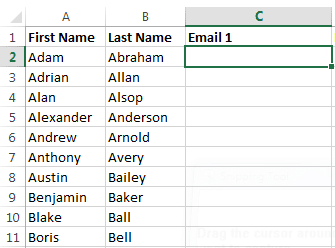
Step 1. Put first names in column A and last names in column B. Select the first empty cell in column C (C2):
Step 2. Enter a formula that joins name parts and domain. Use a locked domain cell and force lowercase:
If you prefer the modern CONCAT function (Excel 2019+ / Microsoft 365), this produces the same result with slightly shorter syntax:
The older CONCATENATE also works and is available in all versions:
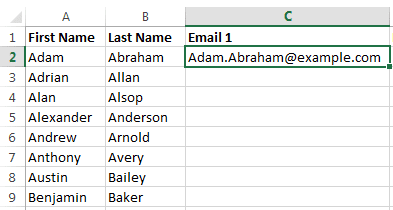
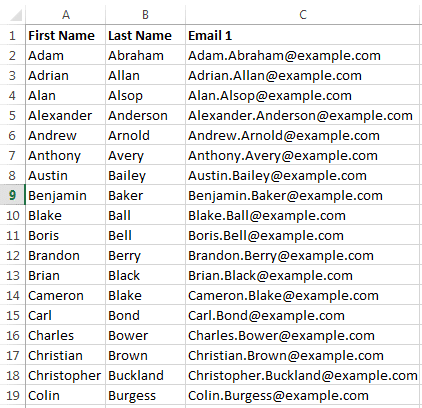
The first generated address should appear in C2:
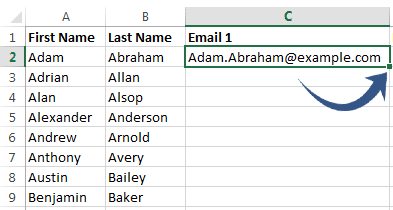
Step 3. Use the fill handle (the small square at the bottom-right corner of the selected cell) to copy the formula down the column:
Drag until every row has a candidate. The relative references follow each row; the locked domain cell ($E$2) stays fixed. The result is a full column of first.last@ addresses:
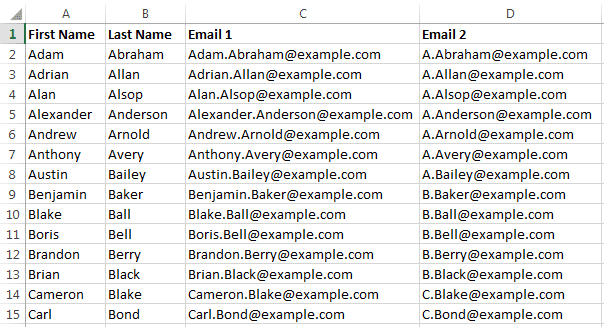
f.last@domain with LEFTThis pattern uses the first letter of the first name, a dot, and the full last name. In column D2:
Copy the formula down. You now have a second candidate column beside the first:
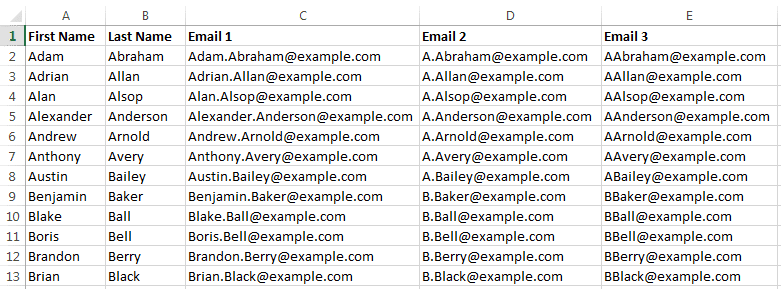
flast@domainThis pattern drops the dot and concatenates the first initial directly with the last name. In column E2:
Fill down again. You now have three candidate columns for each person:
Need a refresher? Microsoft’s docs for CONCATENATE, LEFT, and LOWER cover all three in detail.
People who share a last name and first initial produce identical jsmith@-style candidates. Use Excel’s Conditional Formatting → Highlight Cells Rules → Duplicate Values on each email column to flag collisions before you export. DeBounce also removes exact duplicates on upload, but catching them early keeps your pattern analysis cleaner — especially when two different people collapse into the same local part.
If the three core patterns return few deliverables, add only the next most likely formats for that market:
| Pattern | Example formula | When it helps |
|---|---|---|
firstlast@ |
=LOWER(A2&B2)&"@"&$E$2 |
Smaller orgs, some startups |
first_last@ |
=LOWER(A2&"_"&B2)&"@"&$E$2 |
Underscore-heavy IT/dev cultures |
last.first@ |
=LOWER(B2&"."&A2)&"@"&$E$2 |
Some EU / legacy directories |
first@ |
=LOWER(A2)&"@"&$E$2 |
Very small teams; high collision risk |
Only add patterns when you have a reason. More guesses mean more validation volume, more duplicate collisions, and more noise when identifying which format actually works at a given domain.
If you already know one working address at the domain — from a signature, press page, or prior conversation — use that pattern first. Validate a small sample before generating every variation across a 500-row sheet.
A practical sequence:
This approach reduces wasted credits and keeps your outreach list lean. When you need help finding likely addresses rather than only validating guesses, DeBounce Email Finder can complement the spreadsheet workflow — it generates up to 35 pattern variants and validates them in priority order, stopping at the first confirmed deliverable result. Still validate the final list before you send.
Guessed addresses are hypotheses, not contacts. Before importing them into a CRM or outreach tool, validate each pattern column separately.
.txt or CSV file so patterns stay separated.Recommended selection for cold or uncertain lists:
Accept-all domains accept mail for any local part at the SMTP level, so a guess can pass the surface check and still land in a dead mailbox. If you need to reduce uncertainty on those results, DeBounce Clean+ is built for that use case — frame it as risk reduction, not certainty. For more on that decision, see accept-all and unknown emails.
After validation, map deliverable addresses back to the original name rows and note which pattern won for that domain. Use that pattern for similar companies. Re-validate periodically — mailboxes change and list monitoring catches decay after the first clean.
A simple scoring approach for pattern selection:
Keep bounce risk in view. Sustained hard bounces damage sender reputation; see ideal email bounce rate for campaign context. Name-to-email lists that skip validation are one of the most common ways teams create that problem.
This workflow is useful for B2B research and outbound when public emails are not available — but it is not a substitute for consent, relevance, or list hygiene. Validate first, send carefully, and keep bounce rates within safe thresholds.
Follow applicable rules in your region. CAN-SPAM, GDPR, CASL, and similar frameworks have specific requirements around commercial email and data sourcing. Honor opt-outs promptly and avoid deceptive sending practices. Generating candidates for B2B research is common; blasting unverified guesses at scale is not a durable growth strategy and risks permanent damage to your sending domain.
If you already have a messy spreadsheet or CRM export, start with bulk validation rather than generating more guesses. Clean data compounds; bad guesses compound the other way.
The same workflow runs in Google Sheets. Use & concatenation, LEFT, LOWER, FIND, and SUBSTITUTE identically to Excel. Keep the domain in a locked cell ($E$2), fill down with the blue square handle, then export each pattern column as CSV for validation.
Sheets does not have Flash Fill in the same form as Excel, so formulas are the more reliable path for repeatable generation. If collaborators are editing names live, protect the formula columns (right-click → Protect range) so someone does not overwrite candidates with pasted values before you export.
For large lists, ARRAYFORMULA can apply a pattern formula across an entire column at once without dragging the fill handle. The standard fill-down approach is fine for most B2B research sheets, but ARRAYFORMULA is useful when the list is growing dynamically.
When you scale this across many companies, keep a simple log: domain, winning pattern, sample size, deliverable rate, and date validated. That log becomes a reusable playbook so the next similar company starts with fewer guesses and less validation waste.
Also store edge cases you learn along the way — for example, domains that prefer first@ for executives only, or companies that keep hyphens in local parts. Those notes save time on the next campaign and reduce the temptation to generate every permutation by default.
Converting names into valid email addresses is a two-step process: generate smart candidates, then prove which ones are deliverable. Split names first if your data needs it, prep the sheet, build three corporate patterns in Excel, validate each column separately, keep the deliverables, and retire the rest.
That sequence protects sender reputation and produces a list you can actually use. A smaller list of confirmed deliverable addresses consistently outperforms a large list of unverified guesses — and it avoids the bounce-rate consequences that follow when you skip the validation step.
Ready to validate a candidate list? Start with DeBounce, or use Email Finder when you need help discovering likely addresses before verification.
Laws and norms vary by country and use case. Generating candidate addresses for B2B research is common, but sending still requires you to follow applicable anti-spam and privacy rules, honor opt-outs, and avoid deceptive practices. Validation reduces bounce risk; it does not replace consent or compliance obligations.
Start with the three most common corporate patterns: first.last, f.last, and flast — all lowercased, with the domain in a locked cell. After you validate a sample for that domain, keep the pattern that returns the most deliverable results and drop the rest for similar contacts at the same company.
Accept-all (catch-all) domains accept mail for addresses that may not exist as real mailboxes. Unknown means the check could not confirm the mailbox. Sending to those statuses increases bounce and reputation risk. Prefer deliverable results, or use deeper catch-all resolution when you need to reduce uncertainty.
Yes. DeBounce removes exact duplicate addresses during list processing. You should still flag collisions in Excel when two different people generate the same local-part pattern, because duplicates can hide which person the address actually belongs to.
Core building blocks are LOWER, LEFT, and concatenation with & (or CONCATENATE), plus an absolute domain cell like $E$2. Examples: =LOWER(A2&”.”&B2)&”@”&$E$2 and =LOWER(LEFT(A2,1)&B2)&”@”&$E$2. Use SUBSTITUTE when you need to strip spaces or hyphens from names.
Use Excel’s LEFT and FIND functions to extract the first name (everything before the first space) and RIGHT, LEN, and FIND to extract the last name (everything after the first space). First name: =LEFT(A2, FIND(” “, A2) – 1) — Last name: =RIGHT(A2, LEN(A2) – FIND(” “, A2)). Put these in helper columns, then use those columns in your pattern formulas. Names with compound last names (like “De La Cruz”) may need manual cleanup before generating patterns.
Find quick answers to your questions about our pricing and plans.

If you have a Yahoo or Gmail account, you know how cluttered your inbox can get with unsolicited messages. Here’s the good news: Google and...

Email reverse lookup helps identify who is behind an email address and adds missing contact details to improve data quality. The quality of...


Track hard and soft bounces separately. Hard bounces are permanent failures and the metric that most damages sender reputation. For permission-based campaigns, aim...

Email overload is the state of receiving more email than you can reasonably process, leading to lost productivity and decision fatigue. The most...

If your email campaigns suddenly start bouncing, open rates plummet overnight, or clients report that they never receive your messages, there’s a strong chance your...

SPAM words can really hurt your email marketing. Therefore, it’s obvious we need to avoid them in order to succeed in email marketing. In this...
