According to research, email marketing offers the highest return on investment among all marketing strategies. To put it into perspective, you can get $36 for...

Key Takeaways
You attach a 28MB presentation to an email and hit send. But, it bounces right back with an error: “Message size exceeds maximum allowed.” You compress the file down to 24MB, try again, and… same result. The file looks small enough, but email size limits don’t work the way most people assume they do.
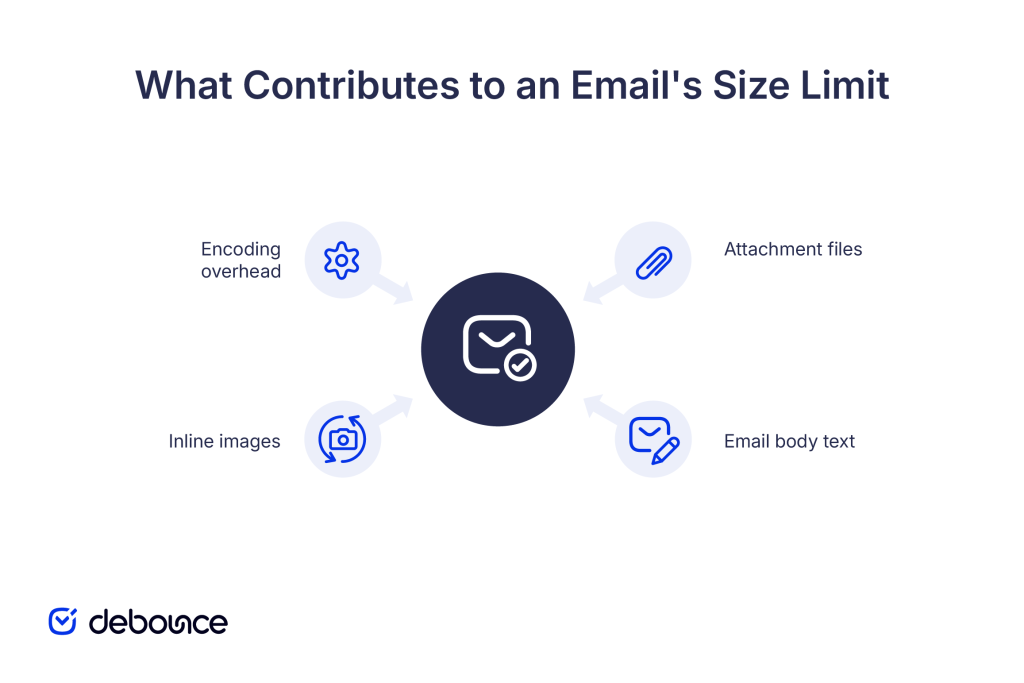
Email providers set strict limits for a reason. Server capacity, bandwidth, and reliable delivery at scale all factor in. Those limits also vary by provider and account type, but they all share one important detail: the limit applies to the entire message, not just the attachment. So that 20MB file, plus the email text, any inline images, and the extra overhead added during encoding, can quietly push the message over the edge, even when the attachment itself seems fine.
Once you understand how email file size limits actually work, you can avoid failed sends, repeated bounces, and wasting time trying to push files through email that were never going to make it. This guide explains what those limits really measure, how different providers handle oversized messages, and which options work best when a file is simply too large for email.
An email file size limit is the maximum amount of data that can be transmitted in a single email message. This limit encompasses everything included in the email, not just file attachments.
Most major email providers enforce limits between 20 and 25MB for total message size. Business email servers often set limits between 10 and 35MB, depending on company IT policies. Smaller or self-hosted email providers may cap messages at 10MB or less to conserve server resources.
Different email providers set different limits based on their infrastructure and user base. Understanding these limits helps you know when to switch to alternative file-sharing methods.
Limit: 25MB total message size when sending
Gmail enforces a strict 25MB limit on the total size of sent emails, including all attachments, email body, and encoding overhead.
When you try to attach files larger than 25MB, Gmail uploads them to your Google Drive automatically and inserts a shareable link in the email instead. Recipients receive the link and can download files directly from Drive, bypassing email size limits entirely.
This happens automatically; you don’t manually upload to Drive or generate links. Gmail handles the process and notifies you that your files were too large for direct attachment.
Limit: 25MB for attachments
Yahoo Mail allows attachment files up to 25MB, similar to Gmail. When you try to attach larger files, Yahoo offers to use Dropbox integration for file sharing instead.
Unlike Gmail’s automatic Drive upload, Yahoo requires you to connect your Dropbox account and authorize file uploads. Once connected, oversized files upload to Dropbox, and a link is inserted in your email.
If you haven’t set up Dropbox integration, Yahoo simply prevents you from attaching files that exceed 25MB, requiring you to manually reduce file size or use an alternative sharing method.
Limit: 20MB to 34MB, depending on version
Outlook.com’s attachment limits have evolved over time. Older accounts or interfaces enforce a 20MB limit, while newer versions allow up to 34MB total message size in some configurations.
Like Gmail’s Drive integration, Outlook automatically uses OneDrive when attachments exceed size limits. Files upload to your OneDrive, and recipients receive a link for downloading rather than direct attachments.
This works smoothly for users with Microsoft accounts and OneDrive access, though some corporate environments restrict OneDrive usage, preventing this automatic fallback.
Limit: Typically 10MB default, often increased to 25-35MB
Microsoft Exchange servers used by businesses have configurable size limits set by IT administrators. The default limit is often 10MB, which is restrictive compared to consumer email providers.
Many organizations increase this to 25MB or 35MB to match employee needs, but limits vary widely depending on company infrastructure, storage capacity, and email policies.
Corporate IT teams balance employee convenience against server costs, security concerns, and compliance requirements. Higher limits require more storage and bandwidth, so organizations with tight budgets or limited infrastructure keep limits lower.
If you’re sending email through a corporate account and hitting size limits, check with your IT department about current policies and whether limits can be adjusted for legitimate business needs.
Smaller regional providers, educational institutions, and self-hosted email servers often set stricter limits than major providers.
Common limit ranges for smaller providers:
Self-hosted email servers (running software like Postfix, Exim, or Exchange) have administrator-configurable limits. System administrators can set any limit based on available storage, bandwidth, and organizational needs, though most follow industry norms of 20-35MB to avoid compatibility issues with external recipients.
Email size limits exist for technical, operational, and reliability reasons that affect both providers and users.
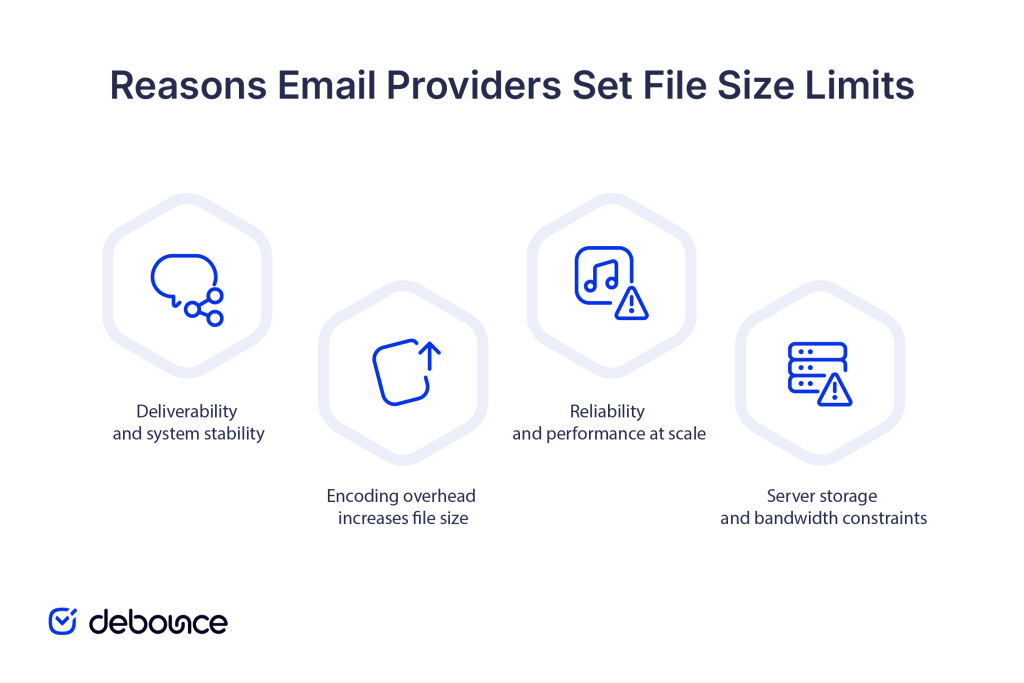
Email servers store copies of every sent and received message. Allowing unlimited attachment sizes would overwhelm storage infrastructure quickly, especially with millions of users sending large files daily.
Bandwidth is similarly constrained. Large attachments consume network capacity when transmitted, slowing delivery for all users during peak times. Limiting message sizes ensures consistent delivery speeds across the entire user base.
Smaller messages transmit faster and more reliably than large ones. Network interruptions, server issues, or connection problems are less likely to cause failures with 5MB messages than with 500MB transfers.
Email protocols (SMTP) weren’t originally designed for large file transfers. While modern implementations handle larger messages, the protocol works best with smaller payloads, making size limits a practical concession to underlying technology constraints.
Binary files (images, PDFs, videos, ZIP archives) must be encoded into text format for email transmission using Base64 encoding. This encoding process increases the file size by approximately 37%.
Example calculation:
This overhead means a 20MB file actually consumes 27.4MB of your size limit, explaining why emails sometimes bounce even when attachments appear to be under the stated threshold.
Following email delivery guidelines from major providers helps ensure messages reach inboxes reliably. Size limits are one component of broader deliverability best practices that keep email systems stable and performant.
Email deliverability statistics show that smaller, properly formatted emails consistently achieve better inbox placement than large, attachment-heavy messages that stress receiving servers.
Oversized emails fail in several ways, depending on where in the transmission process the limit is exceeded.
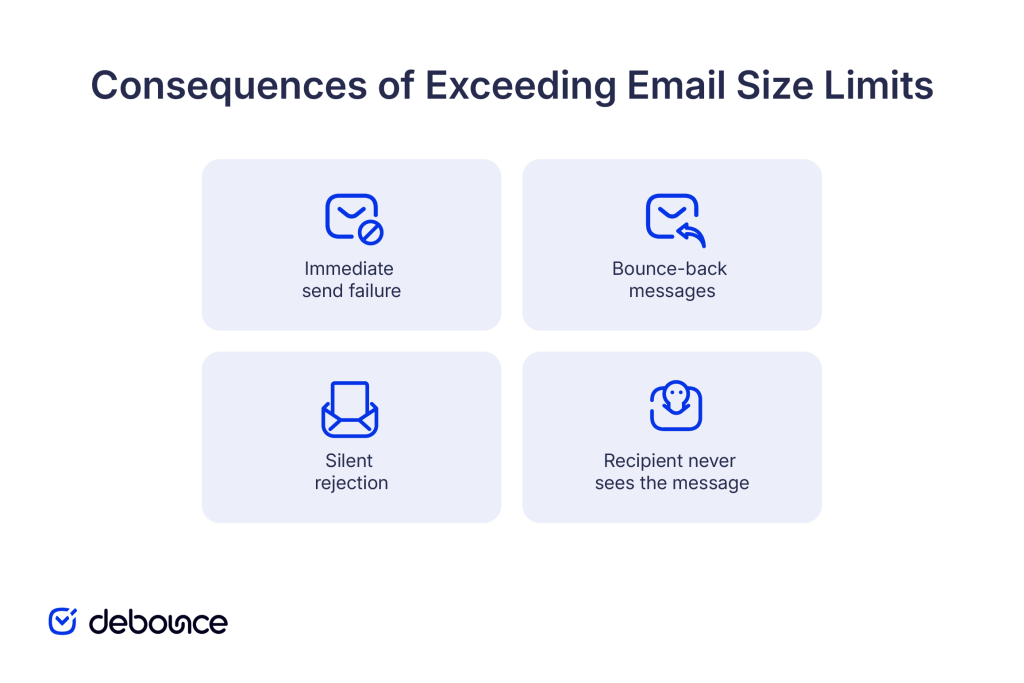
Most modern email clients check message size before attempting to send. If your email exceeds the provider’s limit, you’ll receive an immediate error message: “Message size exceeds maximum allowed” or “Attachment too large.”
The email never leaves your outbox, and you can remove or compress attachments before trying again.
If your email client doesn’t catch the size issue and attempts to send, the receiving mail server may reject the message and return a bounce notification. These bounced emails explain that the message exceeded size limits and couldn’t be delivered.
Bounces add to your overall bounce rate, potentially affecting sender reputation if they occur frequently across campaigns. Understanding average bounce rate by industry helps you gauge whether size-related bounces are becoming a pattern.
In some configurations, oversized emails are rejected without notification. The message disappears from your sent folder, but neither you nor the recipient receives confirmation or error messages. This is the worst scenario because you believe the email was sent successfully, but the recipient never receives it and has no way to know you tried to contact them.
Regardless of how the failure occurs, the outcome is the same: recipients never receive oversized emails. No partial delivery occurs. Either the complete message arrives, or nothing does.
When files exceed email size limits, use methods designed for large file transfers rather than forcing attachments through email.
Upload files to Google Drive, Dropbox, OneDrive, or similar services, then share links via email instead of attaching files directly. This approach:
Dedicated file transfer services like WeTransfer, Send Anywhere, or similar platforms specialize in large file transfers. Upload your file, enter the recipient’s email, and they receive a download link.
These services typically support files much larger than email limits (2-100GB depending on the service and plan) and automatically handle delivery without requiring manual cloud storage management.
Compressing files into ZIP archives can reduce their size enough to fit under email limits, but this only works for certain file types.
What compresses well:
What doesn’t compress:
If compression doesn’t reduce your file below email limits, switch to cloud links rather than spending time trying to compress further.
Even when messages stay under size limits, they fail if sent to invalid addresses. Using email list validation before sending ensures emails reach real, active recipients rather than bouncing due to address issues.
Email list monitoring continuously tracks list health over time, automatically flagging addresses that become invalid so your messages, regardless of size, consistently reach intended recipients without delivery failures.
Email file size limits typically range from 20-25MB across major providers, with these limits applying to total message size, including attachments, body text, inline images, and encoding overhead that increases file sizes by approximately 37%. Understanding these limits helps you avoid bounced emails and failed sends caused by oversized messages.
When files exceed limits, cloud storage links provide the most reliable sharing method for any file size. Gmail, Outlook, and Yahoo all offer automatic cloud integration that switches oversized attachments to shareable links without requiring manual uploads.
Regardless of file size, you need to ensure your emails reach valid addresses. Use DeBounce to verify email lists before important sends, removing invalid addresses that would cause bounces. Clean lists support better deliverability and protect sender reputation across all your email communications.
Is it better to zip files before emailing?
Zipping helps only if it reduces total message size below your provider’s limit (typically 20-25MB); it works well for text documents but barely compresses videos, images, and PDFs that are already compressed.
What size PDF is too big to email?
PDFs larger than 15-18MB are too large for most email providers once encoding overhead is added; PDFs above 20MB should always be shared via cloud links instead of email attachments.
What should I do if my video is too large to send by email?
Upload videos to cloud storage (Google Drive, Dropbox, OneDrive) or video-specific platforms (YouTube, Vimeo with privacy settings) and share links via email rather than attaching video files directly, which almost always exceed email size limits.
Find quick answers to your questions about our pricing and plans.

According to research, email marketing offers the highest return on investment among all marketing strategies. To put it into perspective, you can get $36 for...

There are certain best practices that every professional involved in email marketing knows. Things that most comprehensive guides detail, such as using email templates, setting...

Catch-all, also known as "accept-all" is a domain-wide setting mail server that is configured to accept all emails sent to the domain, no matter if...


Email analytics is important. It lets you in on a lot of information about your subscribers and their behavior towards your emails. In this post,...
Key Takeaways Send your first follow-up after giving recipients a reasonable time to respond (3-5 business days); following up within 24-48 hours feels pushy except...
Email marketing has become a critical success factor for any online business, and digital marketing experts use it to enhance customer communication and conversion. If...