
If there's one marketing platform that has stood the test of time, it has to be the humble email. Despite being around for over 50...

Key Takeaways
Your email address is often the first thing a potential customer or business partner sees. An address like [email protected] tells people you’re legitimate, organized, and serious about what you do. An address like [email protected] sends a very different message.
Figuring out how to create a business email is one of those setup tasks that many founders and small teams put off, and then regret when they realize how much it affects first impressions, deliverability, and even email security. But setting up a professional email address is a simple process.
This guide shows each step, from registering your domain to setting up your inbox on any device, so you can start using a professional email address right away.
A business email address is tied to a custom domain that you own, for example, [email protected], rather than a free public domain like Gmail or Yahoo. The domain is the part after the “@” symbol, and when it matches your company name or website, it signals to recipients that the email is coming from an established, credible source.
The difference from a personal free account isn’t just cosmetic. Business email accounts come with more storage, admin controls, security features, and the ability to create multiple addresses (like support@, hello@, or invoices@) under the same domain. They also tend to perform better from a deliverability standpoint, as inbox providers are more likely to trust mail from a properly configured custom domain than from a free shared one.
While services like Gmail and Yahoo are widely trusted for personal communication and can also be integrated into business solutions, dedicated business email hosting plans are built specifically to support teams, scalability, and professional communication needs.
Many providers offer professional email hosting that enables businesses to create and manage email addresses using their own domain. With these services, companies can align their email with their brand (such as [email protected]), making communication more consistent with their website and overall identity.
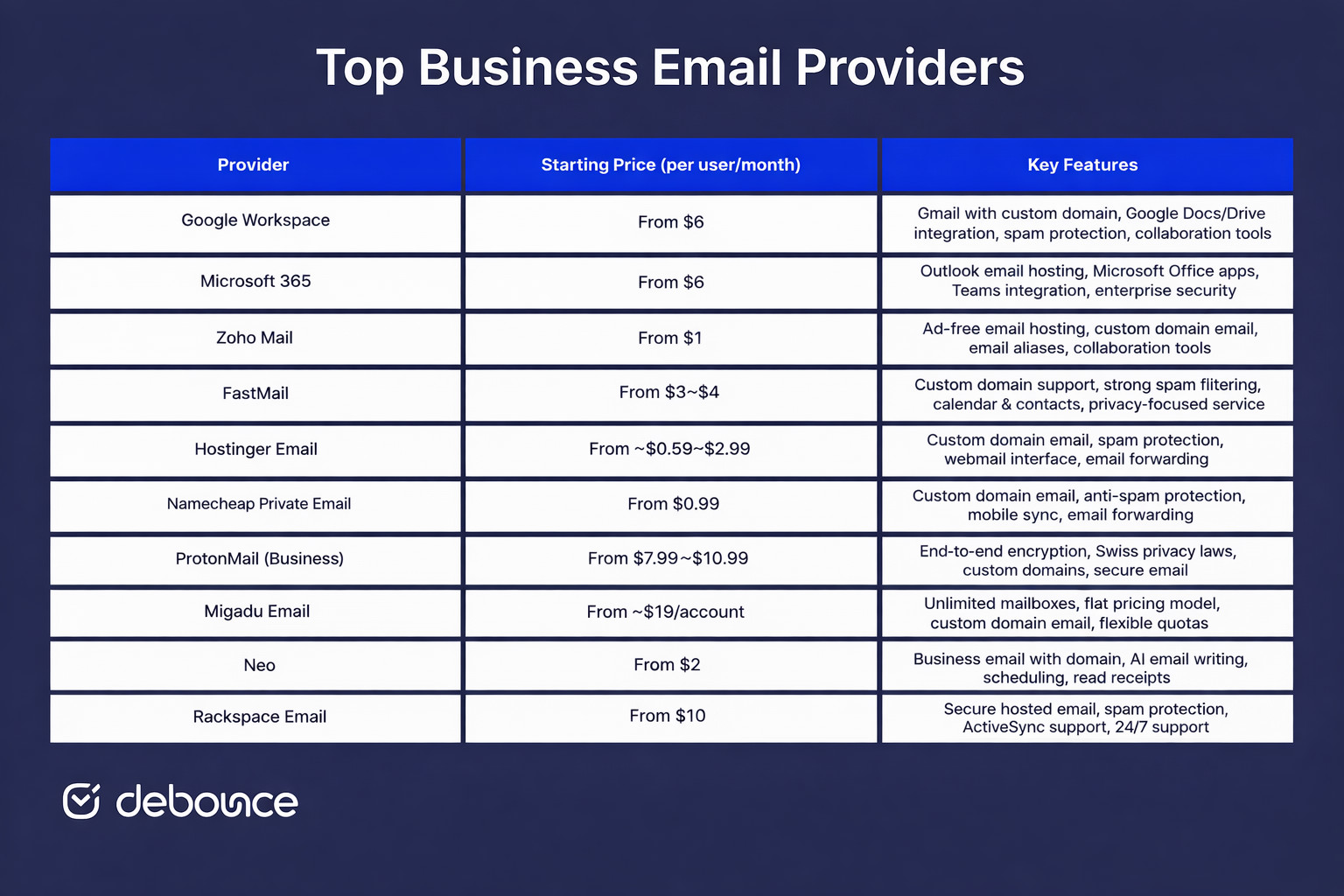
Below are some popular business email providers you should consider.
Setting up a business email address takes five steps. Each one builds on the last, so work through them in order.
Your domain is your company’s address on the internet, and it becomes the second half of every email address you create. If you already have a website domain, you can use that. If not, you’ll need to register one through a domain registrar such as Namecheap or Google Domains.
When choosing a domain, keep these best practices in mind:
Domain registration typically costs between $10 and $20 per year. Some email hosting providers include a free domain with their first-year plans, so check whether your chosen host offers that before paying separately.
Your domain gives you the address; your email host is what actually stores and delivers your mail. These are often separate services, though some providers bundle both. Popular business email hosting options include Google Workspace, Microsoft 365, Zoho Mail, and Fastmail.
When evaluating providers, consider:
Once you have both a domain and an email host, you need to tell the internet that your domain’s email should be routed through that host. This is done by updating your domain’s DNS (Domain Name System) records, specifically, the MX records (Mail Exchanger records).
You don’t need to understand DNS in depth to do this. Your email hosting provider will give you the exact MX record values to enter, and your domain registrar’s control panel will have a DNS settings section where you paste them in. The process usually takes less than 15 minutes to configure, though changes can take up to 48 hours to fully propagate across the internet.
Your hosting provider’s setup documentation will walk you through this step with screenshots. Follow it exactly, including any additional records they recommend, such as SPF, DKIM, and DMARC, which help verify that mail from your domain is legitimate and reduce the chance of your emails being flagged as spam.
With your domain connected, you can now create individual email addresses through your hosting provider’s admin dashboard. Most business email hosts make this straightforward: you enter a username, assign it to a mailbox, set a password, and the address is ready to use.
A few things to think through before you start creating accounts:
Be consistent. Common formats include:
Pick one format and apply it across your team. Mixing conventions creates confusion and looks disorganized in email threads.
Beyond individual accounts, create functional addresses for shared inboxes. Standard ones include:
Role-based addresses help route incoming messages to the right place and prevent emails from being missed when a team member is away.
Once accounts are created, you need to access them. Most business email providers offer three ways to do this:
Your hosting provider will give you the server settings needed for desktop and mobile setup (incoming server, outgoing server, port numbers, and security settings). If you’re setting up multiple team members, consider creating a simple internal guide with those settings so everyone can configure their devices consistently.
Switching from a free personal account to a business email address brings several advantages.
Setting up a business email is just the start. Keeping it secure and well-managed requires a few ongoing practices.
Even with the best intentions, businesses often make these setup and management mistakes.
Once your business email is set up and you start using it for marketing or outreach, the quality of your contact list becomes critical. Sending to invalid, inactive, or unverified addresses raises your bounce rate, hurts your sender reputation, and can get your domain flagged, even if your email infrastructure is perfectly configured.
Email verification is the practice of checking that the addresses on your list are real, active, and safe to send to. DeBounce handles this through bulk list validation, real-time form validation, spam trap detection, and disposable email filtering, so the contacts you reach are the ones who can actually receive and engage with your mail. Working with email security companies and using a verification tool from the start means you’re building on a clean foundation, not cleaning up damage after the fact.
Upload your list to DeBounce before your first major send and see exactly which addresses are worth keeping.
A business email address built on your own domain is one of the quickest credibility upgrades you can make. It takes a few hours to set up, costs less than most people expect, and immediately changes how your business is perceived by anyone you contact.
Follow the five steps in this guide (register your domain, choose a host, connect via DNS, create your accounts, and configure your devices) and you’ll have a professional, secure email setup that can grow with your business.
Once you’re up and running, make sure what you send actually lands. Run your contact list through DeBounce to remove invalid addresses, catch spam traps, and protect the sender reputation you’ve just spent time building.
No. You can register a domain and set up email hosting without building a website. Many businesses set up their email address first and add a website later.
Yes, and most email hosting providers include migration tools to help you move existing contacts and message history. That said, the earlier you make the switch, the less disruption it causes, especially once customers and partners have your old address saved.
Find quick answers to your questions about our pricing and plans.
If there's one marketing platform that has stood the test of time, it has to be the humble email. Despite being around for over 50...
SPAM words can really hurt your email marketing. Therefore, it’s obvious we need to avoid them in order to succeed in email marketing. In this...


The data we receive about our leads tends to be lackluster. It does not provide us with enough information. Non-enriched is the term that is...


Every time a user imports new addresses or sends a campaign to new people, the MailChimp abuse prevention system Omnivore, checks your audience for any...


Who doesn’t have an email? Almost everyone has. It’s one of the most popular communication channels across the globe. Not only does it let you...

Mass emailing is a powerful way to communicate a message to a large audience. The goal could be anything from boosting conversions, a quick follow-up...
