

Emojis aren't just for texting anymore. In fact, they've become such a powerful marketing tool that more and more companies are using them in their...

Key Takeaways
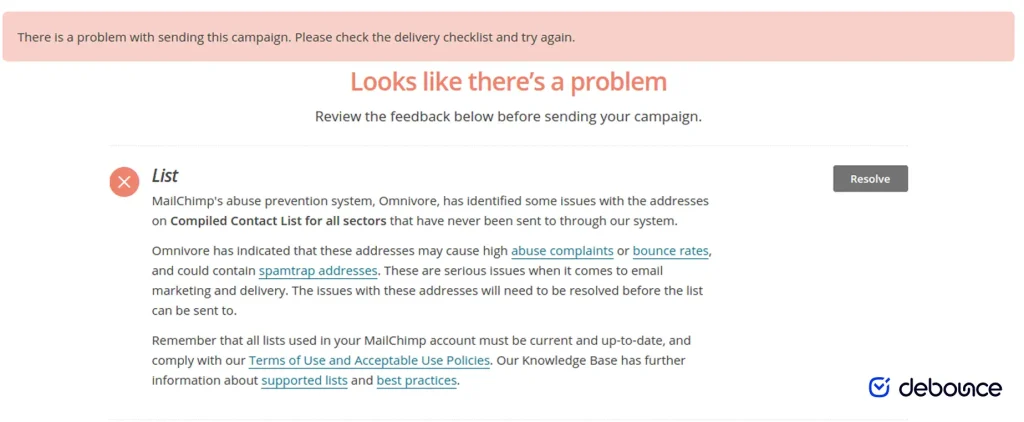
If Mailchimp suddenly stops a send and shows an abuse-prevention alert, you are likely dealing with Omnivore. It reviews contacts you have not yet emailed through Mailchimp and estimates whether sending would create too many hard bounces, spam complaints, or spam-trap hits. When predicted risk is too high, Mailchimp disables sending to that audience until the risky addresses are removed.
This guide explains what Omnivore is, how it differs from a full account suspension, what typically triggers it, how to fix it step by step, when to reconfirm versus validate, what to send support if the hold remains, and how to prevent it from repeating — without overclaiming that any tool can guarantee Mailchimp will clear the warning.
Omnivore is Mailchimp’s automated abuse-prevention layer. Each time you import new addresses or send to contacts you have not emailed through Mailchimp yet, it evaluates how risky that group looks — estimating whether bounce, complaint, or spam-trap rates would exceed acceptable limits. If risk is too high, Mailchimp blocks sending to that audience until you clean it.
What Omnivore does not do: it does not hand you a list of the exact addresses that caused the flag. That opacity is why list cleaning and validation are the only practical path forward.
Omnivore is also imperfect. Like any predictive system, it can over-flag a legitimate cohort — especially after a large CRM sync, a partner list with messy formatting, or a long gap since your last send. Treat the warning as a signal to investigate list quality and acquisition, not as proof that every contact is toxic. For full context, see Mailchimp’s Omnivore documentation.
Usually, no. Omnivore typically blocks sending for the affected audience while leaving that audience’s data intact and other audiences usable. That said, repeated high-risk imports, purchased lists, or ongoing abuse signals can escalate into a broader compliance hold. Treat Omnivore as an early warning about list quality — not a nuisance to dismiss.
If a campaign was already in flight when the hold appeared, Mailchimp notes that the original send may remain held. You will likely need to replicate the email and resend to the cleaned audience after remediation.
Teams often lump every Mailchimp block under “Omnivore.” Separating the hold types helps you pick the right fix:
| Situation | What it usually means | First move |
|---|---|---|
| Omnivore audience hold | Predicted bounce / abuse / trap risk on uncontacted addresses in one audience. | Isolate the newest cohort, validate, remove high-risk contacts, retry. |
| Import verification / delayed import | Mailchimp is reviewing a new file before it fully lands. | Wait for review; if rejected, clean outside Mailchimp and re-import a safer file. |
| Account-level compliance hold | Broader review of sending, complaints, terms, or repeated risk signals. | Contact support with consent proof and cleanup evidence; pause risky acquisition. |
If other audiences still send normally and only one list is blocked after an import or first-time blast, you are in Omnivore territory. If importing and sending are frozen across the entire account, treat it as a wider compliance case.
The common root cause is list quality — especially among contacts Mailchimp has not seen you email successfully before. Omnivore looks for patterns associated with hard bounces (invalid addresses, dead domains), spam traps, abuse and complaint risk (non-permission contacts, bought lists), and low-quality acquisition signals (disposables, stale role accounts, neglected decay).
If Omnivore flags an audience, assume the file contains outdated, invalid, disposable, trap-prone, or non-permission contacts — then prove otherwise by cleaning and documenting how people joined.
Frequent Omnivore events usually point to a broken acquisition or maintenance process, not a one-off glitch. Common real-world triggers:
Hard bounces and complaint risk are both in scope. Invalid addresses produce hard bounces that Omnivore scores; non-permission and stale contacts produce complaints even when the address is technically deliverable. Both signal the same underlying problem: the list was not built for this send. See how to identify spam traps for more on trap-related risk.
Mailchimp’s own guidance hinges on when you last imported. Use the matching path below.
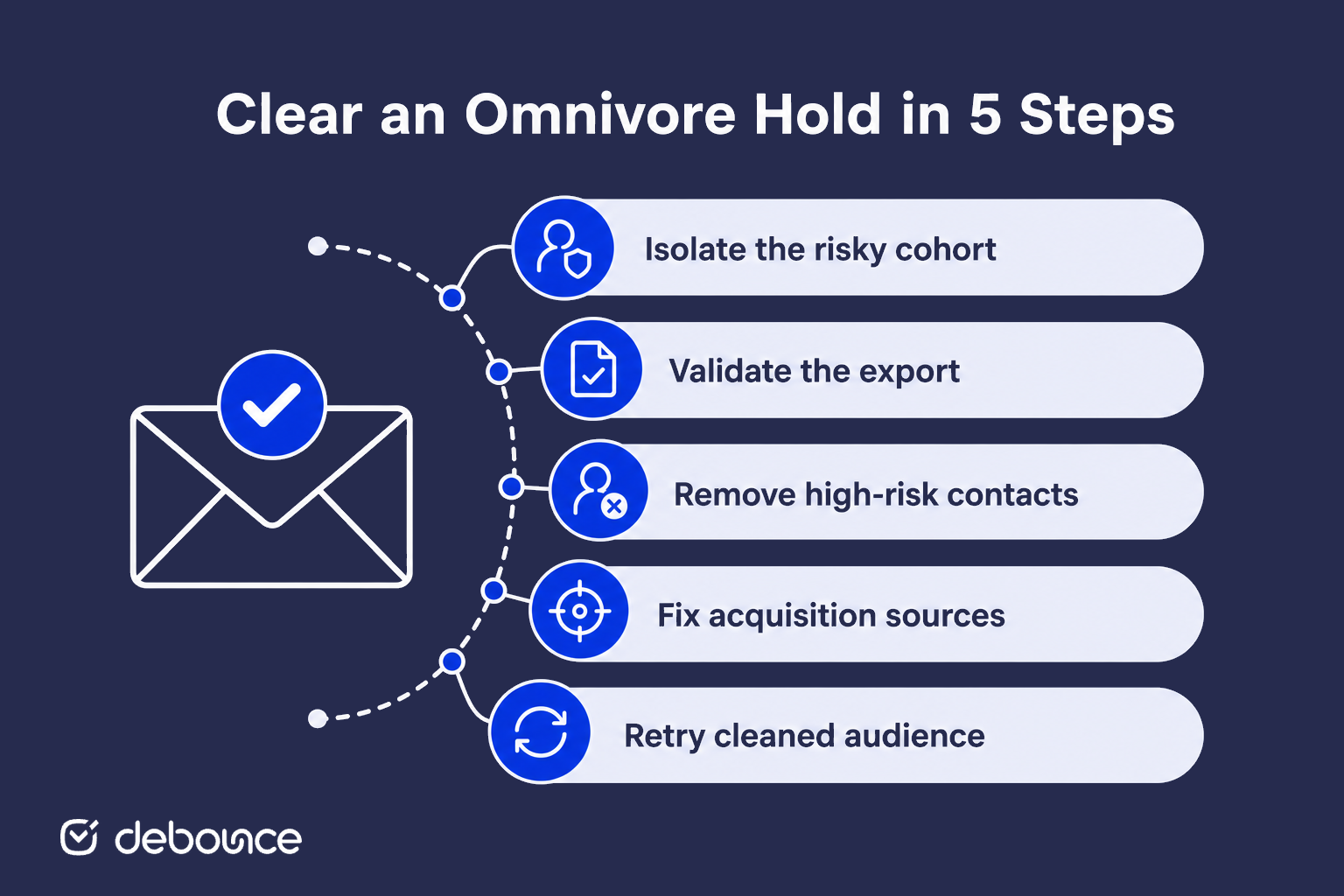
Ask: did you just import a CSV or sync from another tool? Are you sending to a large set of never-emailed contacts? Is this a shared account where someone else imported data? Find the newest risky cohort first — cleaning the whole historical database is slower than isolating the import that tripped the alert. Note the import date, source file name, approximate contact count, and whether consent was documented.
Case A — Fresh import triggered it: Undo or quarantine the latest import if you can. Export those contacts, validate them, remove invalid/risky rows, then re-import only the clean set.
Case B — No recent import, but Omnivore still fired: Lists decay. Addresses that looked fine months ago can be invalid now. Export the unengaged or never-emailed portion of the audience, validate, and remove hard risks before retrying.
Case C — Shared account / unclear import history: Segment recent additions by date added, clean that segment, then retry.
Run the export through an email validation service. Prioritize removing syntax errors, confirmed invalids, disposable addresses, known spam-trap patterns, and role accounts that do not belong in a marketing audience.
Keep a clear policy for uncertain results. A practical recovery approach many teams use:
Archive or delete risky contacts from the affected audience and add confirmed bad addresses to suppression workflows so they cannot be re-imported. Record counts removed by category — that summary becomes useful if support asks what changed.
Before hitting send: confirm contacts opted in (no purchased or scraped lists), fix forms with real-time validation so bad addresses stop entering, and if the held campaign remains blocked, replicate the email and send to the cleaned audience.
If the warning remains after a thorough clean, contact Mailchimp support with evidence of the cleanup — what was removed, how consent was collected, and what you fixed upstream.
Validation improves your odds by removing measurable risk. Because Omnivore’s exact scoring is not public, no cleaner can honestly guarantee the hold will clear on the first try.
Mailchimp often recommends reconfirming contacts. Validation and reconfirmation solve different problems, and Omnivore recovery usually needs both when the list is messy.
| Approach | Best for | Limits |
|---|---|---|
| Email validation | Finding invalid, disposable, role, and other high-risk addresses before another send or re-import. | Does not prove marketing consent. Catch-all/unknown results still need a risk policy. |
| Reconfirmation / double opt-in | Proving people still want mail when permission is old, unclear, or inherited from another system. | Slow, lower response rates, and does not by itself remove every invalid mailbox. |
Use validation first when the immediate problem is a blocked send and you suspect dead or toxic addresses. Add reconfirmation when the source is a purchased/partner list, an old CRM dump, or any file where consent documentation is weak. Validation reduces bounce and trap exposure; reconfirmation rebuilds permission trust.
If you cleaned thoroughly and the audience is still blocked, paid accounts can usually reach support faster. Bring a short evidence pack — not a vague “please unlock us” message:
Your job is to show diligence: you isolated the risky cohort, removed measurable risk, and fixed the acquisition path so the same file cannot re-enter. Support still decides based on Mailchimp’s internal review.
A simple cadence that prevents most repeats: validate at capture on all forms, bulk validate every external file before import, re-check aging segments monthly or quarterly, and exclude never-emailed raw imports from campaigns until cleaned.
Mailchimp Omnivore exists to stop high-risk sends before they damage deliverability — yours and everyone else’s on the shared platform. When it flags an audience, isolate what changed, validate and remove risky contacts, fix the acquisition path, then resend to the cleaned group. If permission is unclear, reconfirm. If the hold remains, bring cleanup evidence to support rather than shopping for a workaround.
The durable fix is prevention: validate before every import using DeBounce — bulk cleaning, real-time API and widget checks at capture, and ongoing monitoring — so Omnivore never has enough risk to flag in the first place.
Omnivore is Mailchimp’s automated abuse-prevention system. It reviews newly imported or previously uncontacted addresses and estimates bounce, complaint, and spam-trap risk. If predicted risk is too high, Mailchimp can block sending to that audience until you remove bad contacts.
Not usually. Omnivore typically holds sending for the affected audience while leaving other audiences usable. Repeated high-risk behavior can still lead to broader compliance review, so treat the warning seriously.
Omnivore scores risk across a group and does not expose the exact addresses that caused the flag. That is why exporters validate the suspicious cohort, remove invalid and high-risk contacts, and then retry.
Identify the latest import or never-emailed segment, export it, validate with an email verification tool, archive or delete risky contacts in Mailchimp, then resend to the cleaned audience. If a held campaign remains blocked, replicate the email after cleanup.
No. Validation removes measurable list risk and often resolves the hold, but Mailchimp’s exact Omnivore scoring is not public. No vendor can honestly guarantee clearance. If the warning remains after a thorough clean, contact Mailchimp support with cleanup evidence.
Validate lists before import, collect permissioned contacts only, avoid purchased lists, use real-time validation on forms, suppress role/disposable addresses from promo audiences when appropriate, and run recurring list monitoring as addresses decay.
Find quick answers to your questions about our pricing and plans.

Emojis aren't just for texting anymore. In fact, they've become such a powerful marketing tool that more and more companies are using them in their...
Email lead generation usually works through inbound lead capture and outbound prospecting. Inbound brings in people who show interest through your own channels,...

Transactional emails, including password resets, receipts, order confirmations, and account alerts, are user-triggered and time-sensitive. Failed delivery doesn't read as spam; it reads...
Archiving never deletes a message; it just removes it from the inbox view, so unarchiving is always reversible. Gmail has no separate Archive...

The email sending limit varies across various hosts, ranging from per minute to hourly and even daily. Knowing the exact limits in the case of...

A healthy email unsubscribe rate is below 0.5% per campaign; above 1% is a consistent red flag worth investigating across content, frequency, and...
