
If you've been in the email marketing field, you've probably heard some discussion about the subject of email delivery (the ability of your emails to...

Key Takeaways
You stopped checking your inbox months ago because finding anything useful became impossible. You’re ready to start over, but with more than 10,000 emails in your inbox, the thought of clicking delete on thousands is enough to make you close the app again.
Inbox overload is annoying and quietly drains your time and focus. Important messages get buried under promotional clutter, and you lose minutes every day scanning emails that don’t matter, trying to spot the ones that do. Even your email app slows down, because it’s managing thousands of messages you’ll never read.
However, inbox overload is not a personal failure. An estimated 376.4 billion emails are sent and received worldwide every day, and the average person receives well over 100 emails daily. Without intentional cleanup, inboxes become unmanageable by default.
This guide shows you how to delete all emails quickly and safely across Gmail, Outlook, and other providers using the bulk tools each platform already has. You’ll see the fastest ways to do it on desktop and mobile, how to use search to target specific senders or time ranges, and what to double-check before you permanently clear everything out.
Most email providers limit how many emails you can select at once by default. When you check the “select all” box, it typically selects only the 50-100 messages visible on screen, not your entire inbox.
The key to deleting thousands of emails at once is using the bulk selection option that appears after you select visible messages. This option (worded differently across providers) lets you select all conversations matching your current view or search, not just what’s on screen.
Gmail’s web interface provides the most reliable method for bulk email deletion, as mobile apps don’t support true bulk selection.
Step-by-step process:
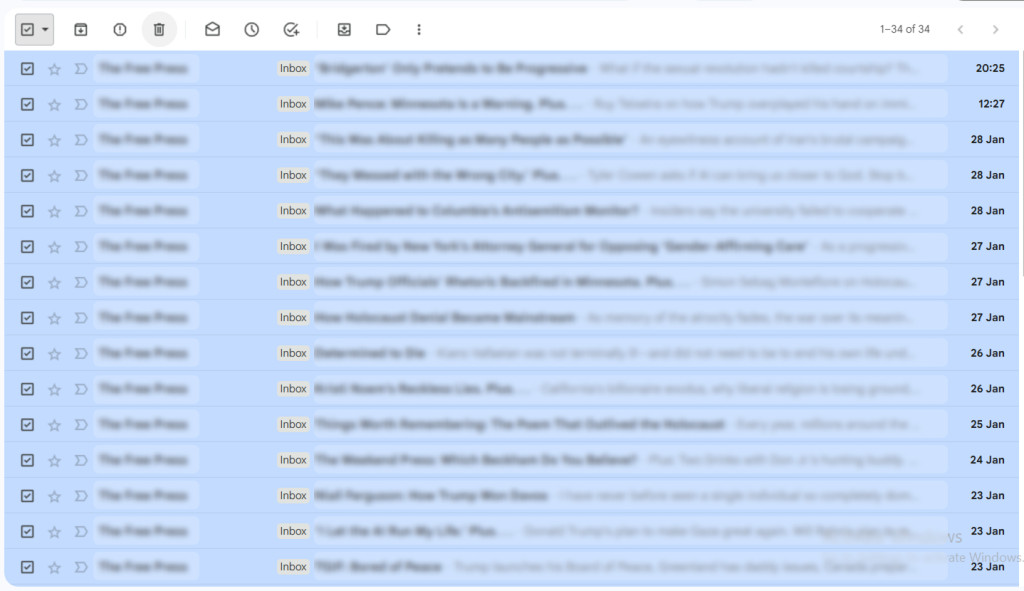
Important notes:
Outlook’s bulk deletion works similarly across web and desktop versions, though keyboard shortcuts vary slightly.
Outlook Web (outlook.com or office.com):
Outlook Desktop App:
If you use Focused Inbox, you’ll need to clear both the Focused and Other tabs separately. Switch between tabs and repeat the selection process.
Most email providers follow similar patterns for bulk deletion, though specific interface details vary.
Yahoo Mail:
Apple Mail (iCloud.com):
Proton Mail:
General approach for unfamiliar providers:
Most providers include bulk selection limits (typically 1,000-10,000 emails per action) to prevent server overload. If you have more emails than the limit, repeat the process until the folder is empty.
Mobile email apps intentionally restrict bulk deletion because touching hundreds or thousands of emails on a small screen is error-prone and difficult to undo.
iOS Mail App:
The native Mail app on iPhone and iPad doesn’t support true bulk deletion. You can:
This works for dozens of emails, not thousands. For inbox-wide cleanup, use a desktop browser.
Gmail Mobile App:
Gmail’s mobile app limits selection to visible emails and doesn’t provide the “select all conversations” option available on desktop. You can select and delete 50-100 at a time, but clearing thousands this way is impractical.
Outlook Mobile App:
Similar to Gmail, Outlook’s mobile app restricts bulk actions to visible messages only.
If you need to delete more than 100 emails, switch to a desktop or laptop computer and use the web interface. Mobile deletion is functional for small-scale cleanup but becomes tedious for large-scale inbox clearing.
Search-based deletion lets you target specific subsets of your inbox, including particular senders, date ranges, or keywords, without clearing everything.
Delete emails from a specific sender:
from:[email protected]

from:[email protected]
After searching, select all results using the bulk selection method described earlier, then delete.
Delete emails older than a specific date:
before:2023/01/01

This shows all emails received before January 1, 2023. Select all and delete.
Use the date filter in the search bar or filter pane to show emails before a specific date, then select all and delete.
Delete unread emails only:
Is:unread

Use the filter dropdown to show “Unread” messages only.
Delete by category or label:
category:promotions
Shows all promotional emails. You can also just click the Promotions tab directly.
Combine search criteria:
Gmail lets you stack filters:
from:[email protected] before:2024/01/01 is:unread

This shows unread emails from a specific sender before January 2024.
You might want to keep work emails but delete all newsletters, keep recent messages but remove everything older than two years, or eliminate promotional clutter while preserving personal correspondence. Search lets you be selective rather than deleting everything indiscriminately.
Third-party email management tools can automate bulk deletion, especially when managing multiple email accounts or applying complex rules across thousands of messages.
These services connect to your email account via OAuth (the same secure method many apps use) and provide interfaces for:
Review what permissions the service requests. Legitimate tools ask for:
Be cautious with tools requesting excessive permissions or from unknown developers. Major providers like Google and Microsoft show detailed permission screens, so read them carefully before authorizing.
Limitations:
Third-party tools typically work best for ongoing management and gradual cleanup. If you want to delete your entire inbox right now, the built-in bulk selection methods in Gmail or Outlook are usually faster than setting up a third-party service.
Bulk deletion is fast and effective, but it’s also irreversible after emails are permanently removed. Consider these points before clearing your inbox.
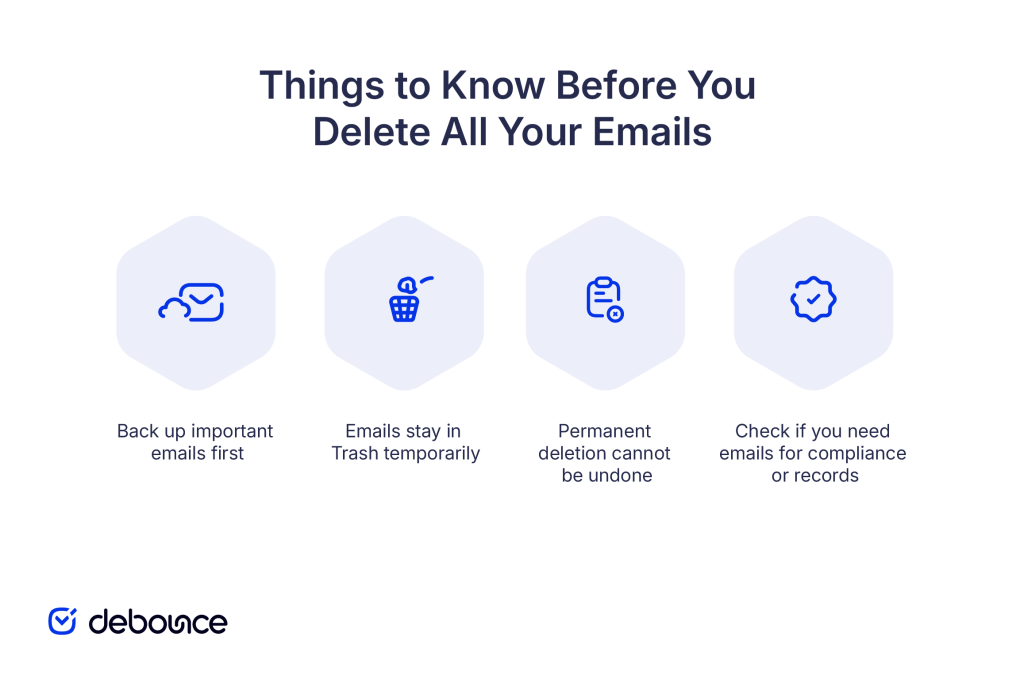
Before you delete everything, export or save emails you might need later:
Most email providers offer export tools (Google Takeout for Gmail, Outlook export features) that download your entire mailbox as an archive file you can store locally.
When you delete emails, they move to Trash (Gmail) or Deleted Items (Outlook) and remain there for 30 days before permanent deletion. During this window, you can recover messages if you realize you deleted something important.
To recover from Trash:
Once you empty Trash or wait 30 days, deleted emails are gone permanently. Email providers don’t maintain backups of deleted messages after this period. If you’re unsure about deleting everything, consider archiving instead. Archived emails leave your inbox but remain searchable and recoverable indefinitely.
Some industries and roles require retaining emails for specific periods:
If you’re deleting work or business emails, verify your organization’s retention policy before proceeding.
A clean inbox gives you mental clarity and better control over your email. When you’re not scanning through thousands of irrelevant messages, you can focus on communications that actually matter.
Open your email provider’s web interface in a desktop browser right now. Mobile apps work for small-scale cleanup, but clearing thousands of messages requires the full functionality available in Gmail or Outlook’s browser versions. Select all emails using the bulk selection method for your provider, delete them, and start with a clean slate. Then spend 10 minutes unsubscribing from newsletters you don’t want so your inbox stays manageable going forward.
If you manage email campaigns or lead databases, keeping your contact lists clean is just as important as organizing your personal inbox. Understanding email sender reputation and learning how to improve sender reputation helps your business emails reach inboxes reliably. When you’re ready to send mass email in Gmail or through other platforms, clean your email list first to avoid deliverability problems.
The importance of email verification applies to both receiving and sending email. Use DeBounce to verify addresses before adding them to your database so you’re only communicating with real, active contacts, not collecting addresses that will clutter your systems later.
How do I delete thousands of emails at once?
Use your email provider’s bulk selection option in the desktop web interface: select all visible emails, then click “Select all conversations that match this search” (Gmail) or the equivalent option to delete thousands in one action.
How can I delete emails from one sender?
Search for emails from that sender using from:[email protected], select all results using your provider’s bulk selection tool, then delete; this removes all emails from that sender at once.
How do I get the emails that I have permanently deleted by accident back?
If emails are still in Trash/Deleted Items (within 30 days), you can restore them by selecting them and moving them back to the Inbox; once permanently deleted after 30 days or after emptying Trash, they cannot be recovered.
Find quick answers to your questions about our pricing and plans.

If you've been in the email marketing field, you've probably heard some discussion about the subject of email delivery (the ability of your emails to...

Are you looking for a Mailchimp alternative? Mailchimp is a popular email marketing platform, but its lengthy customer service response times and arbitrary rules have...


As an email marketer, you may often encounter a formidable obstacle in your campaigns — ambiguous email bounce codes. These codes can be perplexing and...


Emojis aren't just for texting anymore. In fact, they've become such a powerful marketing tool that more and more companies are using them in their...


You can not please everyone. Some people will opt-out of your email list no matter what. It’s not you. It’s them. This is a struggle...

Verification of email and cleaning of the email list has many advantages. Users using an email verifier or validation service on a regular basis experience...
