You can create a Gmail filter from the search bar or from Settings, and both let you combine several actions in one rule....

Key Takeaways
Since February 2024, Gmail’s bulk sender requirements have mandated a published DMARC record for every domain sending over 5,000 emails per day to Gmail users. Yahoo enforces the same rule under their sender best practices. As of May 2025, Microsoft has begun rejecting non-compliant mail from high-volume senders to Outlook, Hotmail, and Live mailboxes.
DMARC has moved from optional to required for any Microsoft 365 tenant operating at scale, and current email spam statistics make the reason clear: providers are tightening authentication rules because unauthenticated mail creates risk for both senders and recipients.
That is why it is important to learn how to set up DMARC in Office 365 correctly, from confirming the prerequisites and building your record to publishing it in DNS, choosing a safe starting policy, verifying that it works, and moving toward full enforcement without blocking legitimate mail.
DMARC is not a standalone protocol. It’s a policy layer on top of SPF and DKIM that tells receiving mail servers what to do when those checks fail. If SPF or DKIM are misconfigured or not aligned, DMARC enforcement will start acting on that misalignment the moment you move past p=none.
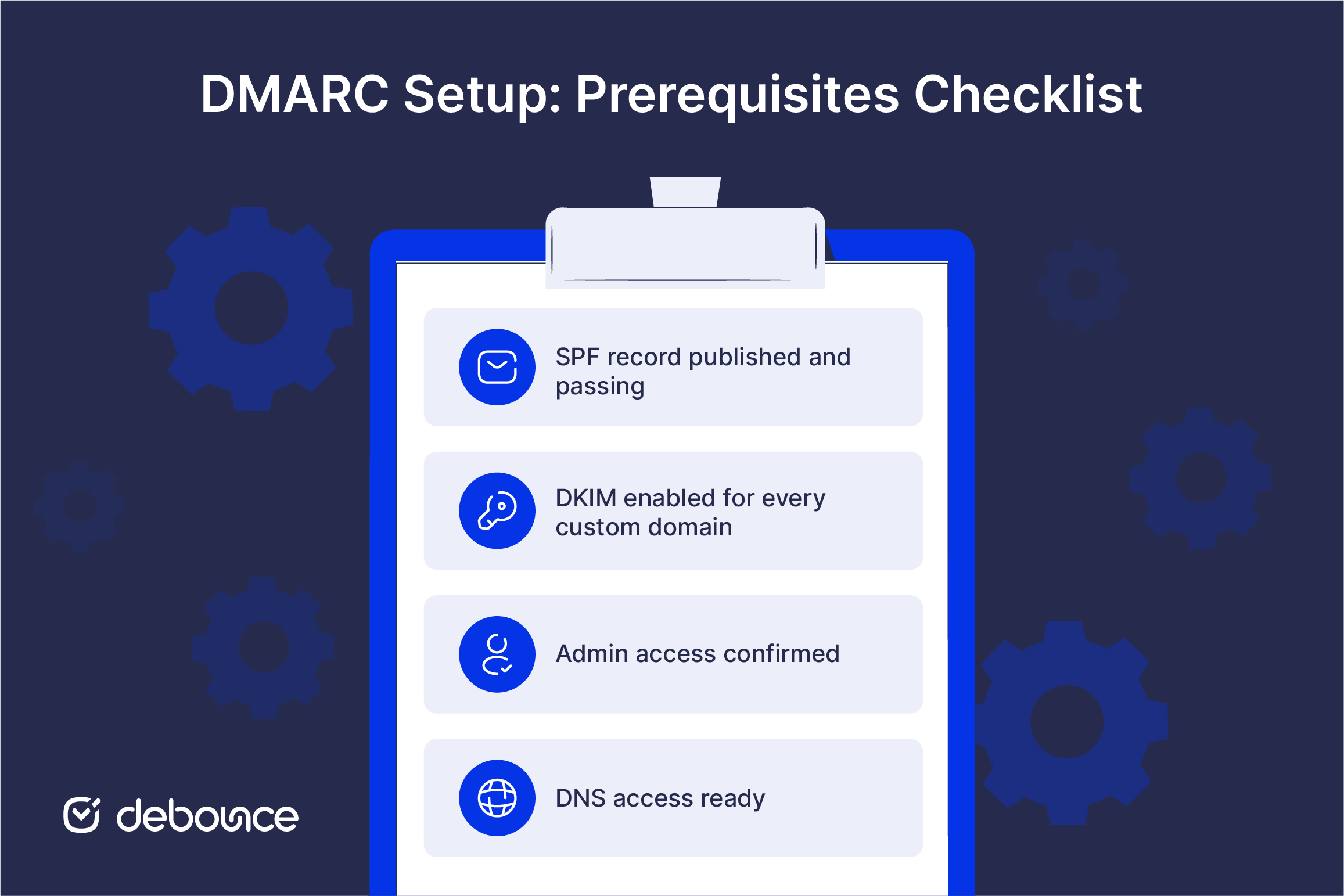 Confirm all four prerequisites below before publishing your DMARC record:
The five steps below take 10–15 minutes of active work, plus DNS propagation time (anywhere from a few minutes to 48 hours, depending on your DNS provider and TTL settings).

DMARC setup happens entirely in DNS, not in the Microsoft Defender portal. Microsoft 365 handles inbound DMARC checks automatically through Exchange Online Protection, but there is no Defender portal setting to configure outbound DMARC on your custom domain. That record lives in your DNS zone.
Send a test email from your custom domain to an external Gmail or Yahoo address. Open the email and view the full message headers (in Gmail: three-dot menu → “Show original”).

In the Authentication-Results header, confirm:

If either shows fail or neutral, stop here and fix the authentication issue first. Publishing a DMARC record over failing SPF or DKIM will cause legitimate emails to be quarantined or rejected as soon as you move the policy past p=none.

Start with p=none for every new DMARC deployment. This policy collects DMARC aggregate reports without affecting email delivery. Failing messages are still delivered, but receiving mail servers report the authentication results back to the address specified in your rua= tag. That data tells you which sending sources are aligned and which aren’t before enforcement begins.
Jumping directly to p=quarantine or p=reject is the single most common cause of lost legitimate email during DMARC rollouts. If a third-party sending platform isn’t aligned yet, a strict policy will quarantine or bounce real mail from that source immediately. The p=none stage exists specifically to prevent that.

The basic DMARC record for a new deployment looks like this:
v=DMARC1; p=none; rua=mailto:[email protected]; pct=100;
Here’s what each tag means:
For the complete tag reference, including optional tags like ruf (forensic reports), sp (subdomain policy), adkim, and aspf, see DMARC.org‘s official protocol documentation.

Log in to your domain’s DNS provider. Create a new TXT record with the following values:
Save the record. DNS propagation typically completes within a few hours but can take up to 48 hours. During that window, the record may not be consistently visible from all resolvers.

Once the record has propagated, verify it in two ways:
DMARC aggregate reports start arriving in the rua= mailbox within 24–72 hours of the record going live. Review the first batch carefully before considering any move to a stricter policy.
Every successful DMARC deployment moves through all three policy stages over weeks or months. Skipping stages risks rejecting legitimate mail before all sending sources are properly aligned. The staged approach is how you protect mail flow while building toward full enforcement.
v=DMARC1; p=none; rua=mailto:[email protected]; pct=100;
With p=none, receiving mail servers collect DMARC results and send them back to your rua= address, but failing messages are still delivered normally. Nothing is quarantined or rejected.
Stay in p=none for a minimum of 2–4 weeks. Use that time to read the aggregate reports and confirm that every legitimate sending source, such as Microsoft 365, marketing platforms, transactional senders, and CRMs, is passing DMARC alignment. Any source showing failures needs to be fixed before the policy tightens.
Move to p=quarantine only when reports consistently show passing rates above 95% for all legitimate senders over multiple reporting cycles.
v=DMARC1; p=quarantine; rua=mailto:[email protected]; pct=100;
With p=quarantine, receiving mail servers route failing messages to the spam or junk folder rather than the inbox. Legitimate but unaligned mail still arrives, just in a degraded location where recipients are less likely to see it.
This policy stage is a useful intermediate checkpoint. It imposes consequences for misaligned mail without the hard bounces that p=reject creates. Stay here for another 2–4 weeks and monitor reports closely for any legitimate mail being misrouted.
Move to p=reject only when DMARC reports confirm consistent alignment across all sources and zero legitimate mail is being quarantined.
v=DMARC1; p=reject; rua=mailto:[email protected]; pct=100;
With p=reject, receiving mail servers refuse messages that fail DMARC alignment outright. Failing messages bounce back to the sender; they don’t reach the recipient at all.
This is the goal of every DMARC implementation. Full p=reject enforcement provides complete protection against domain spoofing and satisfies the requirements of Gmail, Yahoo, and Microsoft for high-volume senders. It also protects your domain and IP reputation by preventing unauthorized senders from using your domain name to deliver mail.
Continue monitoring DMARC reports at p=reject. New sending sources, including new vendors, marketing tools, and integrations, can still cause alignment failures and must be onboarded with authentication in place before going live.
Most DMARC failures in Microsoft 365 environments are alignment problems, not protocol errors. This means the record is technically valid, but the email being sent doesn’t align with the DKIM signing domain or the SPF-authorized IPs.

Diagnose: The rua= mailbox address is wrong, the mailbox is blocking incoming reports, or the domain isn’t sending enough volume for major providers to have generated reports yet.
Fix: Confirm the rua= mailbox exists, accepts external mail, and isn’t being filtered by an aggressive spam rule. Send a few test emails from the domain to Gmail and Yahoo addresses; those providers typically generate reports within 24–48 hours if DMARC is configured correctly.
Diagnose: A third-party sending platform isn’t aligned. The most common cause is a marketing tool, CRM, or transactional email provider that hasn’t been added to SPF or configured to sign with DKIM for the custom domain.
Fix: Review the DMARC aggregate reports to identify which source is failing. Either add the source to your SPF record (include:thirdparty.com), configure DKIM signing for that source through its platform settings, or temporarily move back to p=none until alignment is corrected. Never leave the policy at p=reject while known sources are failing.
Diagnose: Forwarded emails often break SPF alignment because the forwarding server’s IP isn’t in the original sender’s SPF record. DKIM typically survives forwarding intact, so this scenario often becomes a DKIM-only alignment case.
Fix: Ensure DKIM is signing correctly for the original sender. DKIM-aligned mail passes DMARC even when SPF fails due to forwarding. If DKIM is also failing after forwarding, the forwarding system is modifying the message content and breaking the DKIM signature. This situation generally requires ARC (Authenticated Received Chain) support from the forwarding server to resolve.
Diagnose: Typos in the DMARC TXT record can invalidate the entire policy. Common issues include a missing v=DMARC1 prefix, semicolons missing between tags, or the record split incorrectly across multiple DNS entries.
Fix: Run the published record through MXToolbox’s DMARC validator and confirm it returns parsed and valid. Check that the record exists as a single TXT entry under _dmarc.yourdomain.com, not split across two records, and that each tag is separated by a semicolon.
Setting up DMARC is easier when you follow the steps in order. Verify SPF and DKIM, build the record, publish it in DNS, move slowly through each policy stage, with enough time to read the reports and fix alignment issues before tightening enforcement.
Since DMARC is the final layer of email authentication, it depends on SPF and DKIM working correctly first. If those records are misconfigured or not aligned, DMARC enforcement may block legitimate mail instead of protecting the domain from spoofing.
Authentication, however, does not solve every deliverability problem. A properly authenticated domain sending to a list full of invalid, disposable, or inactive addresses will still generate hard bounces, and those bounces affect your email sender reputation regardless of how clean your DMARC record is.
Before your next campaign, upload your list to DeBounce and run a full validation pass through Email List Validation. Authentication confirms the email came from you, while list hygiene confirms it’s going somewhere real. Both are necessary to give each campaign a stronger chance of reaching the inbox.
No. Microsoft 365 checks inbound DMARC automatically through Exchange Online Protection, but outbound DMARC for custom domains must be configured manually by publishing a TXT record in the domain’s DNS.
Always p=none for the first 2–4 weeks. This collects aggregate reports without affecting delivery, giving you the data to identify and fix alignment failures before they cost real inbox placement.
DNS propagation completes within a few hours to 48 hours. The first aggregate reports typically arrive within 24–72 hours of the record going live, assuming the domain is actively sending email to major providers.
The most common cause is an unaligned third-party sending source: a marketing platform, CRM, or transactional email provider that hasn’t been added to SPF or configured to sign with DKIM for the custom domain. Review the aggregate reports to identify which source is failing.
Yes. SPF and DKIM authenticate individual messages, but they don’t tell receiving servers what to do when authentication fails. Without DMARC, spoofed mail that fails SPF and DKIM can still reach the inbox because there’s no policy instructing the receiver to act on the failure.
Find quick answers to your questions about our pricing and plans.

You can create a Gmail filter from the search bar or from Settings, and both let you combine several actions in one rule....

Email verification codes prove both that an email address is valid and that you control the inbox associated with it. Most codes expire...

Email marketing analytics is the practice of measuring deliverability, engagement, and business outcomes—then using those numbers to improve the next send. After Apple...

The closing is the final part of an email that the recipient reads, so it affects the impression you leave and whether they...

The best list-growth tactics combine clear value (like lead magnets and landing pages), smart placement (like pop-ups and social links), and quality control...

Free SMTP servers are best suited for low-volume sending, testing, and small applications, rather than large-scale campaigns. Free SMTP providers typically impose strict...