If you work in email marketing, you have probably encountered Gmail’s familiar message truncation notice: "[Message clipped] View entire message". At first glance, it looks...

Key Takeaways
Your inbox hit 10,000 unread messages last month. Somewhere in there, a real client email got swallowed by promo spam. And when you needed to reset a password, you spent a solid 15 minutes digging through page after page to find it.
That’s how a cluttered inbox looks. It is annoying, and it actively costs you time, focus, and sometimes real money when important messages disappear into the noise. Knowing how to clean up email becomes essential at this point, especially when messages keep piling up faster than you can deal with them. Without a system to manage emails, your inbox can easily turn into a digital junk drawer. Everything ends up there. Nothing is easy to find.
This guide walks you through a practical cleanup process: what to delete, how to organize what’s left, and how to keep your inbox under control going forward.
A messy inbox can affect everything: fragmenting your attention, increasing decision fatigue, and making it harder to spot urgent messages when they arrive.
When you let clutter pile up:
A clean inbox doesn’t mean zero emails. It means only seeing messages that require your attention, organized in a way that lets you act on them quickly.
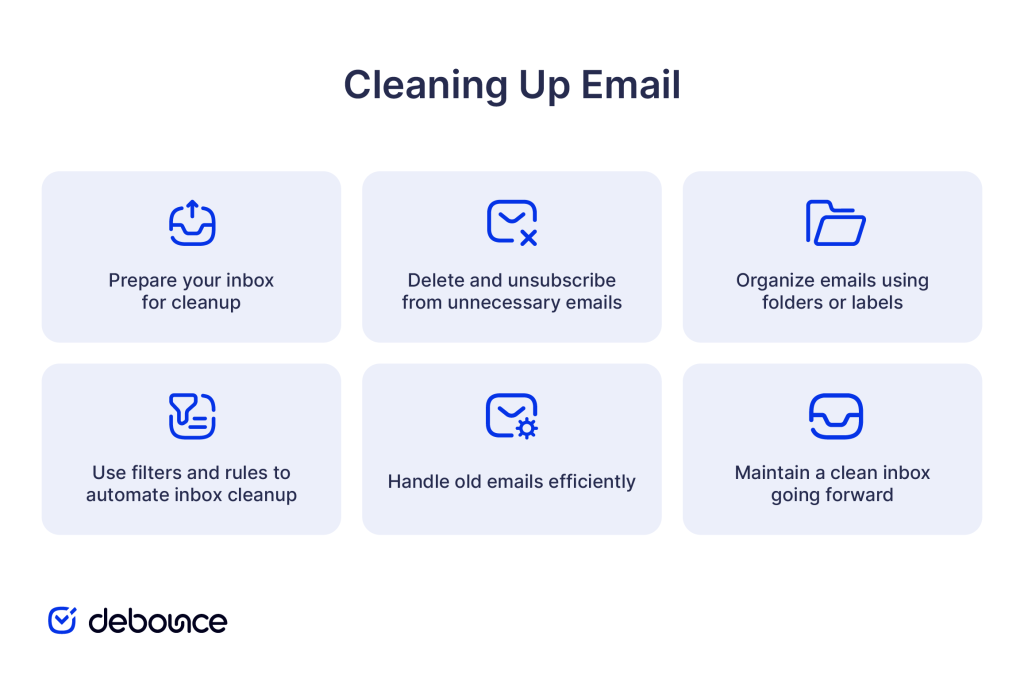
Cleaning your inbox means deleting what you don’t need, organizing what you keep, and setting up habits to stay clutter-free. This simple process below works no matter how many emails you have:
Before you start deleting or organizing, set yourself up for success by picking one account. If you manage multiple email addresses (work, personal, side projects), choose the one that causes the most daily friction. Clean it first, then apply the same process to your other accounts.
Block out time by setting aside 30-60 minutes of uninterrupted time. Turn off notifications, close other tabs, and focus solely on your inbox. Trying to clean your inbox while juggling other tasks just means you’ll get distracted halfway through.
Don’t try to process every email individually. Work in batches. Use bulk actions, like searches, filters, and mass selections, to handle hundreds or thousands of messages at once.
According to email spam statistics, nearly half of the respondents report receiving spam through emails, contributing significantly to inbox clutter. Most of the clutter also comes from newsletters, promotions, and automated notifications you signed up for months or years ago and never read.
Search your inbox for senders who email you frequently but whose messages you never open. These may include:
Continue by deleting in bulk. Find all emails from a specific sender, then select all and delete. For example, in Gmail, search from:[email protected] to see every email from that sender, then use “Select all conversations that match this search” to delete everything at once.
However, deleting old emails doesn’t stop new ones from arriving. Most promotional emails include an unsubscribe link at the bottom. Click it. It takes a few extra seconds per sender, but it prevents hundreds of future emails from cluttering your inbox.
Once you’ve removed the obvious clutter, organize what’s left so you can find messages when you need them. Keep it simple by creating 3-5 broad categories based on how you actually work. For example:
Avoid over-organizing. Don’t create many hyper-specific folders, as the more folders you have, the more time you’ll spend deciding where each email belongs. Stick to broad categories that feel obvious.
If your email client supports it (Gmail, Outlook, etc.), use labels or tags instead of folders. Labels let you assign multiple categories to a single email, so a message can be both “urgent” and “client project” without having to choose one location.
For emails you might need later but don’t want in your inbox, archive them. Archiving removes messages from your inbox but keeps them searchable. It’s faster than filing everything into folders and safer than deleting.
Manual organization works once, but you’ll fall behind again if every new email requires a decision. Automation keeps your inbox clean without ongoing effort. If you get weekly reports, automated notifications, or regular updates from specific senders, create a filter that automatically labels or files those emails as they arrive. In Gmail:
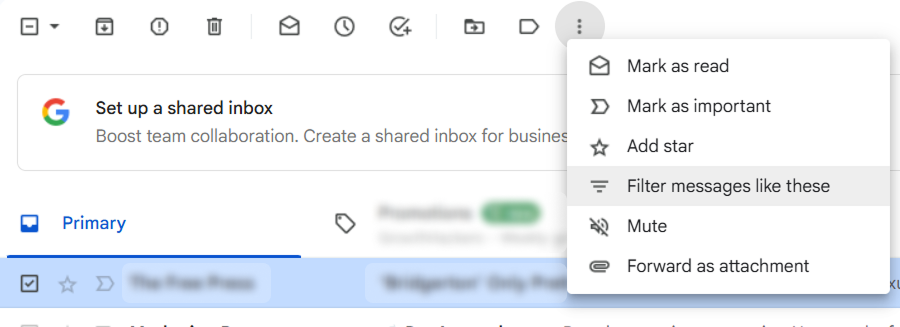
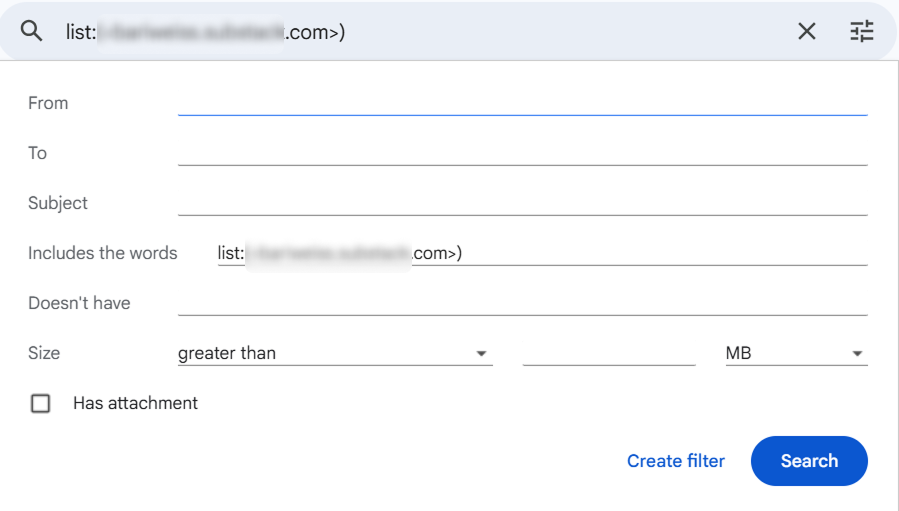
In Outlook, this feature is called “Rules” and works similarly.
On the other hand, some emails are useful to have, but don’t need to sit in your inbox. Set up filters to automatically archive:
Additionally, create a filter that marks emails from your manager, key clients, or close collaborators as important or moves them to a priority folder. This ensures critical messages always surface first.
You’ve cleaned up subscriptions and organized recent messages. Now deal with emails from months or years ago sitting in your inbox. If you haven’t acted on an email in three months, you’re probably not going to. Search for emails older than a specific date, select all, and archive. They’ll still be searchable if you need them, but they won’t clutter your view.
In Gmail, search: before:2024/10/15 (adjust date as needed), then select all and archive.
If you downloaded a PDF invoice, saved a presentation, or filed a contract somewhere else, you don’t need the email anymore. Search for emails with attachments, review quickly, and delete what’s redundant.
You do not need “just in case” emails, either. If you’re keeping thousands of emails because you might need them someday, the truth is you won’t. If you can recreate the information in under 5 minutes (Google search, asking someone, checking a website), delete it.
Cleaning your inbox once doesn’t help if it fills back up in two weeks. Build simple habits that prevent clutter from returning.
For teams managing shared email lists or lead databases, clean your email list regularly to maintain deliverability and engagement. Understanding what bounced email means can help you identify list quality issues early.
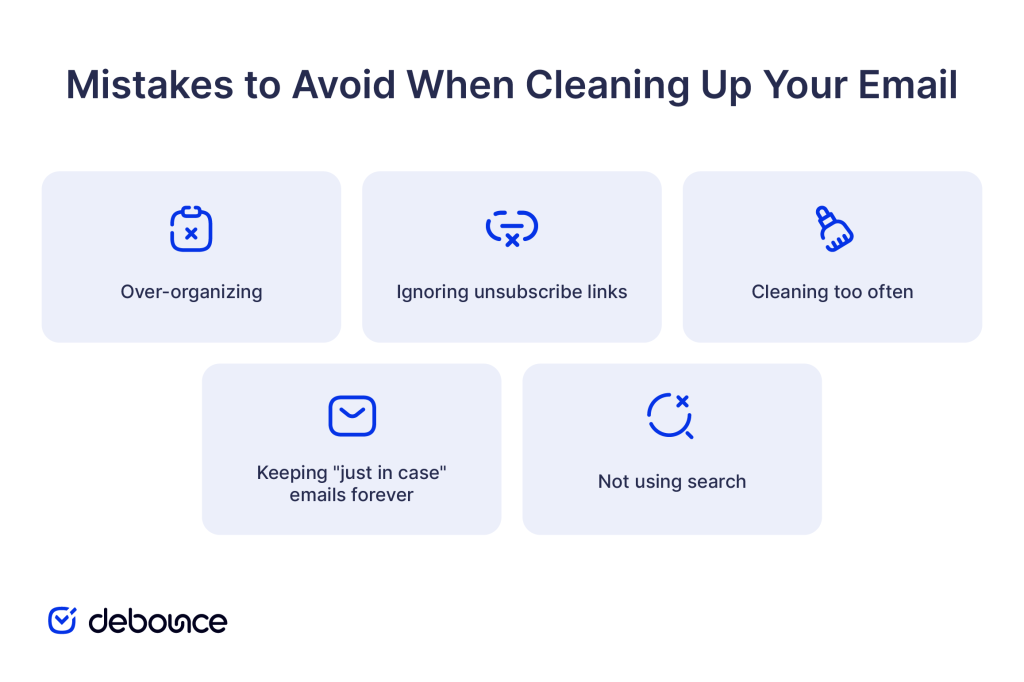
Even with a good system, it’s easy to make cleanup harder than it needs to be. For example, creating 40 folders for hyper-specific categories feels productive but wastes time. You’ll spend more time deciding where to file each email than you save from having everything sorted. So, do not over-organize, but stick to 3-5 broad categories.
Ignoring unsubscribe links is another common mistake. Deleting promotional emails without unsubscribing means they’ll keep arriving. You’re treating the symptom, not the cause. Always unsubscribe.
Some people clean their inbox too often, by compulsively checking and reorganizing it every 30 minutes. This interrupts focus and creates busywork. Process email at scheduled times and trust your filters to handle the rest.
On the other hand, you don’t need every receipt from 2019, every confirmation email, or every thread where you said “sounds good.” Archive aggressively and trust that you can find information in other ways if you really need it.
Remember that your email client’s search function is powerful. Instead of filing every email into the perfect folder, archive most things and search when you need them. It’s faster and more flexible.
A clean inbox is about removing what doesn’t belong, so you can focus on what does. Start by deleting old promotional emails and unsubscribing from newsletters you don’t read. Organize what’s left into a few simple categories, then set up filters to automate repetitive sorting. This way, you’ll stop wasting 15-20 minutes every day searching through clutter for messages that matter.
So, block 30 minutes on your calendar this week, open your inbox, and start with the unsubscribe step. You’ll see immediate results, and the process gets faster as you build the habit.
If you manage email marketing campaigns or lead databases, keeping your contact lists clean is just as important as organizing your personal inbox. Email verification helps you identify invalid, risky, or fake addresses before they hurt your sender reputation. Try DeBounce to validate your email list and keep bounces low from your very first send.
How often should I clean up my email inbox?
Process new emails once or twice daily, and run a deeper cleanup monthly to archive old messages and review filters.
Is it better to delete or archive old emails?
Archive most emails so they stay searchable but out of your inbox; only delete obvious spam, duplicates, or promotional clutter you’ll never need.
How do I clean up my email without losing important messages?
Start by unsubscribing from newsletters and deleting promotional emails in bulk, then use search to verify nothing critical is in those batches before permanently deleting.
Find quick answers to your questions about our pricing and plans.
If you work in email marketing, you have probably encountered Gmail’s familiar message truncation notice: "[Message clipped] View entire message". At first glance, it looks...

Do you have an email address field on your HTML5 form? If the answer is positive, probably you have implemented a JavaScript or jQuery email...
You probably are familiar with the concept of List Hygiene? Well, this simply means the process of getting rid of inactive users from your mailing...

Email marketing is an integral part of every business that can give the best customer experience. It has the most efficient ROI (Return on Investment)...

Your email marketing strategy matters. Emails are still among the strongest marketing tools out there and you have to make sure you're doing it the...


The data we receive about our leads tends to be lackluster. It does not provide us with enough information. Non-enriched is the term that is...