
The email verification process runs six sequential steps: syntax, domain, MX records, SMTP mailbox ping, disposable and role-account detection, and catch-all classification. Real-time...

Key Takeaways
Archived emails aren’t deleted; they’re simply moved to a separate folder. Unarchiving one takes seconds once you know where your platform stores it. Accidental mobile swipes are the most common reason people need to unarchive an email, so the steps below cover both desktop and mobile for Gmail, Outlook, Apple Mail, and Yahoo Mail.
Gmail doesn’t have a dedicated Archive folder. Archived emails simply lose their Inbox label and live in the All Mail folder alongside sent items, drafts, and everything else in your account.

For the canonical explanation of how Gmail labels work, Gmail’s own Help Center documentation on All Mail covers the underlying system in more detail.
The pattern is the same on both platforms because the app interface matches across iOS and Android.
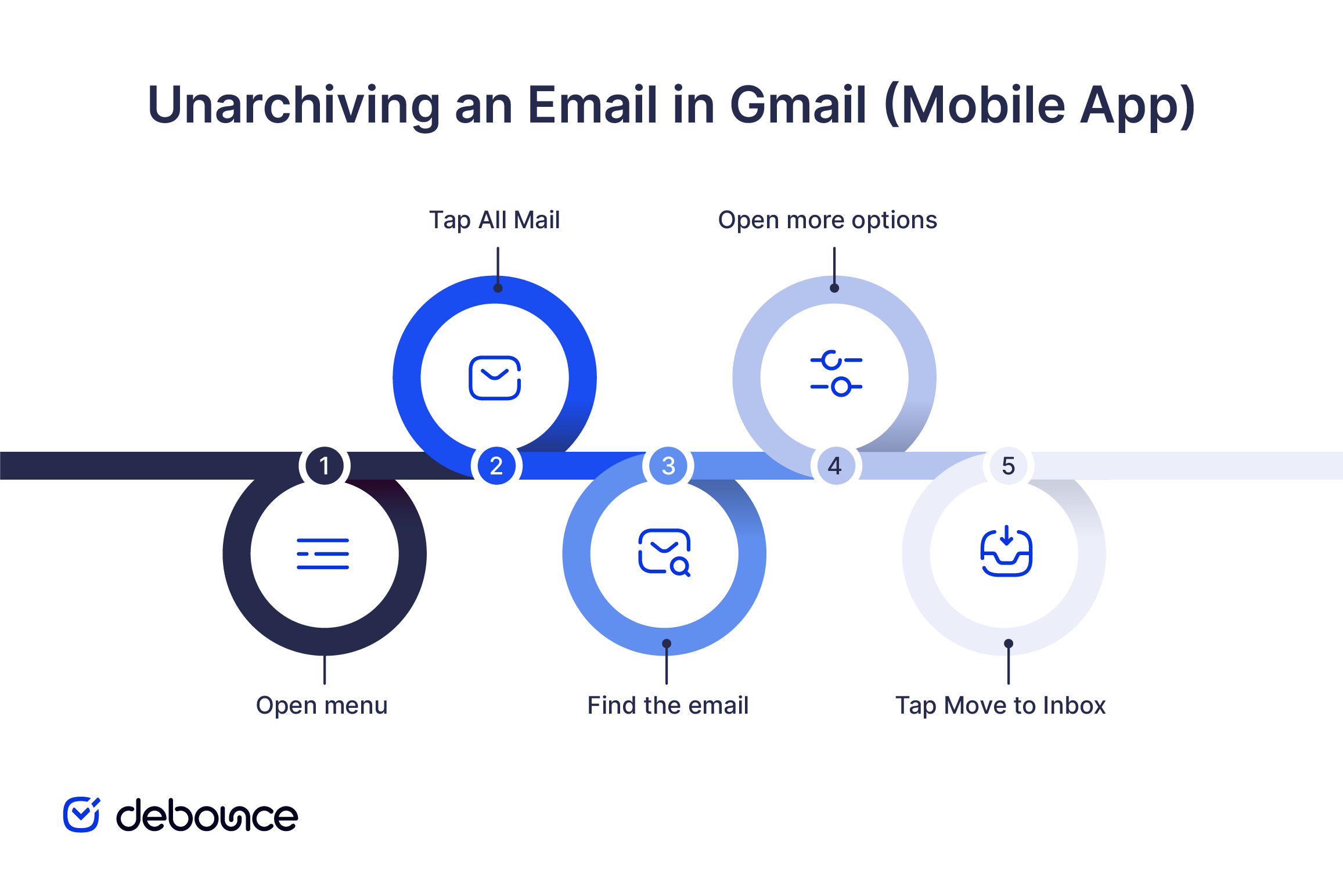
If you archive often, searching is usually faster than scrolling through All Mail. Gmail supports two search operators that filter directly to archived messages:
Combine either operator with a keyword for the fastest results, for example, in:archive payment confirmation.
Outlook has a dedicated Archive folder in the sidebar, which makes archived emails easier to find than in Gmail. The steps vary slightly depending on whether you use Outlook on the web, the desktop app, or the mobile app.

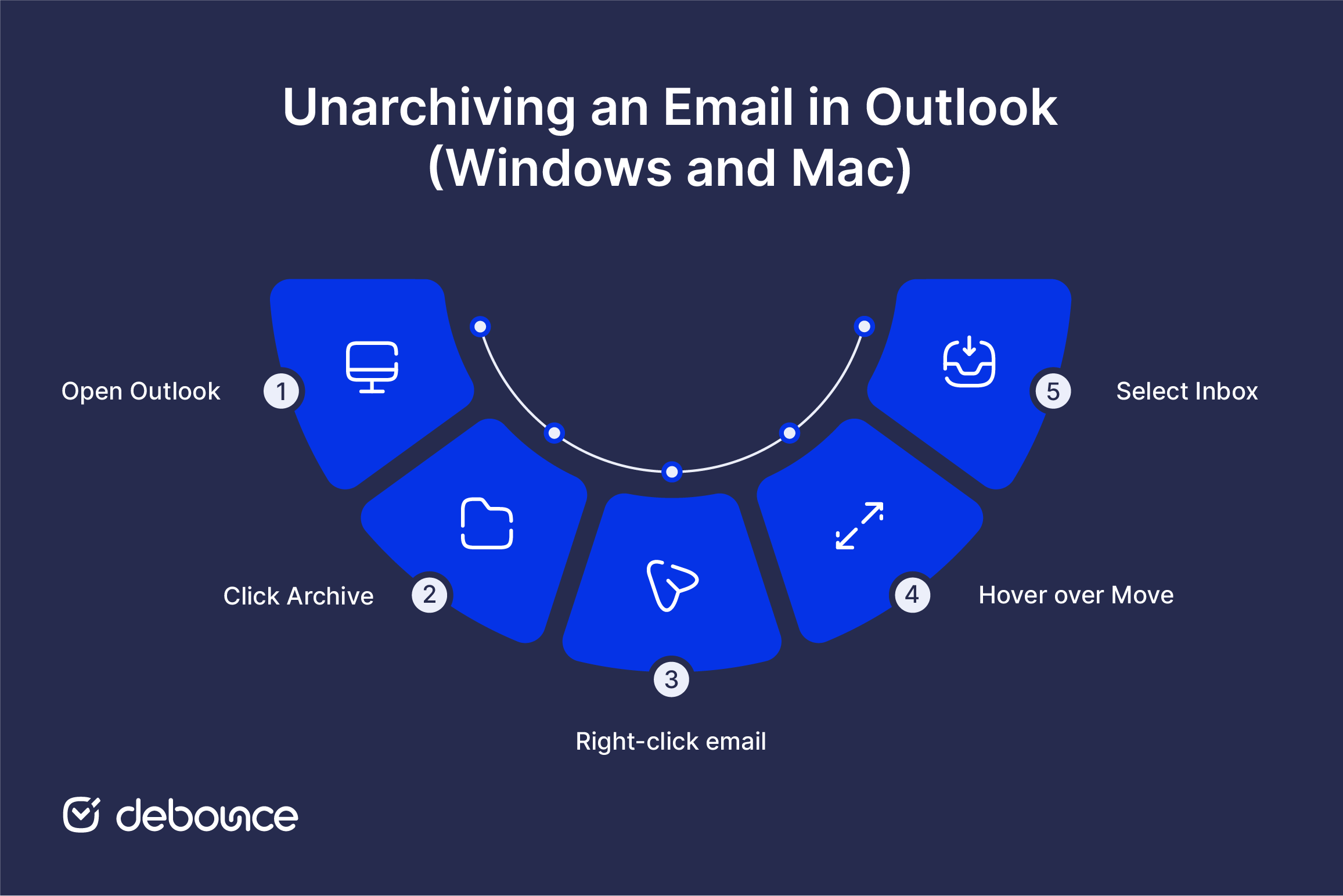
Microsoft’s own Outlook archive documentation explains how the Archive folder differs from AutoArchive, which moves emails to a separate .pst file rather than an in-account folder (a distinction worth knowing if your archived email doesn’t appear where expected).
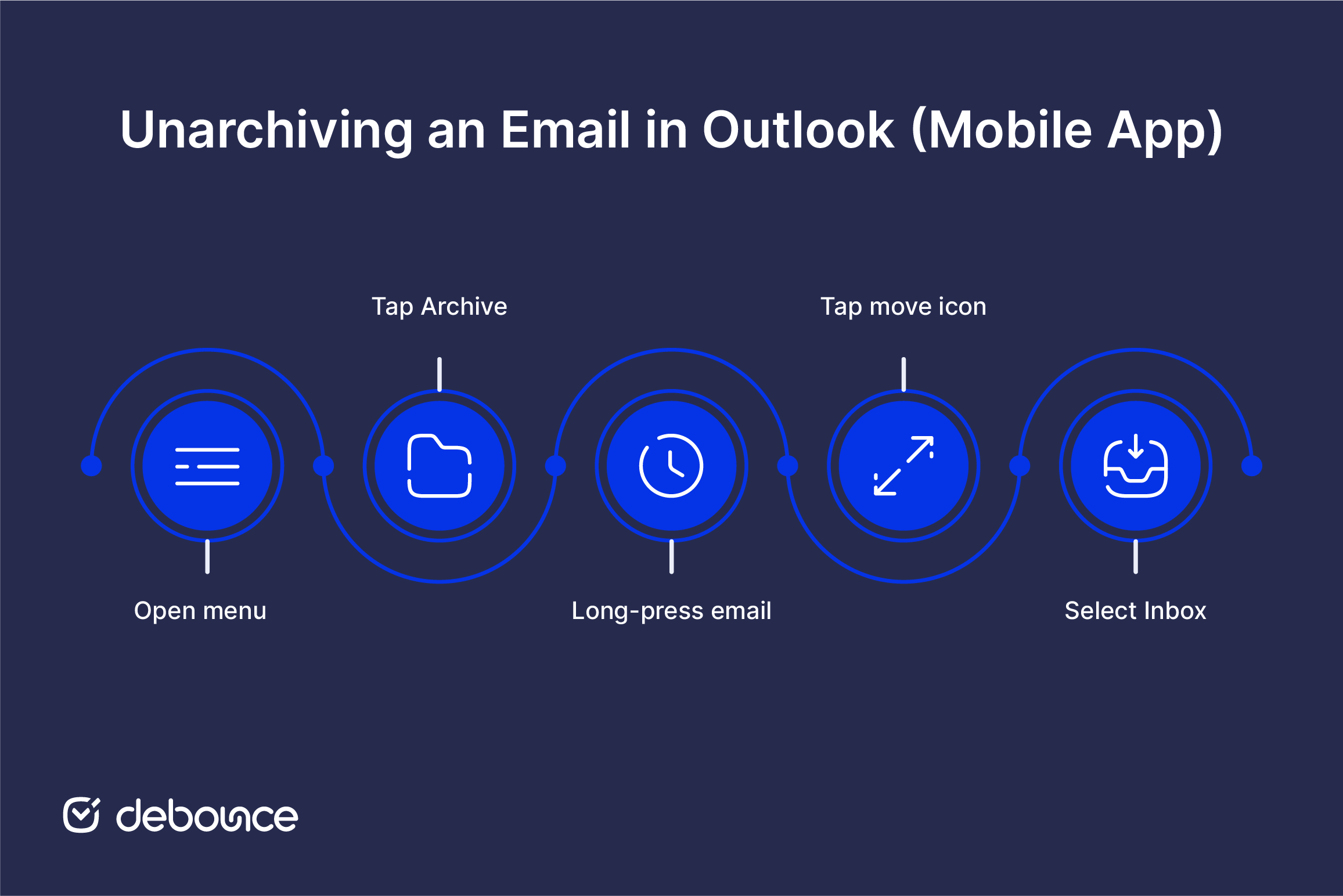
Apple Mail, Yahoo Mail, AOL, and Thunderbird use different buttons and folder names. The basic pattern is the same: open the archive, select the message, and move it back to the inbox.
The mobile flow on iPhone is the most common version of this process:
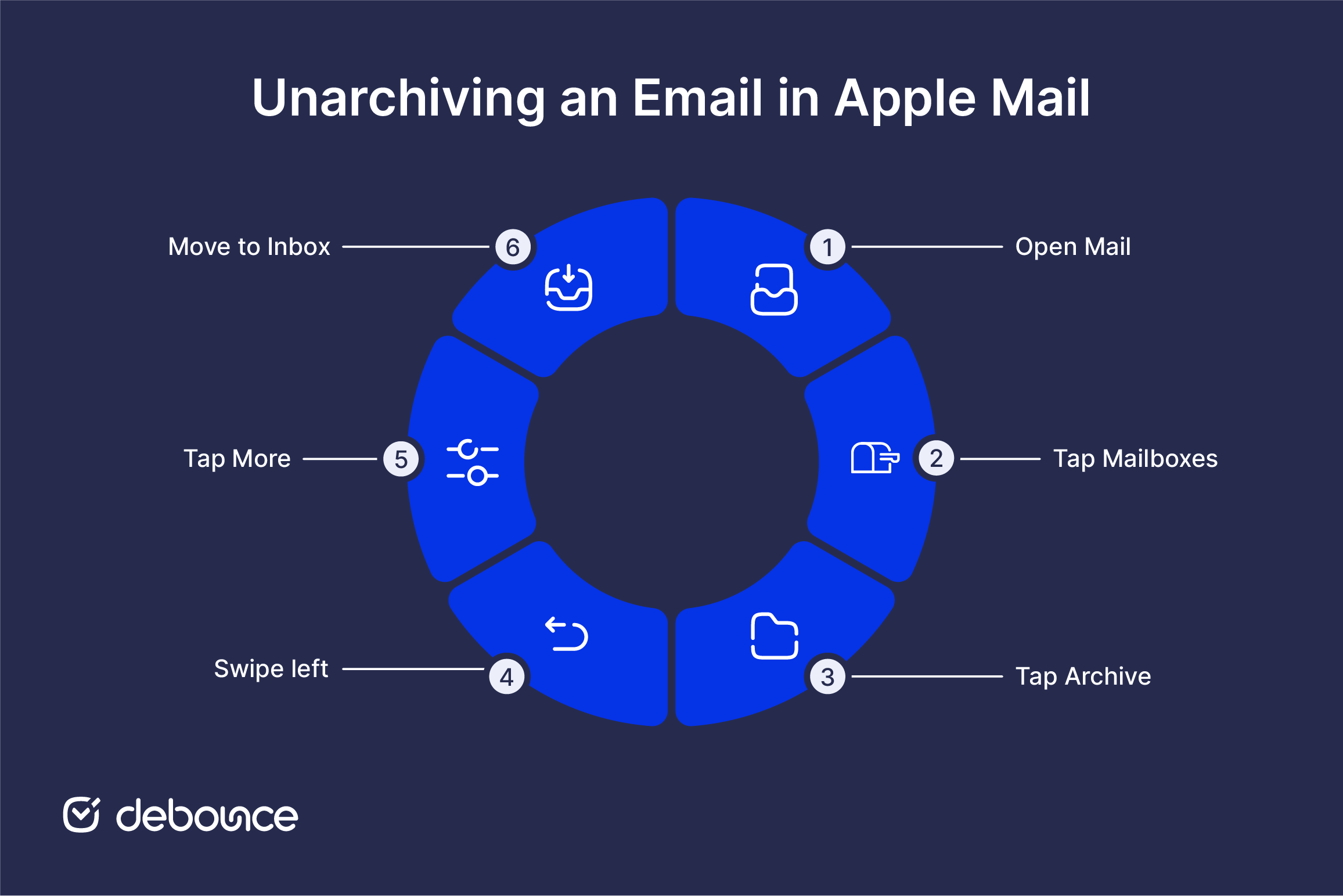
Some IMAP or Exchange-configured accounts in Apple Mail show “Move to Folder” instead of dedicated Archive options, depending on how the email server handles archive storage. If no Archive mailbox appears at all, go to Settings → Mail → Accounts, select the account, and confirm Archive is enabled. Apple’s Mail support documentation covers the full account-level setup if the folder still doesn’t appear.
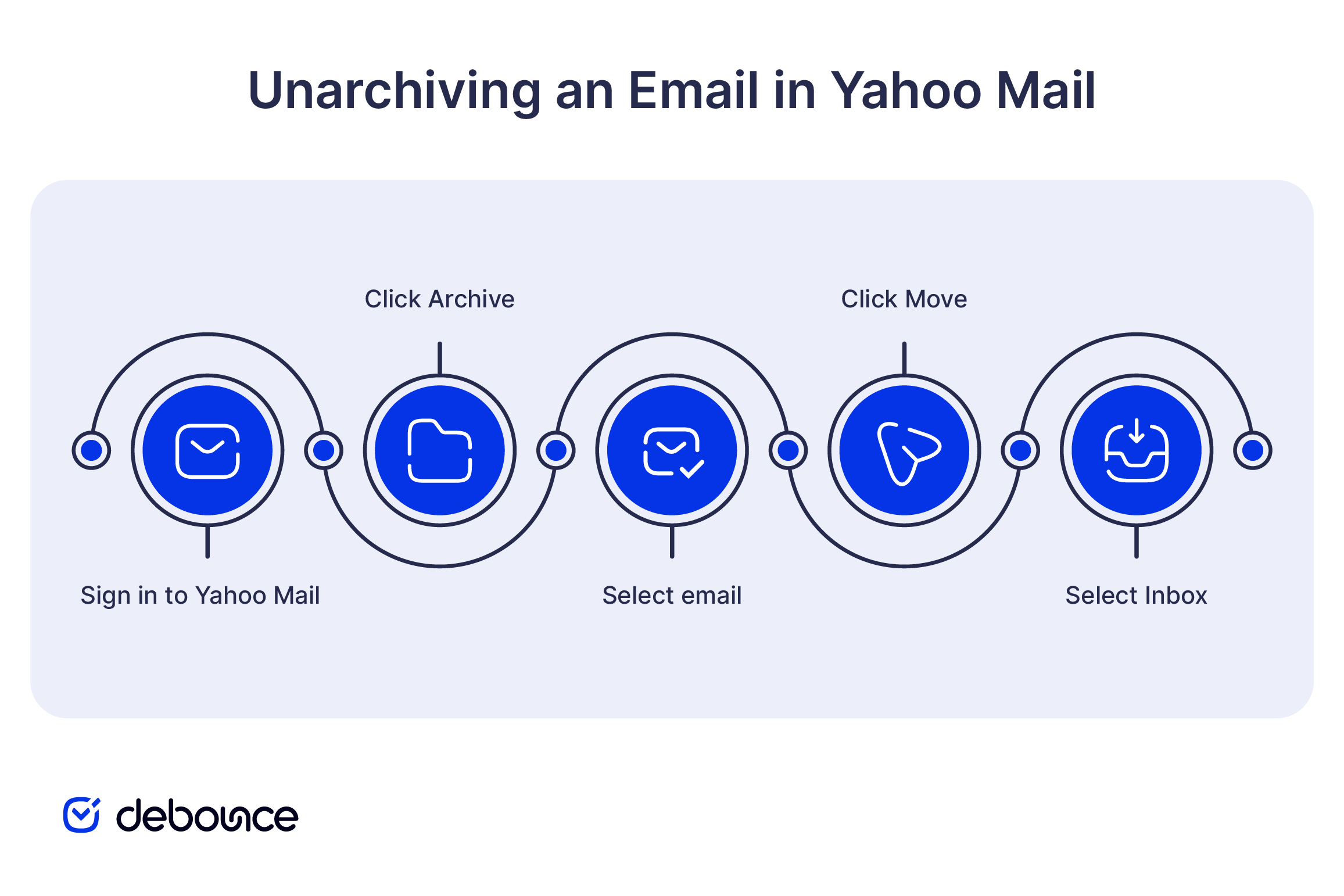
The same basic steps apply in most other email clients: open the Archive folder in the sidebar, select the email, then use the client’s Move or context-menu option to send it back to the inbox. Menu labels vary slightly, such as “Move to Folder,” “Move to Inbox,” or just “Move,” but the destination is always the inbox.
If no Archive folder appears in the sidebar, check the client’s settings for archive-related options. Some clients store archived messages in a sub-folder of the inbox rather than as a top-level Archive folder.
There’s no “unarchive all” button on any major platform. Bulk unarchiving always requires manually selecting the messages you want to move. Most platforms support multi-select on desktop, but mobile support varies significantly.
The Gmail mobile app doesn’t support bulk move-to-inbox the way desktop does. Multi-select works for actions like delete, but not for unarchiving.
Two workarounds:
Archiving is reversible. The exact steps differ by platform and device, but the underlying pattern is always the same: find the archive location, select the email, move it back to the inbox.
Gmail’s in:archive search operator and the desktop-versus-mobile distinction are two important shortcuts to know. The search operator helps you find a specific archived email faster. The device difference matters for bulk actions, especially on Gmail mobile, where unarchiving multiple emails currently requires going one at a time.
If your inbox feels overloaded, the problem may be bigger than a few archived emails. Our guide on how to manage email overload covers practical ways to clean up an inbox that always feels backed up. If the clutter is coming from your own email sends, the solution starts earlier. Learning how to reduce inbox clutter and keep email lists clean helps you send fewer unwanted messages in the first place.
No. Archiving moves a message out of the inbox to a separate folder, but the email remains stored in the account and stays searchable indefinitely. Only deleting the message and emptying the Trash permanently removes it.
To the All Mail folder. Gmail doesn’t have a dedicated Archive folder like Outlook or Apple Mail, so archived emails simply lose their Inbox label and continue living in All Mail alongside sent and drafted messages.
Yes, on desktop in Gmail, Outlook, and Yahoo. The Gmail mobile app is the exception, requiring you to unarchive one email at a time. Outlook mobile and Apple Mail support some multi-select bulk actions.
Gmail uses labels rather than folders. “Archiving” in Gmail simply removes the Inbox label, but the email still lives in All Mail. This is the foundational design choice that lets a single email carry multiple labels at once, which differentiates Gmail from older folder-based systems like Outlook’s.
In the Gmail mobile app, go to Settings, select your account, tap Swipe actions, and change the swipe behavior from Archive to something else (or to None). In the Outlook mobile app, the equivalent setting is under Settings, then Swipe options.
Find quick answers to your questions about our pricing and plans.

The email verification process runs six sequential steps: syntax, domain, MX records, SMTP mailbox ping, disposable and role-account detection, and catch-all classification. Real-time...

Always verify email addresses before sending, especially in cold outreach, to prevent hard bounces and filtering. Regular email list cleaning and re-verification reduce...

Do you frequently open your mobile phone or laptop to check your emails? If you do, then you are not alone. Because studies show that...


You’ve gathered a list of contacts for your email list. Maybe you’re starting a newsletter, or maybe you’re cold-emailing prospects to gain new clients. Now,...

Nowadays, businesses splash out on elaborate marketing strategies to reach out to prospective consumers and grow their consumer base. But at the end of the...


Email CTR measures the percentage of recipients who clicked at least one link in your email. Low CTR can be a content, design,...
