
What is BIMI? BIMI is short for Brand Indicators for Message Identification, an email authentication standard designed to give brands a way to communicate their...

Key Takeaways
Email marketing continues to drive measurable business outcomes, with a significant share of consumers making purchasing decisions based on what lands in their inbox. Studies suggest that around 59% of consumers are influenced by email when deciding what to buy, and strong campaigns can generate an ROI of $36 to $42 for every dollar spent.
That upside, however, is no longer determined by content and timing alone. Performance now depends on how mailbox providers evaluate your sending behavior behind the scenes. This shift has become especially clear with Google Postmaster Tools.
As of October 2025, the platform moved to a new version, replacing earlier reputation-based dashboards with a stricter, compliance-focused system. The previous version was officially retired on September 30, 2025, and all users are now redirected to this updated environment. Instead of assigning a general reputation score, Gmail evaluates whether senders meet specific technical and policy requirements. When those requirements are not met, emails may be blocked entirely rather than simply downgraded.
Ongoing monitoring, understanding compliance signals, and correcting issues quickly are now essential to protecting deliverability and, ultimately, revenue. In that context, Google Postmaster Tools has become a core system for avoiding costly mistakes and sustaining email marketing ROI.
Google Postmaster Tools is a free platform that helps senders understand how Gmail evaluates their email traffic. It provides visibility into deliverability, authentication, spam complaints, and overall compliance with Google’s sender requirements.
With the transition to V2, the way this data is presented has changed significantly.

The earlier version of the platform included dashboards for IP reputation and domain reputation. These have now been permanently removed. Instead of grading senders on a scale, Google now evaluates whether they meet a defined set of requirements.
At the center of this new structure is the Compliance Status dashboard, which has become the most important signal in the platform. This dashboard checks whether your domain meets Google’s core sending requirements:
The result is binary. You either pass or fail. A “Fail” status can result in Gmail rejecting your messages with 5xx-level errors, meaning the email is blocked before it ever reaches the inbox.
Alongside this, the Spam Rate dashboard remains active and now acts as the primary behavioral metric. Since reputation scores are no longer visible, spam complaints have become one of the clearest indicators of how recipients perceive your emails.
Setting up Google Postmaster Tools remains a straightforward process, although the interface now directs users to the updated V2 environment.
To begin, go to the official Postmaster Tools V2 page:
Google Postmaster Tools V2
Make sure you are signed in to the Google account you want to use to monitor your domain.
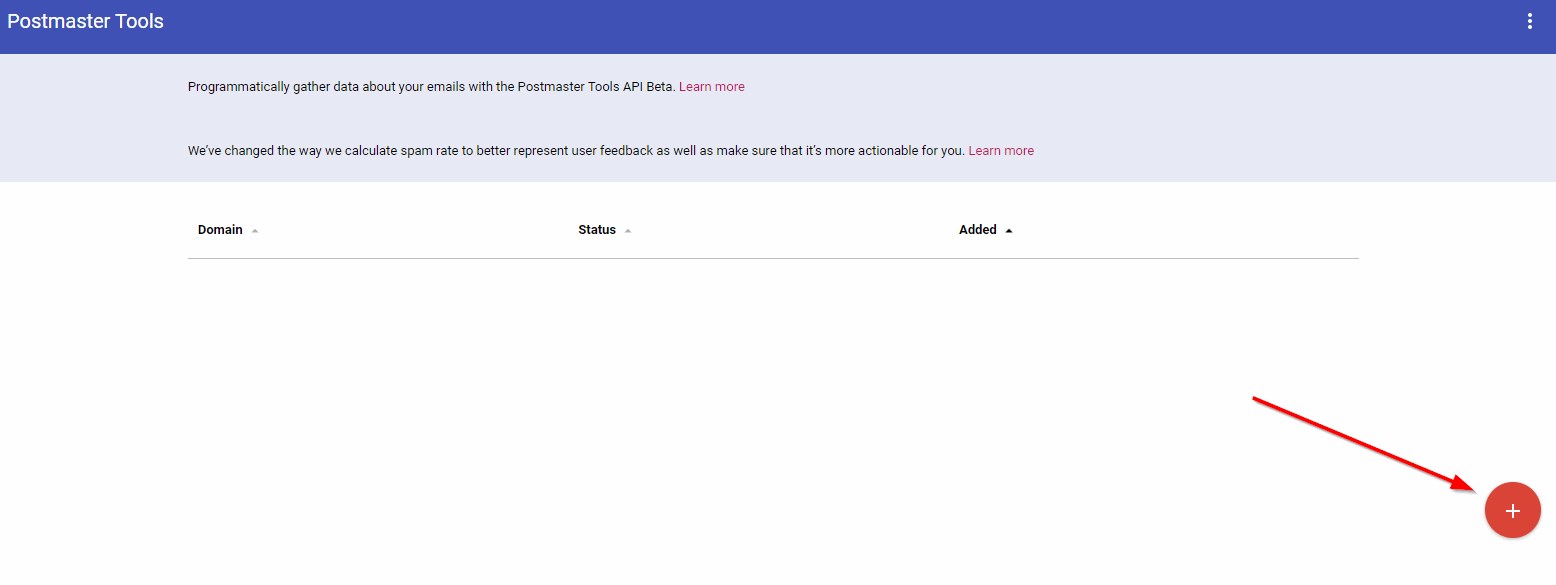
Once inside the dashboard, add your sending domain. Google will ask you to verify ownership by providing a DNS record. This usually takes the form of a TXT record, although in some cases a CNAME record may be used.
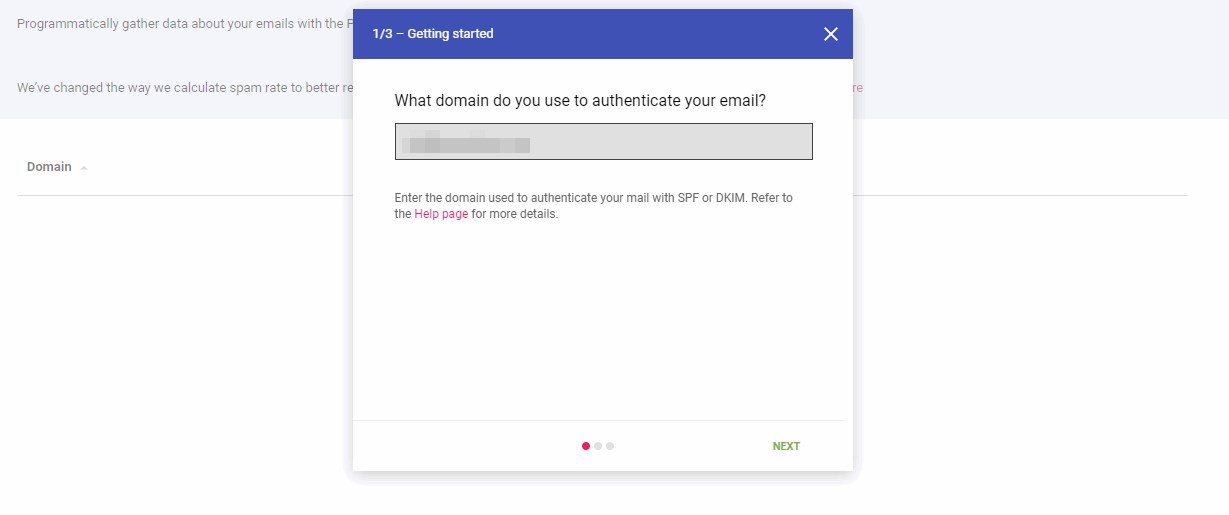
You will need to:
If someone else manages your domain, you can send them the record along with the instructions.
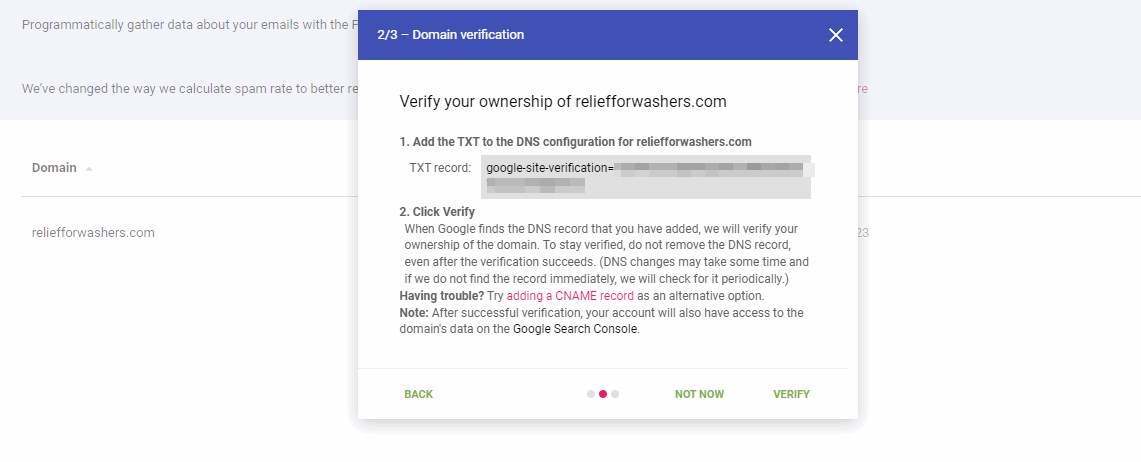
After verification, your domain will appear in the dashboard. Data does not appear immediately. Google requires a consistent volume of email traffic before it starts displaying metrics. In most cases, this means sending a steady number of emails to Gmail users daily. Until that threshold is reached, dashboards may remain empty or show limited information.
By now, you have:
Let’s discuss the best ways to utilize this free yet powerful email tracking software.
A good email deliverability rate means your audience gets the message you’re trying to convey. Note that a good deliverability rate is anything above the 95% mark. Anything below that means you need to put your strategy under the microscope.
Google Postmaster Tools helps you identify what’s preventing your emails from reaching your audience’s primary inbox.
Here’s the information you get on your dashboard:
Thanks to the detailed tracking reports by Google Postmaster, you no longer have to worry about identifying what’s affecting your deliverability.
The seven different dashboards provide the data you need to instantly fix the errors and issues and move in the right direction.
Several deliverability errors can prevent your emails from reaching the primary inbox of your email list.
These include:
Let’s say you’re working on an email campaign. Everything looks perfect, including your email copy and segmentation strategy. However, your emails aren’t getting as many email opens as expected. You can research different elements of your campaign and see which one’s causing the issue.
But there are two main problems:
With the Postmaster Tools, you can review your deliverability and bounce rates with a few clicks. Not only that, but you also get to know the reasons for low deliverability and high bounce rates. Maybe a few of the receivers reported your emails as suspected spam? Or, it could be authentication issues that caused a decline in the performance. The Google Postmaster Tools gives you the information you need to optimize your campaign for better performance.
A good sender reputation translates to a better email deliverability rate. No matter how well-crafted your emails are, if your email domain reputation isn’t up to the mark, they’ll keep landing in the spam folder. But how do you ensure your sender reputation isn’t causing any deliverability issues?
The IP and Domain reputation dashboards give you the data you need to know exactly that. But why do Google Postmaster Tools have two different dashboards for these?
For mainly two reasons:
Google Postmaster Tools helps you gauge your reputation through an easy-to-read graph. The tool generates your reputation score and puts it into one of the following four groups:
A high reputation score means your emails are most likely to end up in the primary inbox of your recipients. It means you follow email marketing best practices and will be rewarded accordingly.
If your sender reputation is medium, you may have used a spammy tactic in the past, which could affect your deliverability a bit. However, overall, your sender reputation is good enough to land most of the emails in the primary inbox.
Low sender reputation is where you need to rethink your strategies and do some damage control. Unfortunately, low-reputation mailers are classified as spammers, so your deliverability will be very poor if you’re in this category.
Bad sender reputation puts you on the blacklist. You get this reputation due to sending huge volumes of spam emails. To put you in one of these categories, Google looks at the following factors:
There’s nothing worse for your email deliverability rate than a high spam rate. Google’s spam rate dashboard lets you know what you should do if your spam rate is low. So, pay attention to what the tool has to say.
Possible implications of a high spam rate are:
As a rule of thumb, try to keep your Google Postmaster Tools spam rate below 0.1%.
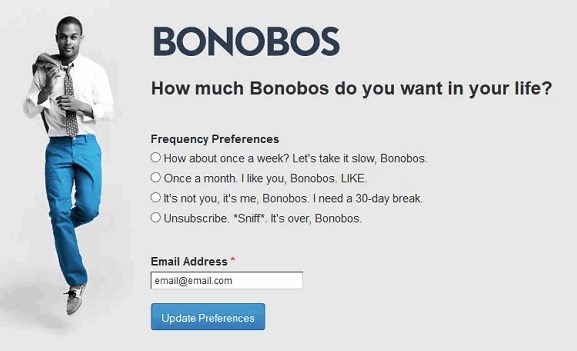
If it’s below that, the tool will round it off to 0%. The most important metric to consider here is how many recipients report your emails as suspected spam. You can minimize these reports by making it easy for users to unsubscribe. People usually report an email when they don’t want to hear from you.
Give them a clear choice by implementing the following best practices:
Here’s an example from Bonobos:
Lastly, make sure you don’t send unsolicited emails. This means getting explicit permission from users before sending them emails. If you’re sending people emails they didn’t sign up for, you’re essentially spamming them.
Note that cold emailing is just another name for spamming in technical terms.
Even with proper setup, many users struggle to interpret or rely on Postmaster Tools data. The platform is useful, but only when you understand what it can and cannot show.
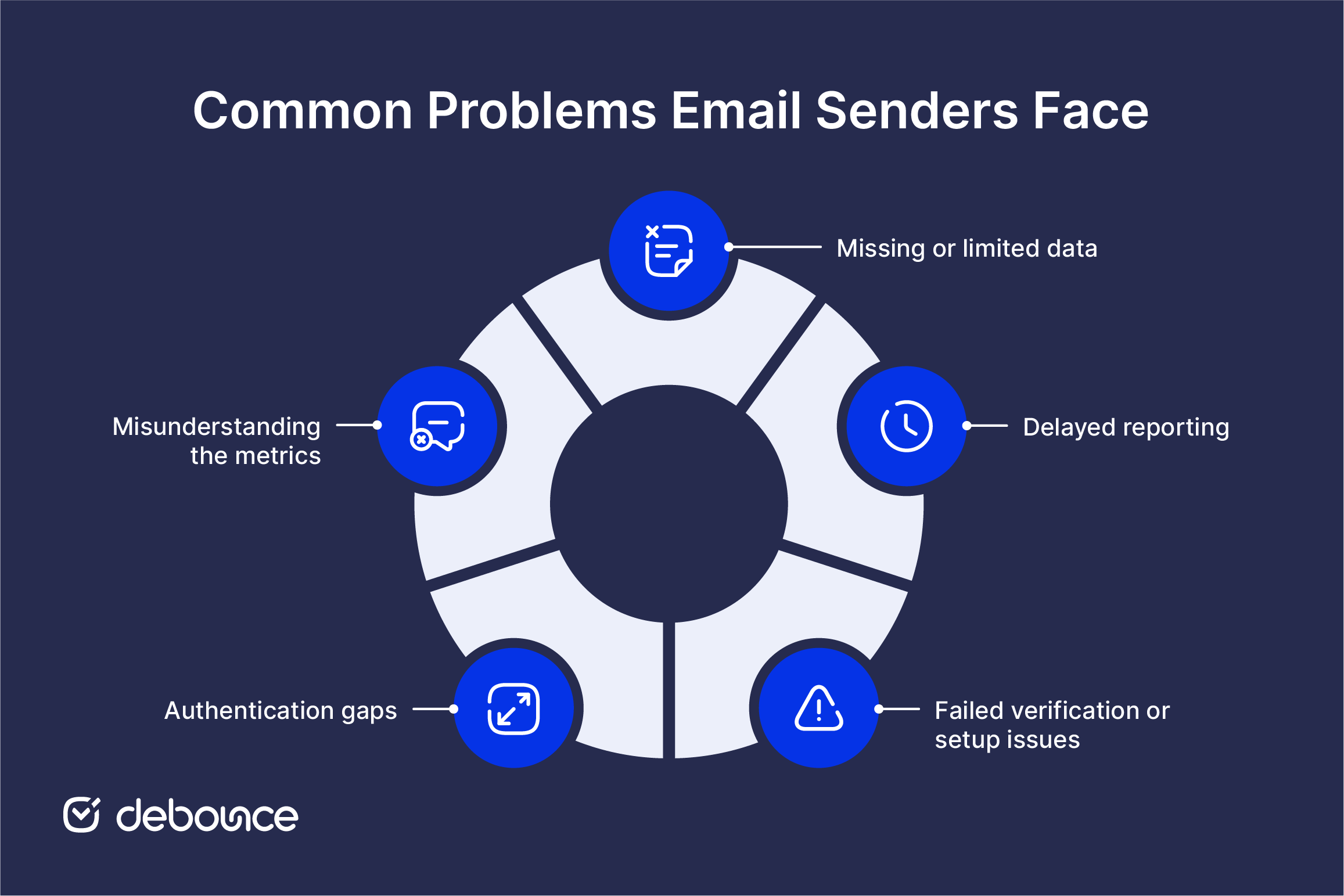
Missing or limited data
One of the first things users notice is how little data appears in the dashboard. This usually happens when the sending volume is too low or inconsistent, which prevents Google from generating reliable insights. As a result, the absence of data is often mistaken for good performance, when in reality it simply means there is not enough activity to measure.
Delayed reporting
Postmaster Tools does not provide real-time feedback. There is always a delay between when emails are sent and when data becomes visible in the dashboard. This lag can make it difficult to connect specific campaigns to performance changes, which complicates troubleshooting.
Failed verification or setup issues
If domain verification is incomplete or incorrectly configured, the platform will not function as expected. Even small errors in DNS records can prevent data from appearing or cause partial visibility across dashboards. In many cases, users assume the tool is not working, while the issue actually comes from an incomplete setup process.
Authentication gaps
Authentication directly determines what Postmaster Tools can report. If SPF, DKIM, or DMARC are missing or misconfigured, the platform may show failures without clearly explaining the root cause. These gaps also affect deliverability, meaning the problem goes beyond reporting and directly impacts whether emails are accepted.
Misunderstanding what the metrics represent
Postmaster Tools only reflects how Gmail handles your emails. It does not provide a complete view of performance across other providers, such as Outlook or Yahoo. When this difference is missed, people may reach conclusions that don’t reflect their actual campaign results.
Google Postmaster Tools is excellent for checking email deliverability issues if you send these emails to Gmail accounts. But the free tool doesn’t fix these issues for you, which is where DeBounce can lend you a hand. DeBounce helps you keep your email list clean and relevant by removing the inactive, temporary, toxic, and incorrect ones. All you need to do is upload your list, and DeBounce will take care of the rest, providing you with a clean email list. And there’s nothing better for email deliverability than a clean, relevant email list.
The cool thing is that DeBounce gives you free credits to test its features yourself. Try DeBounce for Free
Visit the official Google Postmaster Tools website and sign up with your Gmail account. Click on the big, red + icon at the bottom right of the screen and add the domain you want to manage with the tool. Verify the domain name by entering the TXT or CNAME records in its DNS settings.
Yes, Google Postmaster Tools is a free tool from Google that helps you track and optimize your email marketing campaigns. The tool gives you insights about your delivery errors, spam reports, feedback loops, and more.
The Google Postmaster Tools give you insights into email marketing campaigns designed for Gmail users. With it, you can monitor your IP and domain reputation, spam complaints, delivery errors, and more.
The Postmaster warning email informs you about the issues Google encountered while delivering your emails to the recipients. Receiving a warning email from the tool means your emails aren’t reaching your target audience successfully.
Google Postmaster Tools analyzes your campaigns and assigns a sender reputation category. These categories are high, medium, low, and bad. If you’re in the “High reputation” category, there’s nothing to worry about. “Medium reputation” is also acceptable.
Yes, Google Postmaster Tools gives you the information you need to fix any issues related to your deliverability. However, note that it won’t fix the issues; you must take care of that yourself.
Google Postmaster may take around 2 days (48 hours) to show any data after you connect your domain with it.
Find quick answers to your questions about our pricing and plans.

What is BIMI? BIMI is short for Brand Indicators for Message Identification, an email authentication standard designed to give brands a way to communicate their...

Mobile apps restrict bulk deletion; the fastest way to delete thousands of emails requires desktop browser access. Deleted emails go to a Trash...


Client-side JavaScript, whether HTML5 attributes, regex, or libraries, can only confirm email format. It cannot verify that a mailbox exists or that an...

GDPR classifies email addresses as personal data, which means every subscriber on your list falls under the regulation's requirements. Consent must be freely...

An email syntax error prevents an email from being sent or accepted because the address or message format doesn't follow the required rules....

A suppression list is a “do not send” database that prevents emails from being delivered to specific addresses. A suppression list plays a...
