Modern spam filters score emails across four signal categories: sender reputation, authentication results, content and design, and recipient engagement. Weak signals in multiple...

Key Takeaways
SMTP 550 is the most common permanent bounce code in email, but it’s also one of the most misdiagnosed. The same three digits can mean the recipient doesn’t exist, the sender failed authentication, the message tripped a spam filter, or several other things entirely. Since Gmail and Yahoo’s 2024 bulk sender rules took effect, the authentication-failure variants of the SMTP 550 error have become more common and more varied.
The fastest way to resolve a 550 error is to read the full message, not just the three-digit code. Under RFC 5321, a 5xx response means the failure is permanent under the current conditions. Retrying the same message without fixing the cause will usually produce the same result.
Subcodes follow RFC 3463’s Enhanced Status Code format (the X.X.X notation that appears after the main 550 in the bounce message). The first digit is always 5 for permanent failures, while the remaining digits identify the specific cause class. This table covers the six subcodes you are most likely to see:
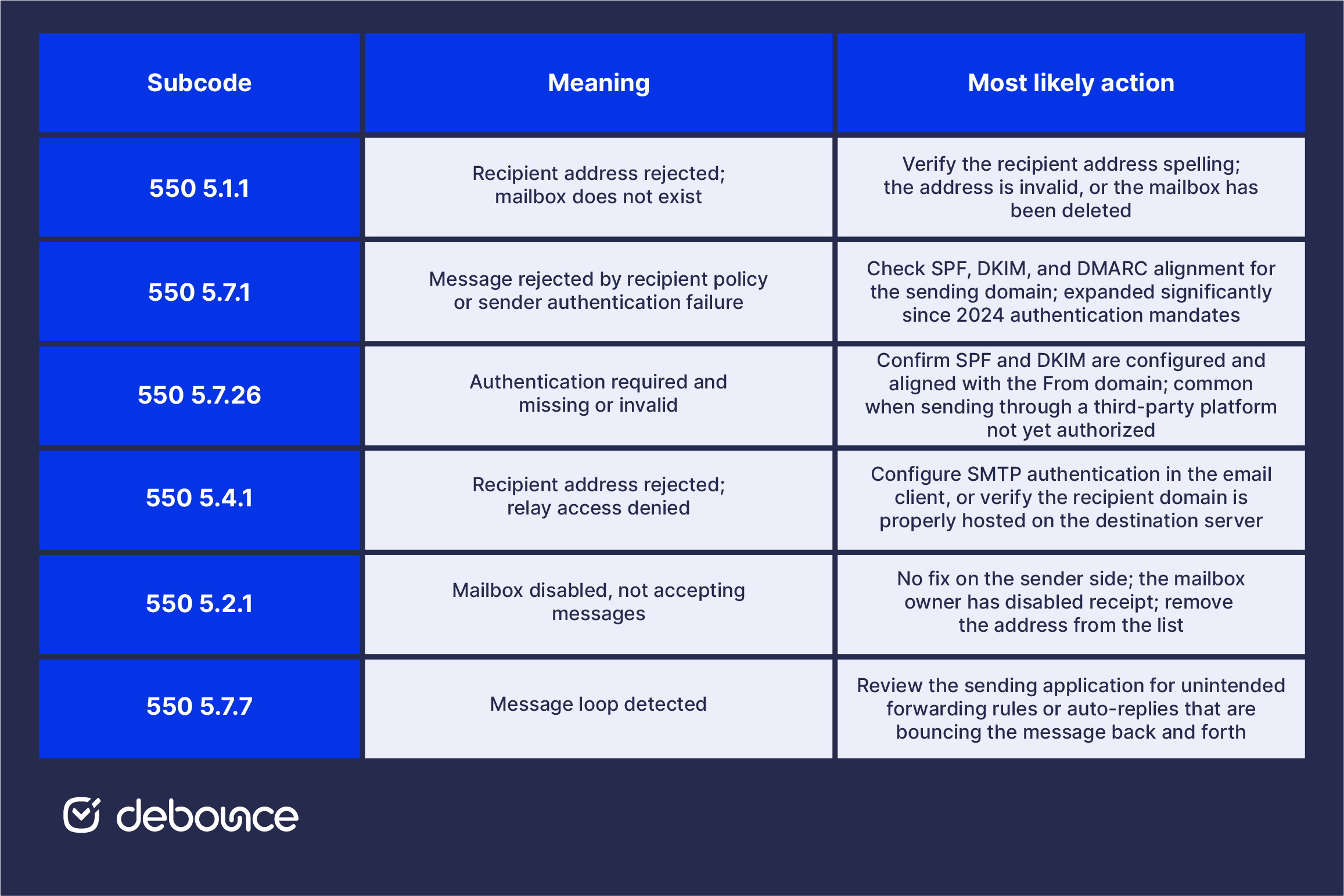
When a bounce notification arrives, open the full message before taking action. The subcode appears right after 550, followed by the receiving server’s explanation. Use those details to identify the cause and choose the first fix to try.
Each cause below maps to a specific subcode pattern and error message text. Identify the subcode first, then apply the corresponding fix.

Diagnose: The subcode is usually 5.1.1 or 5.1.0. The error message text often includes phrases like “user unknown,” “no such user,” “mailbox not found,” or “address rejected.” This is a recipient-side problem, meaning the mailbox either never existed or has been deleted.
Fix: Confirm the recipient address spelling, both the local part before the @ and the domain part after it. Common causes are transposed characters (jmith instead of jsmith), wrong domain extensions (.co instead of .com), and stale addresses for contacts who have changed jobs or email providers.
Prevent: Validate every recipient address before it enters the sending stream. Email List Validation catches invalid addresses at the point of capture and flags addresses that have gone inactive since they were collected, which prevents the majority of 5.1.1 bounces before they happen.
Diagnose: The subcode is usually 5.7.1 or 5.7.26. The error message often references “authentication,” “DMARC policy,” “SPF,” “DKIM,” or includes phrases like “unauthenticated email is not accepted” or “does not meet sender requirements.”
Fix: Verify that SPF, DKIM, and DMARC are configured correctly for the sending domain and aligned with the From header domain. For SPF, confirm the sending IP or service is authorized in the DNS record. For DKIM, confirm the signature is present and passing. For DMARC, confirm the policy is published and at least one of SPF or DKIM is aligned.
Common scenario: Sending through a third-party platform, like SendGrid, Mailgun, a marketing tool, or a helpdesk, without adding that platform to the domain’s SPF record or enabling DKIM signing for the custom domain. The platform sends successfully from its own infrastructure, but the receiving server rejects the message because the From domain isn’t authorized to use that sending IP.
Diagnose: The error message references “blacklisted,” “blocked,” “poor reputation,” “listed on,” or names a specific blocklist (Spamhaus, Barracuda, SORBS, UCE-Protect). Some receiving servers suppress the blocklist name and return only a generic rejection. In that case, an MXToolbox blacklist check reveals the specific listing.
Fix: Check the sending IP and domain against major blacklists using MXToolbox’s blacklist checker. If listed, follow each blocklist’s delisting process: most require demonstrating that the root cause has been resolved before removal is granted. Processing time varies from hours to several days depending on the blocklist.
Root cause investigation: Blacklist listings don’t happen randomly. Common causes include repeated sending to invalid addresses that generate hard bounces, high complaint rates from unsolicited email, or a compromised mailbox or server sending spam. Understanding email sender reputation signals helps identify which behavior triggered the listing so it can be corrected before requesting delisting.
Diagnose: The error message references “high spam score,” “content rejected,” “suspected spam,” “message filtered,” or names a specific filtering system (SpamAssassin, Postini, Barracuda). The receiving server accepted the connection but rejected the specific message after inspecting its content.
Fix: Review the message content for patterns that content filters flag heavily, such as promotional language stacked with urgency phrases, all-caps subject lines, suspicious attachments (.exe, .zip from unknown senders), display names that don’t match the From address, or URL shorteners pointing to untrusted destinations. Removing or rewording the triggering content usually resolves a 5.7.x content rejection.
Prevent: Test campaigns with a spam scoring tool before sending. Authentication helps reduce trust-related filtering issues, while clean lists lower the complaint risk that can make mailbox providers judge your content more harshly.
Diagnose: The subcode is usually 5.4.1 or 5.7.1, with error text saying “relay denied,” “relaying disallowed,” “not permitted to relay,” or “authentication required for relay.” This error comes from the outgoing SMTP server, not the recipient’s server (the sending client isn’t authorized to use the relay).
Fix: Enable SMTP authentication in the email client. In Outlook: Account Settings → More Settings → Outgoing Server → check “My outgoing server (SMTP) requires authentication.” In Gmail SMTP: confirm the sending account has an app password configured if two-factor authentication is enabled.
Common scenario: Attempting to send through an SMTP server that doesn’t accept relay from the current IP, or reconfiguring an email client after a password change without updating the SMTP credentials. The fix is either using the correct SMTP server for the sending domain or providing valid authentication credentials for the one currently configured.
Diagnose: The subcode is usually 5.2.1 or 5.2.2, with error text saying “mailbox full,” “quota exceeded,” “over storage quota,” “disabled,” or “not accepting messages.” The mailbox exists but can’t receive new mail.
Fix: No action is available on the sender side for quota or disabled mailbox errors. The recipient must free storage space or re-enable the account before delivery is possible.
Best practice: If the same recipient returns 5.2.x errors repeatedly over multiple sending attempts and several days, remove the address from the active list. A persistently full or disabled mailbox is effectively unreachable, and continuing to send to it damages bounce rate metrics without any possibility of delivery.
Prevention is more efficient than remediation for every 550 category. Most recurring 550 errors trace back to one of four practices being weak or absent.

SMTP 550 errors are diagnostic data. Each subcode and its accompanying error message identifies the cause precisely enough to resolve it if you read it fully rather than stopping at the three digits.
The five most common causes are all preventable with the right upstream practices: invalid recipients are caught by list validation before sending; authentication failures are prevented by maintaining SPF, DKIM, and DMARC across every sending domain; blacklisting is kept at bay by monitoring reputation and keeping bounce rates low; content rejections are avoided by clean copy and authenticated domains; and relay blocks are resolved by correct SMTP credentials.
Authentication failures, especially 5.7.1 and 5.7.26 responses, have become more visible since the 2024 sender requirements took effect. If you’re seeing a surge in 550 errors from Gmail or Yahoo and haven’t audited your authentication setup recently, that’s the first place to look.
To address the most common upstream cause alongside authentication, upload your list to DeBounce before the next campaign. Remove the invalid addresses responsible for 5.1.1 bounces and flag the risky addresses that contribute to the reputation signals behind blacklist-triggered rejections.
SMTP 550 is a permanent rejection code returned by a receiving mail server when it refuses to accept a message. The 5xx class indicates a permanent failure, as retrying without fixing the underlying cause produces the same error.
4xx errors are temporary failures where the message will retry automatically and may succeed later. 5xx errors are permanent failures: the server is telling the sender the message will never be accepted under current conditions, and the cause must be fixed before re-sending.
Open the full bounce notification email. The subcode (such as 5.7.1 or 5.1.1) appears immediately after the 550 in the error text, followed by a human-readable description from the receiving server that identifies the specific cause.
No, not without first fixing the underlying cause. Per RFC 5321, every 5xx code is a permanent failure. Retrying without changes produces the same rejection because the condition that caused it hasn’t changed.
This happens with relay-access errors (5.4.1) or authentication-required errors (5.7.1) on the outgoing side. The sending server is refusing to relay the message because the client isn’t authenticated or isn’t authorized to use that relay, so the rejection happens before the message reaches the recipient’s server. Fix by enabling SMTP authentication in the email client or verifying the credentials match the account on the outgoing server.
Find quick answers to your questions about our pricing and plans.
Modern spam filters score emails across four signal categories: sender reputation, authentication results, content and design, and recipient engagement. Weak signals in multiple...

Catch-all (accept-all) domains accept mail for any local part at the SMTP level, so a standard check often cannot prove a mailbox is...

Links in the email are like fire. What do I mean? They are beneficial if used correctly. Yet, they can cause severe damage if you...


HTML5 is the latest markup language for presenting and structuring content on the internet. HTML stands for Hyper Text Markup Language. It is the standard...

Disposable email addresses inflate bounce rates, damage sender reputation, and pollute analytics, and they've moved from a niche spammer tool to a mainstream...

You can create a Gmail filter from the search bar or from Settings, and both let you combine several actions in one rule....