Domain reputation covers email deliverability, web security, and platform trust, not just sender reputation. Establishing good domain reputation takes months of consistent behavior;...

Key Takeaways
You’re waiting on an important email that never shows up. You check your inbox, refresh the page, and still nothing. Meanwhile, the sender insists they sent it hours ago.
Gmail not receiving certain emails is a more common problem than most people realize, and it’s rarely a sign that something is seriously wrong. In most cases, the email was delivered somewhere; it’s just not where you expected it. Gmail’s filtering system, your account settings, or a storage issue has quietly redirected or blocked it.
This guide walks through every likely cause, with specific steps to check and fix each one, so you can track down missing emails and prevent the problem from happening again.
Missing emails usually happen for one of five reasons: Gmail’s spam or category filtering, blocked senders or custom filters, a full storage limit, forwarding or IMAP/POP settings, or a temporary Gmail issue. In many cases, the message is still in your account, but it’s just not showing up in the Primary inbox.
Go through each of these possibilities one by one. Once you identify the cause, the fix is usually quick and straightforward.
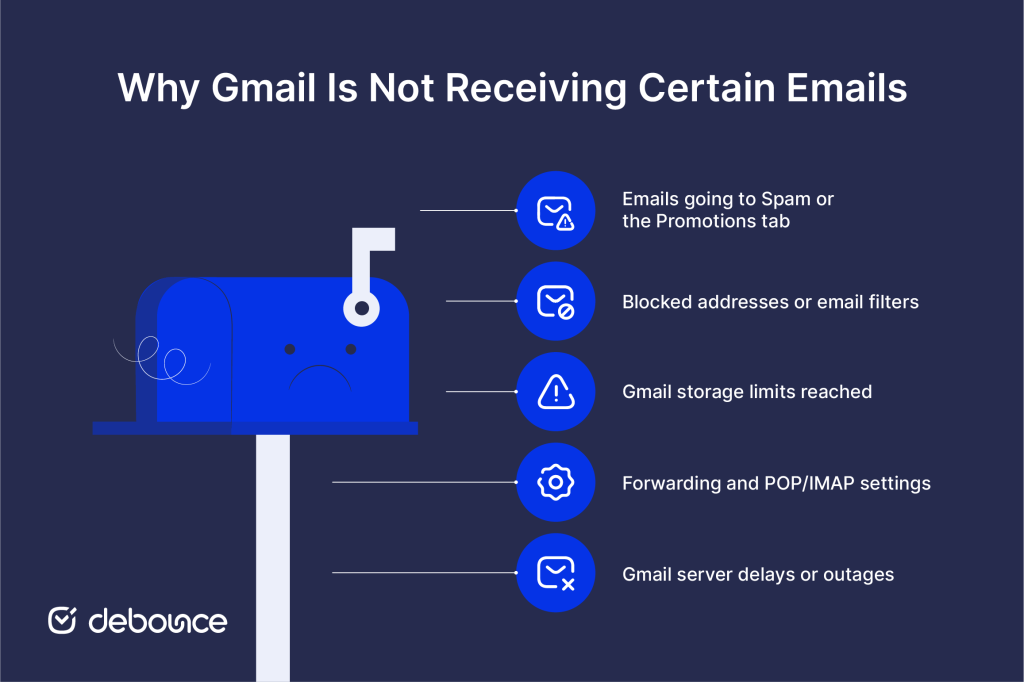
Gmail uses an algorithm to sort incoming mail into categories: Primary, Social, Promotions, Updates, and Spam. This sorting happens automatically based on signals like the sender’s domain reputation, message content, engagement history, and authentication records (SPF, DKIM, DMARC).
The result is that a legitimate email, like a transactional confirmation or a message from a first-time sender, can land somewhere other than your Primary inbox without Gmail doing anything technically wrong. From Gmail’s perspective, it’s categorizing correctly. From yours, the email is missing.
What to check:
How to fix it:
Sender reputation can influence where emails are delivered. If the person emailing you uses a low-reputation domain, has poor email verification practices, or sends from unverified addresses, Gmail may treat their messages as suspicious, even if you know or trust the sender.
Gmail allows users to block specific senders and create custom filter rules that automatically process incoming mail. Both can cause emails to disappear from your inbox without any obvious indication.
Blocked senders are addresses you’ve previously blocked, either deliberately or accidentally, by clicking “Block [sender]” when intending to click something nearby. Emails from blocked addresses go directly to Spam.
Custom filters are rules you’ve set up (or that may have been set up without you fully realizing the consequences) that tell Gmail to automatically archive, delete, label, or skip the inbox for messages matching certain criteria. A filter you created to organize mail from one sender might be catching emails from related domains too broadly.
What to check:
How to fix it:
Review your Gmail filters periodically, especially if you have used the account for years and may have forgotten about older rules.
Every Google account includes 15 GB of free storage, shared across Gmail, Google Drive, and Google Photos. When that limit is reached, Gmail stops accepting new incoming messages. Instead of storing them, Gmail sends them back to the sender with a delivery failure notice. This means the emails are lost unless the sender sends them again after you free up space.
This is one of the less obvious causes of missing emails because your inbox may look normal. You might still have plenty of visible emails, while storage is actually filled by attachments, Drive files, and Photos without you noticing.
How to check your storage:
How to fix it:
For regular inbox maintenance, deleting all emails from your inbox in bulk and knowing how to clean up your email inbox efficiently can prevent storage issues before they start causing delivery problems.
If you’ve configured Gmail to forward emails to another account, or if you’ve set up POP or IMAP access for a desktop or mobile email client, your emails may be landing somewhere other than your Gmail inbox, and that’s why they seem to be missing.
What to check:
How to fix it:
Bounced emails and forwarding errors can look very similar from the recipient’s point of view. Because of that, it’s worth checking forwarding settings first before assuming there’s a delivery issue on the sender’s side. Reviewing return path email settings can also help trace where a misrouted message may have actually gone.
Occasionally, the issue isn’t on your end at all. Gmail experiences service disruptions from time to time, including delivery delays, sync issues, or broader outages that affect some users or regions. During these periods, emails may arrive late, appear out of order, or temporarily seem missing.
Gmail also applies greylisting in some cases, which temporarily defers delivery from unknown or suspicious sending servers. The sending server is expected to retry, and delivery usually completes within a few minutes to a few hours. This is normal behavior and not a sign of a permanent problem.
How to tell if it’s a Gmail issue:
What to do:
Senders whose emails consistently get delayed or filtered by Gmail may be experiencing problems with their sending infrastructure: authentication misconfiguration, poor sender reputation, or email spoofing flags that make their messages look suspicious to Gmail’s filters. Proper email encryption and authentication setup on the sender’s side also affects how reliably their messages are delivered.
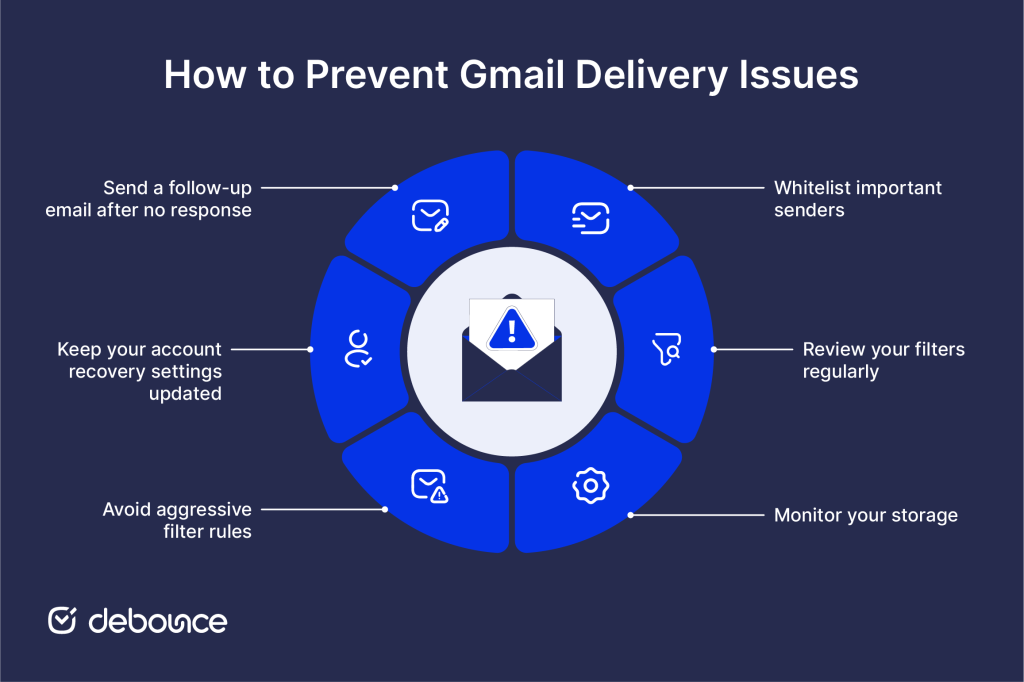
Once you’ve resolved the immediate problem, a few proactive habits will significantly reduce the chance of missing important emails going forward.
This article focuses on the recipient’s perspective, but if you’re a marketer or business sender finding that your emails aren’t reaching Gmail inboxes, the root cause is usually your sending infrastructure or list quality, not something the recipient can fix on their end.
Gmail’s filtering is heavily influenced by sender reputation, authentication (SPF, DKIM, DMARC), and whether your list contains invalid or inactive addresses. Sending to addresses that no longer exist, have bounced emails repeatedly, or were never valid to begin with tells Gmail that your sending practices are poor, and your deliverability suffers across your entire list as a result.
DeBounce helps you address this at the source. By removing invalid, disposable, and high-risk addresses from your list before you send, you reduce bounces, improve your sender reputation, and give your emails a much better chance of reaching the inbox rather than the Spam folder.
When Gmail isn’t receiving certain emails, the answer is almost always in one of five places: your Spam folder, your filter settings, your storage usage, your forwarding or sync configuration, or a temporary Gmail service issue. Work through each one systematically, and you’ll find the problem.
Start with the simplest check: search your entire Gmail account for the missing sender’s address. That single step will tell you whether the email was delivered somewhere, or whether it never arrived at all. From there, the sections in this guide will point you to the right fix.
And if you’re a sender trying to improve your own email deliverability, verify your list with DeBounce to make sure the problem isn’t starting on your end before it ever reaches Gmail’s filters.
Yes. Emails can be silently redirected to Spam, filtered into a label, or blocked entirely based on your settings or Gmail’s algorithm, with no notification to you or the sender in most cases.
Gmail’s servers typically attempt redelivery for up to 72 hours before sending a bounce notification back to the sender. After that, the email is rejected, and the sender receives a delivery failure message.
Gmail doesn’t delete inbox emails automatically, but it does permanently delete emails in Trash after 30 days and clears Spam emails after 30 days as well. Emails in your inbox or labels are kept indefinitely unless you delete them manually.
Find quick answers to your questions about our pricing and plans.

Domain reputation covers email deliverability, web security, and platform trust, not just sender reputation. Establishing good domain reputation takes months of consistent behavior;...

This post is about the 10-point framework of a perfect welcome email to delight your new subscribers. You know the feeling of getting a brand...
When it comes to Online Marketing, Newsletters make a very important part of it. Today I Aabhas Vijay from smtpservers.co will cover all about newsletters...


What is the tool all top businesses use to boost their sales and pave their way to a roaring success? Email Marketing! Yes, and the...

Imagine sending an important email to a client only for it to end up in their spam folder or not reach them at all. Even...


Email systems rely on three core protocols: SMTP, IMAP, and POP3. SMTP sends messages between servers, while IMAP and POP3 retrieve emails from...