
True email personalization uses behavioral, demographic, and real-time data to make every message feel relevant. Personalization only works when the underlying data is...

Key Takeaways
You’ve built a list of 200,000 contacts and scheduled a campaign to go out at 9 a.m. Without any rate limits in place, your system sends every message within minutes. Not long after, Gmail begins deferring your emails, Yahoo starts rejecting them, and your domain’s reputation takes a hit that can take weeks to recover from.
This is exactly the kind of situation email throttling is meant to prevent. You can think of it as the speed limit for your sending infrastructure: a way to control how quickly emails leave your system so inbox providers see a steady, trustworthy sending pattern (instead of a sudden spike that resembles spam).
This guide explains what email throttling is, how to configure it across different types of email infrastructure, and how to monitor and adjust your settings over time so your campaigns continue reaching the inbox as your list grows.
Email throttling is the practice of regulating how many emails you send to recipients within a specific period, such as per second, per hour, or per day, to keep delivery rates consistent and avoid triggering spam filters or overloading receiving mail servers.
When you send emails faster than an inbox provider’s infrastructure expects from a given sender, those providers respond defensively. They may defer messages temporarily (returning 4xx codes that ask your server to retry later), reject them outright (returning 5xx codes), or silently route them to spam. None of these outcomes are visible to the recipient, which means you can be losing significant deliverability without knowing it.
The business consequences are real. Missed promotional emails mean missed conversions. Deferred transactional emails, such as order confirmations, password resets, or shipping notices, weaken customer trust. And a damaged email sender reputation compounds over time, making it harder to reach the inbox even after you’ve fixed the underlying problem.
Mailbox providers apply their own throttling rules based on factors including your sending history, complaint rates, and domain age. The goal of setting up your own throttling is to stay comfortably within those limits, and to build the kind of consistent sending pattern that earns you more headroom over time.
Before configuring your own throttling, it helps to understand the baseline limits set by major inbox providers. These aren’t always published precisely, but well-established benchmarks give you a practical starting point.
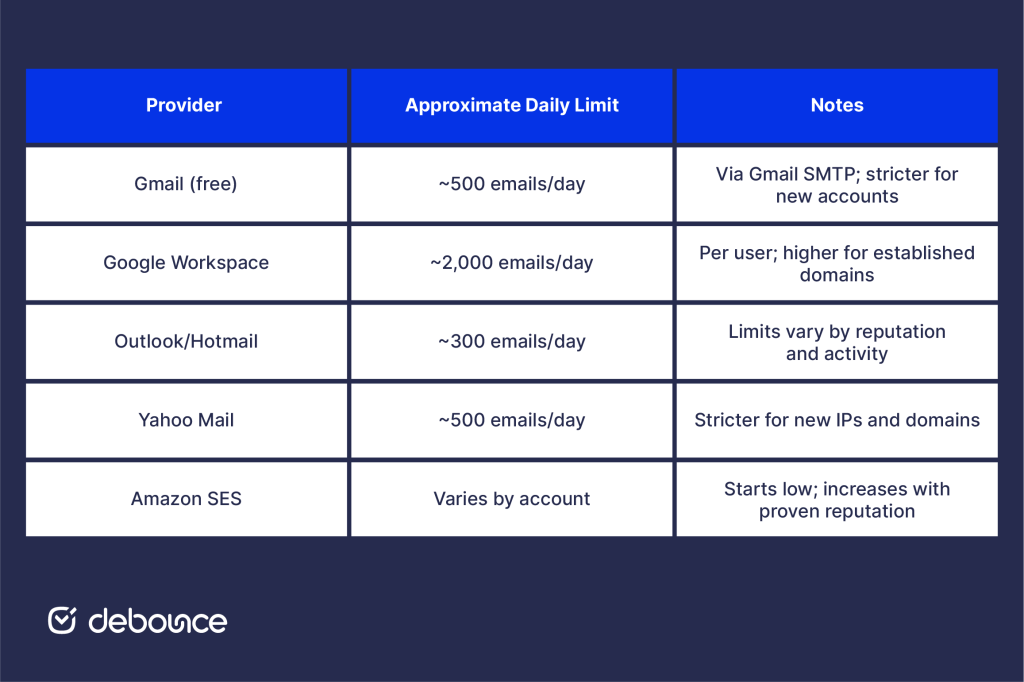
These limits aren’t fixed; they adjust based on your sending history and reputation. A domain that has been sending clean, engaged-upon email for two years will typically receive more favorable treatment than one that started sending last month. Newer senders should start well below these limits and increase gradually.
Email spam statistics show that inbox providers handle billions of messages daily and apply increasingly sophisticated filtering to distinguish legitimate bulk senders from bad actors. Throttling is one of the clearest signals that you’re operating responsibly.
The right throttling configuration depends on your sending infrastructure. Here’s how to approach setup across the three most common environments.
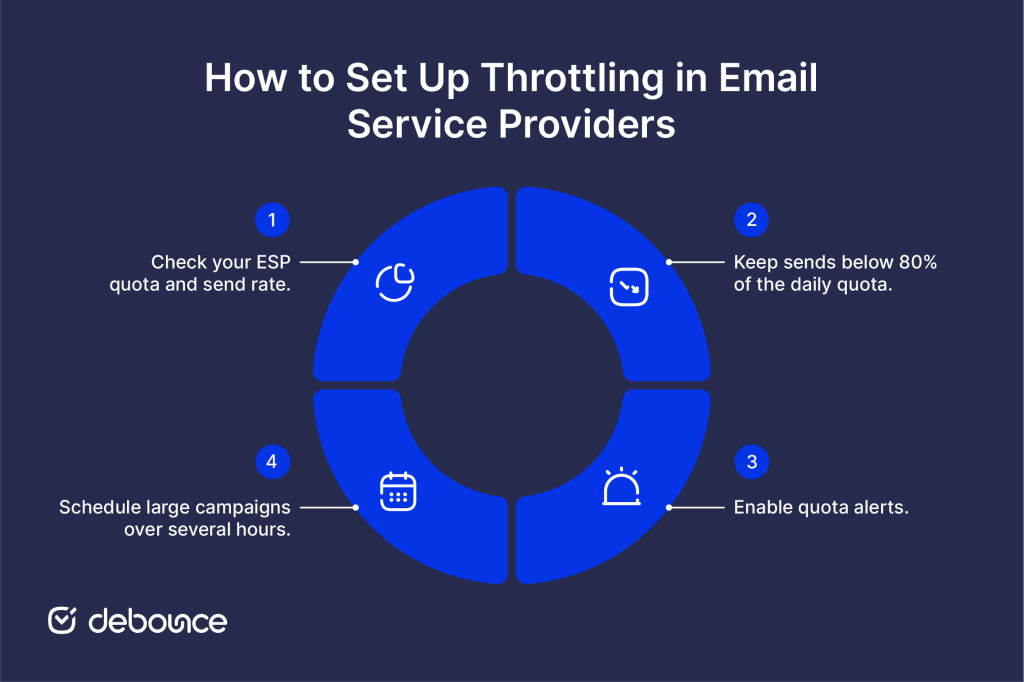
Cloud-based ESPs (services like Amazon SES, SendGrid, Mailgun, and Postmark) manage sending infrastructure for you, but they give you controls to pace your outbound volume.
The two key settings to understand are:
Practical steps:
If you’re running a self-hosted mail server, using Postfix, Exim, or a similar Mail Transfer Agent (MTA), you have direct control over throttling parameters. This gives you more precision, but also more responsibility.
For Postfix, the most relevant throttling variables are:
Basic Postfix throttling configuration example:
smtp_destination_concurrency_limit = 2
smtp_destination_rate_delay = 1s
smtp_extra_recipient_limit = 10
These values are conservative starting points for a new or warming IP. Adjust upward gradually as your reputation improves and delivery rates confirm the receiving servers are accepting your mail comfortably.
For Exim, similar controls exist under smtp_ratelimit and per-domain transport rate settings. Consult your MTA’s documentation for exact syntax, as it varies between versions.
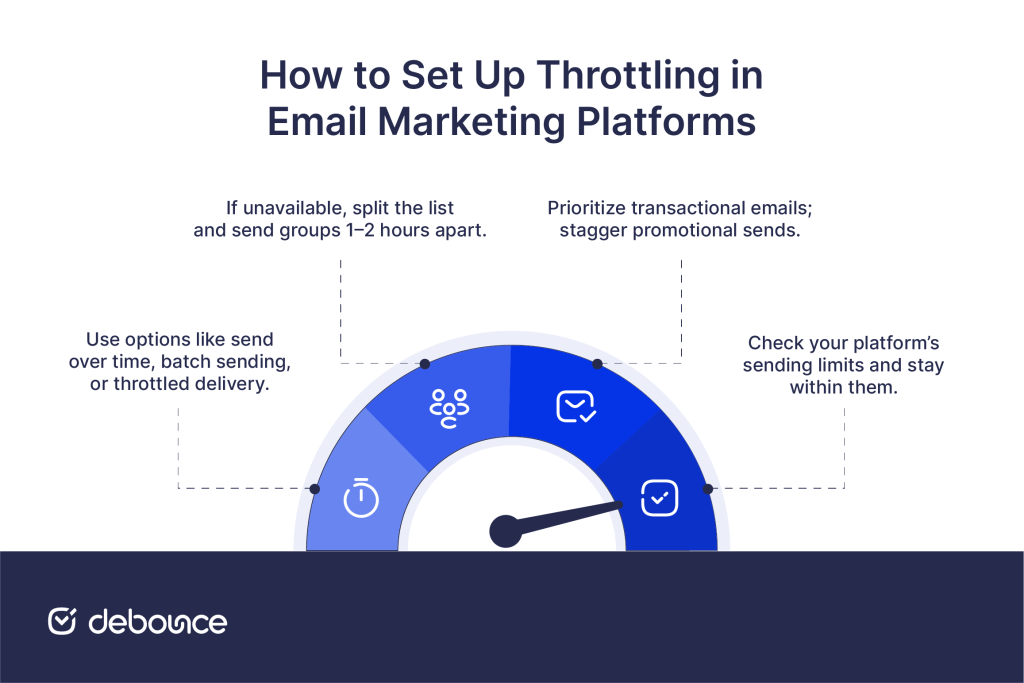
If you use a marketing platform like Mailchimp, Klaviyo, ActiveCampaign, or Brevo, throttling is typically managed through campaign scheduling and batching features rather than server-level configuration.
Batching means sending a campaign in smaller groups over a set period of time instead of delivering all emails at once. For example, a list of 100,000 contacts could be sent gradually over eight hours rather than in a single send. Most email platforms include this option in their campaign settings, often called “send time optimization” or “staggered delivery.”
Practical steps:
Setting the technical limits is only the first step. These practices help throttling perform reliably over time.
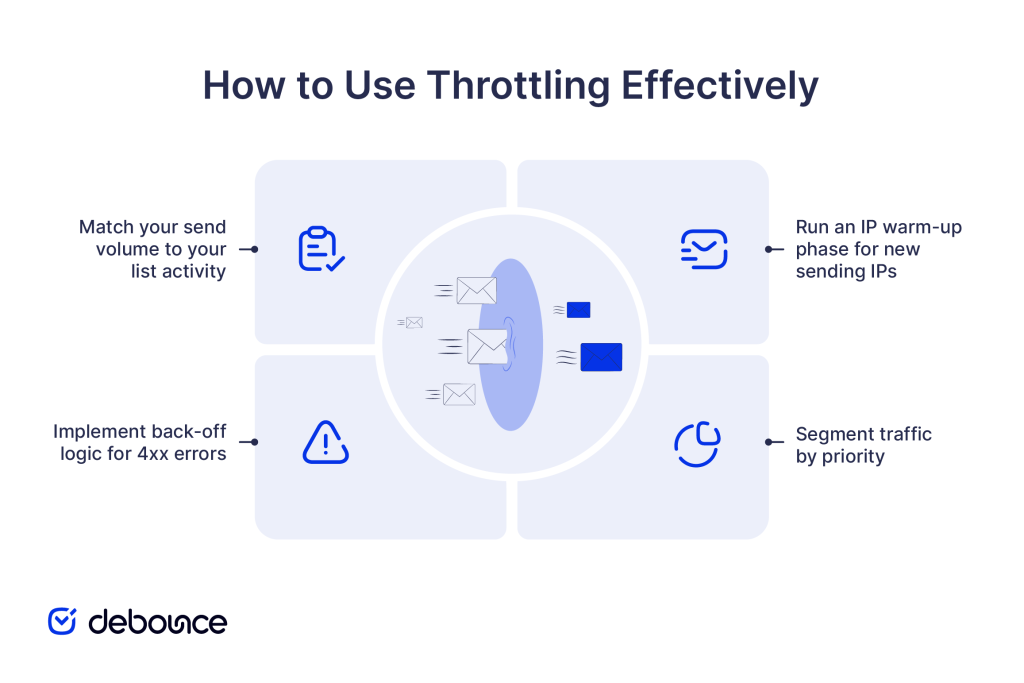
Start by sending to your most engaged subscribers (people who have opened or clicked within the past 30 days) at low volume, around 500 to 1,000 emails per day during the first week. Increase the volume by about 50% each week as positive engagement signals build. Moving directly to full volume on a new IP often leads to spam filtering.
Transactional emails (receipts, alerts, and account emails) should always send ahead of promotional campaigns. Mixing them on the same IP and sending queue means a large campaign can delay time-sensitive transactional mail. Use separate IPs or subdomains for transactional and promotional traffic where possible.
When a receiving server returns a 4xx (temporary failure) code, it’s telling you to slow down or retry later, not to keep pushing. Configure your sending system to automatically reduce the send rate and increase retry intervals when it encounters repeated 4xx responses from a given provider. Ignoring these signals and continuing at full speed is how temporary throttling becomes permanent blocking.
A clean email list of 50,000 engaged contacts will usually outperform a poorly maintained list of 200,000. When inactive or invalid addresses are removed, the total send volume drops, and bounce and complaint rates decrease. That allows throttling limits to be set more aggressively without increasing delivery risk.
Setting up throttling without monitoring it is like driving with no dashboard. You need to track specific metrics to know whether your configuration is working and when to adjust it.
Key metrics to track:
Start monitoring with your ESP’s built-in reporting dashboard. Most major email platforms provide campaign-level data on delivery, bounce rates, and spam complaints, which serves as the first layer of visibility into how your messages are performing. If you operate a self-hosted mail server, SMTP-level monitoring tools can help visualize delivery attempts, deferrals, and other sending patterns over time, making it easier to spot unusual behavior.
Additional insight can come from Google Postmaster Tools, a free resource that provides domain-level reputation data and spam rate visibility for messages sent to Gmail. Because Gmail represents a large portion of many email audiences, this tool is one of the most useful ways to monitor reputation signals. It is also important to configure threshold alerts. For example, if bounce or complaint rates exceed your defined thresholds, your system should trigger an automatic notification so the issue can be investigated before the next campaign is sent.
When to adjust your throttling settings:
As your list grows, your sending reputation evolves, and inbox provider algorithms change, so your throttling settings should adjust accordingly.
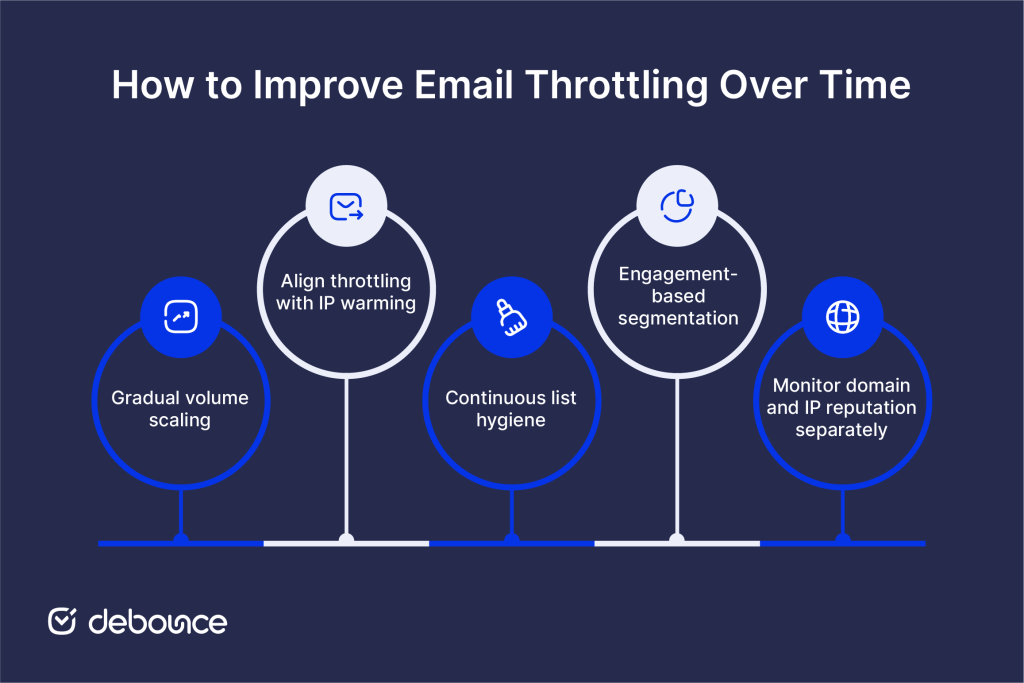
Throttling works best as a proactive strategy, not a last-minute fix. Senders with strong, long-term deliverability don’t wait until deferral rates spike before setting limits. They establish appropriate rate controls from the start and adjust them as their sending programs grow.
Review your throttling settings every time your list size increases significantly, when you change ESPs or add sending IPs, and after any campaign that produces unusual bounce or complaint rates. Treating throttling as part of a regular sending hygiene helps keep delivery stable as you scale.Clean list data is the foundation that makes this possible. Before your next campaign, run your contacts through DeBounce’s Email List Validation to remove invalid, disposable, and high-risk addresses. Fewer bad addresses means fewer bounces, fewer complaints, and a sender reputation that supports your throttling setup.
No. Email throttling is a legitimate, widely recommended deliverability practice. It’s the sender applying their own rate limits to stay within inbox providers’ acceptable ranges. The term is sometimes confused with ISP-level throttling of internet traffic, which is a separate topic.
Yahoo throttles senders whose volume, bounce rate, or complaint rate exceeds their thresholds. The most effective fixes are reducing your send rate to Yahoo domains, improving list quality by removing invalid addresses, ensuring your SPF and DKIM records are correctly configured, and building a consistent sending history over time. Sudden volume spikes are the most common trigger.
Amazon SES, SendGrid, Mailgun, and Postmark all expose rate-limiting controls through their APIs, allowing you to set messages-per-second limits programmatically. Most enterprise-grade ESPs offer similar controls; check your provider’s API documentation for the specific parameters available on your plan.
Find quick answers to your questions about our pricing and plans.

True email personalization uses behavioral, demographic, and real-time data to make every message feel relevant. Personalization only works when the underlying data is...

Track hard and soft bounces separately. Hard bounces are permanent failures and the metric that most damages sender reputation. For permission-based campaigns, aim...

HTML5 is the latest markup language for presenting and structuring content on the internet. HTML stands for Hyper Text Markup Language. It is the standard...


Once you have created something that people can sign-up for, a freebie for instance, you need to reach out to them in order to get...

A dedicated IP starts with zero sender reputation. Without a 30–60-day warm-up beginning at low volume, deliverability gets worse before it gets better....

Email needs no introduction since, for ages, it has served as one of the main communication channels for individuals and organizations worldwide, facilitating everything from...
